
Apple Releases iOS 26.4 with AI Music Playlists, CarPlay AI Assistants, and More
iOS 26.4 is Apple's biggest spring update in years — AI playlists in Apple Music, a revamped Podcasts video experience, CarPlay AI assistants, Stolen Device Protection on by default, and much more across iPhone, iPad, Mac, Apple Watch, Apple TV, and Vision Pro.

Apple has released iOS 26.4, iPadOS 26.4, macOS Tahoe 26.4, watchOS 26.4, tvOS 26.4, and visionOS 26.4. It's a very broad spring update that packs in more new features than any point release since iOS 26.2. The headliners are a sweeping overhaul of Apple Music, a revamped video experience in Apple Podcasts, and the first time AI assistants like ChatGPT, Gemini, and Claude have landed inside CarPlay. But there's plenty more across every platform.
Apple Music alone picks up five distinct improvements, ranging from AI-generated playlists you build with a text prompt to concert discovery and full-screen album artwork. Meanwhile, a long-awaited security change arrives quietly: Stolen Device Protection is now turned on by default for every iPhone, no digging through Settings required. And on the Mac side, macOS Tahoe 26.4 brings a battery charge limit feature and the return of Safari's compact tab bar, along with the first formal warnings that Rosetta 2's days are numbered.
Here's everything new across all of Apple's platforms in iOS 26.4 and more.
iOS 26.4
Playlist Playground: AI-Generated Playlists in Apple Music
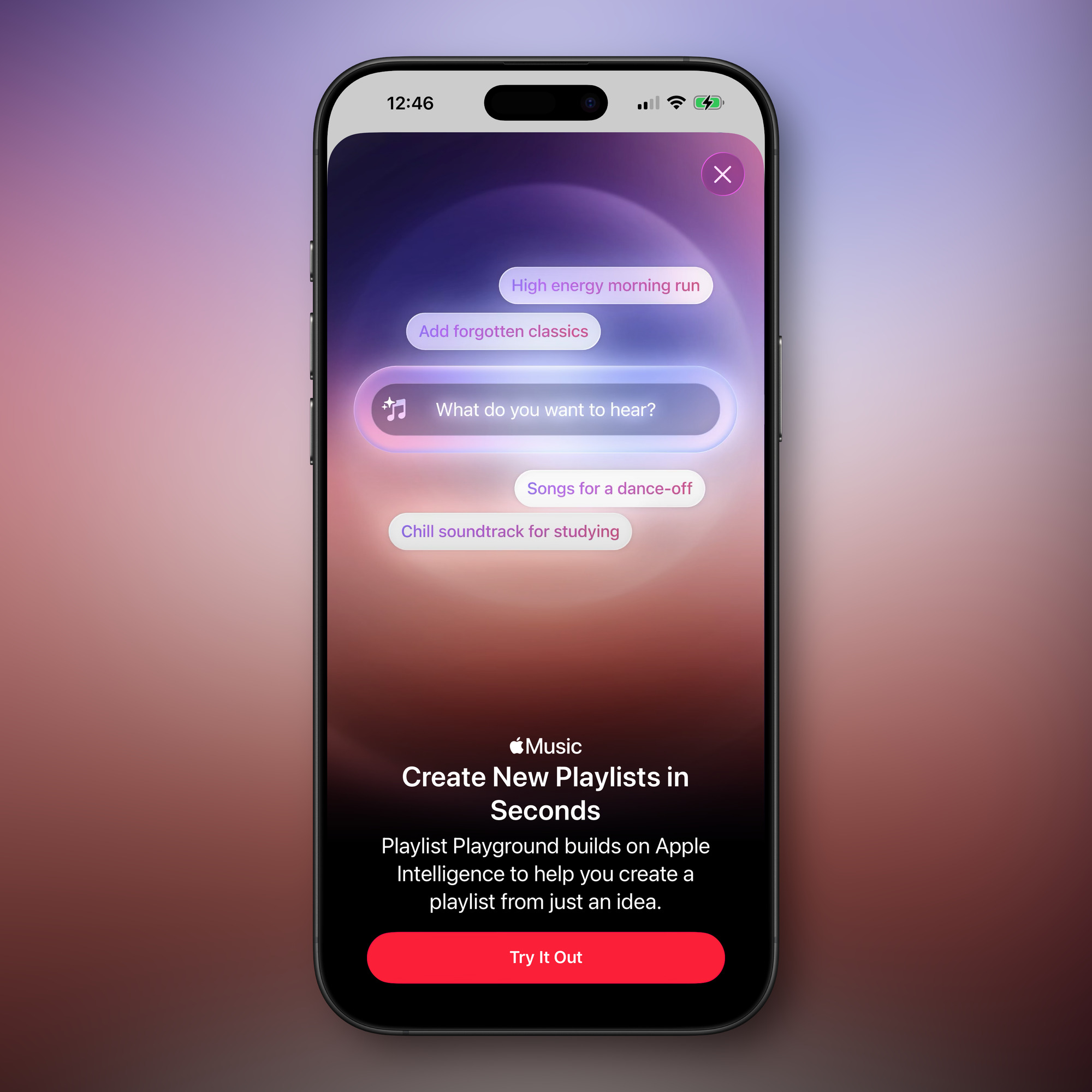
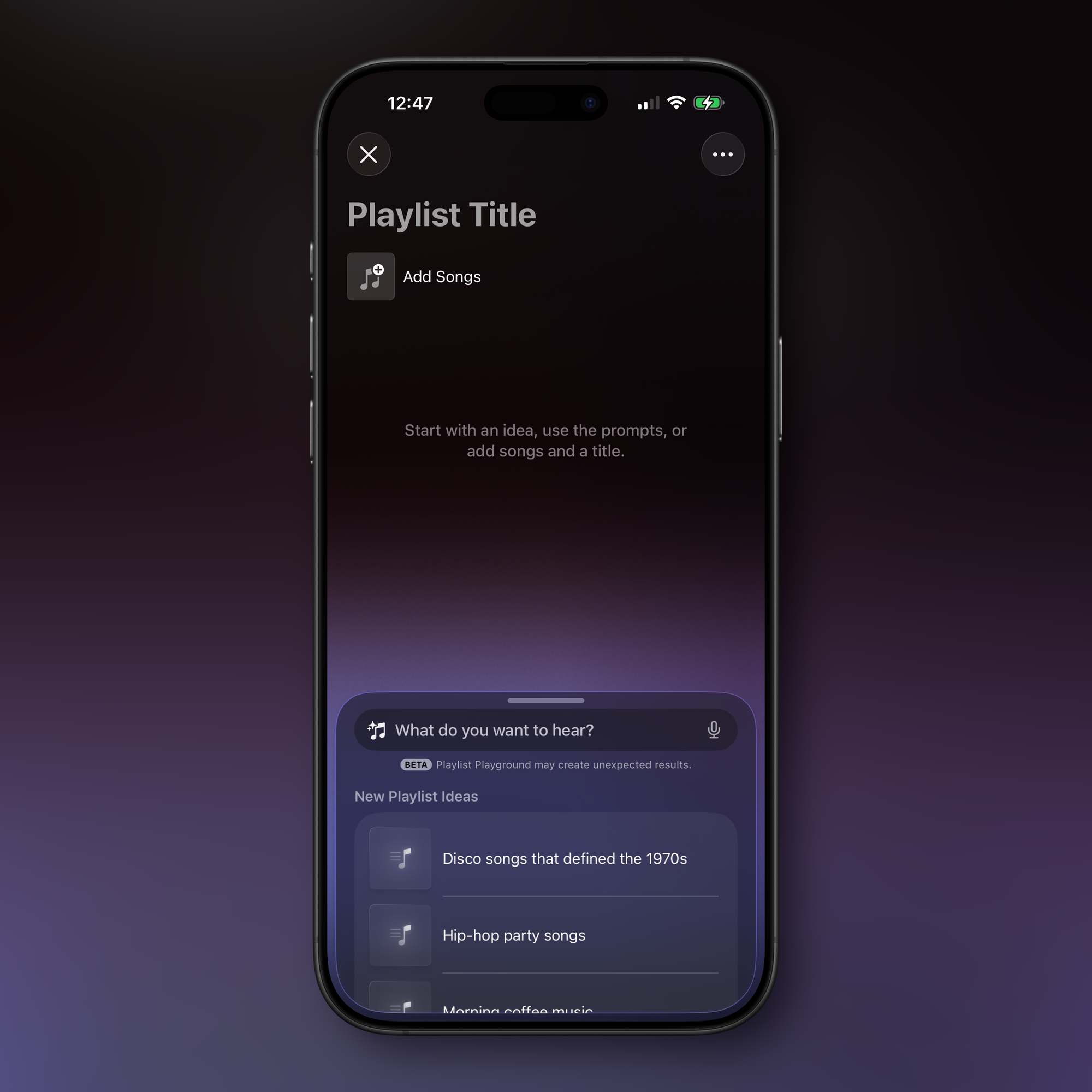
The standout new feature in Apple Music is Playlist Playground, an Apple Intelligence-powered tool that creates a complete playlist from a plain-text description. Type something like "sad songs from the 1990s for a rainy afternoon" or "high energy workout music with heavy bass" and Apple Music generates a ready-to-play playlist of 25 songs tailored to that prompt. You can then refine the result with follow-up prompts without starting the process over. It works more like a conversation than a one-shot generator.
Playlist Playground requires an Apple Intelligence-compatible iPhone (iPhone 15 Pro or iPhone 16 and later). The feature is accessible directly inside the Apple Music app. It's a direct answer to Spotify's AI playlist tools, and while it's still improving, early testing shows it handles mood-based and era-specific prompts particularly well.
Apple Music: Concerts Near You, Full-Screen Artwork, and More
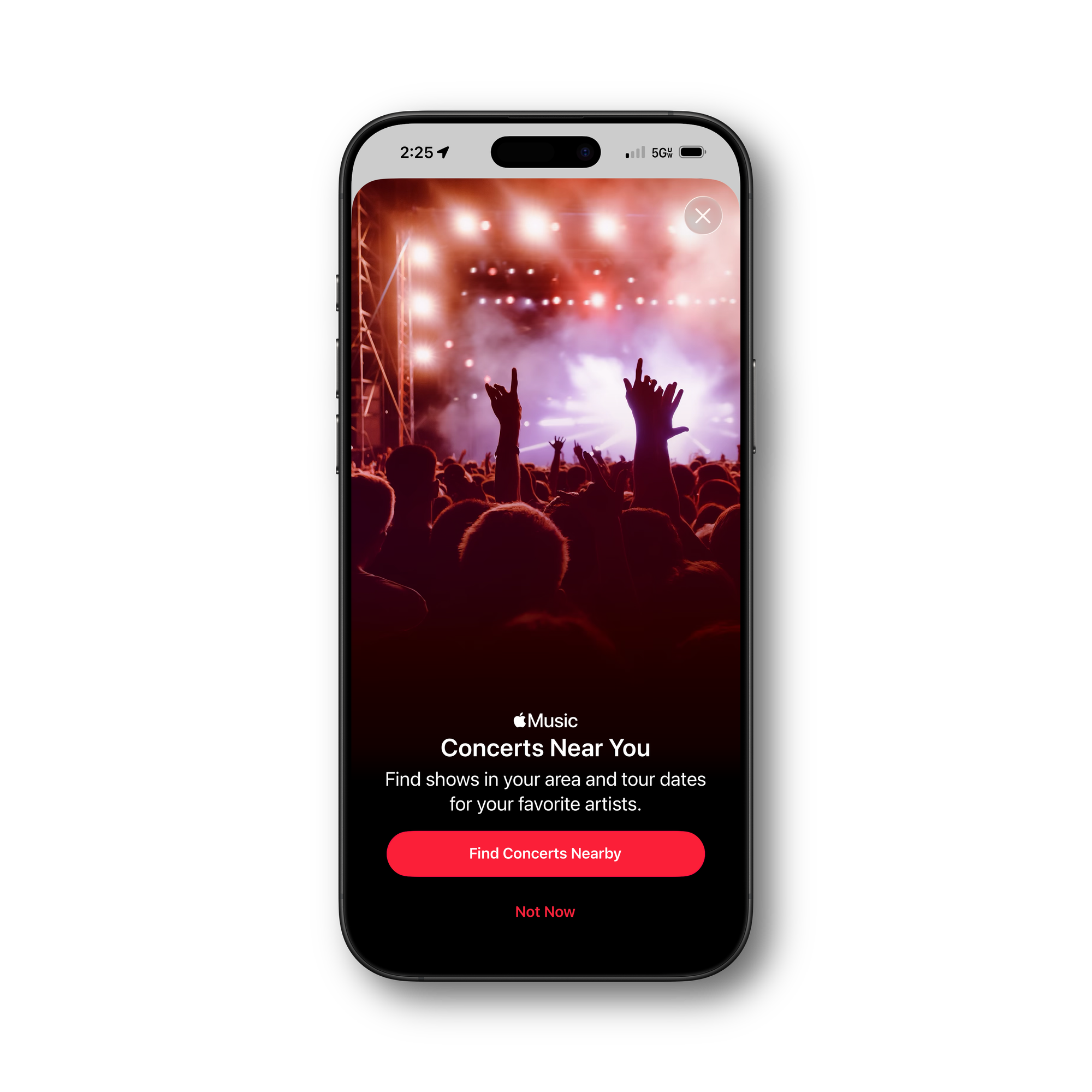
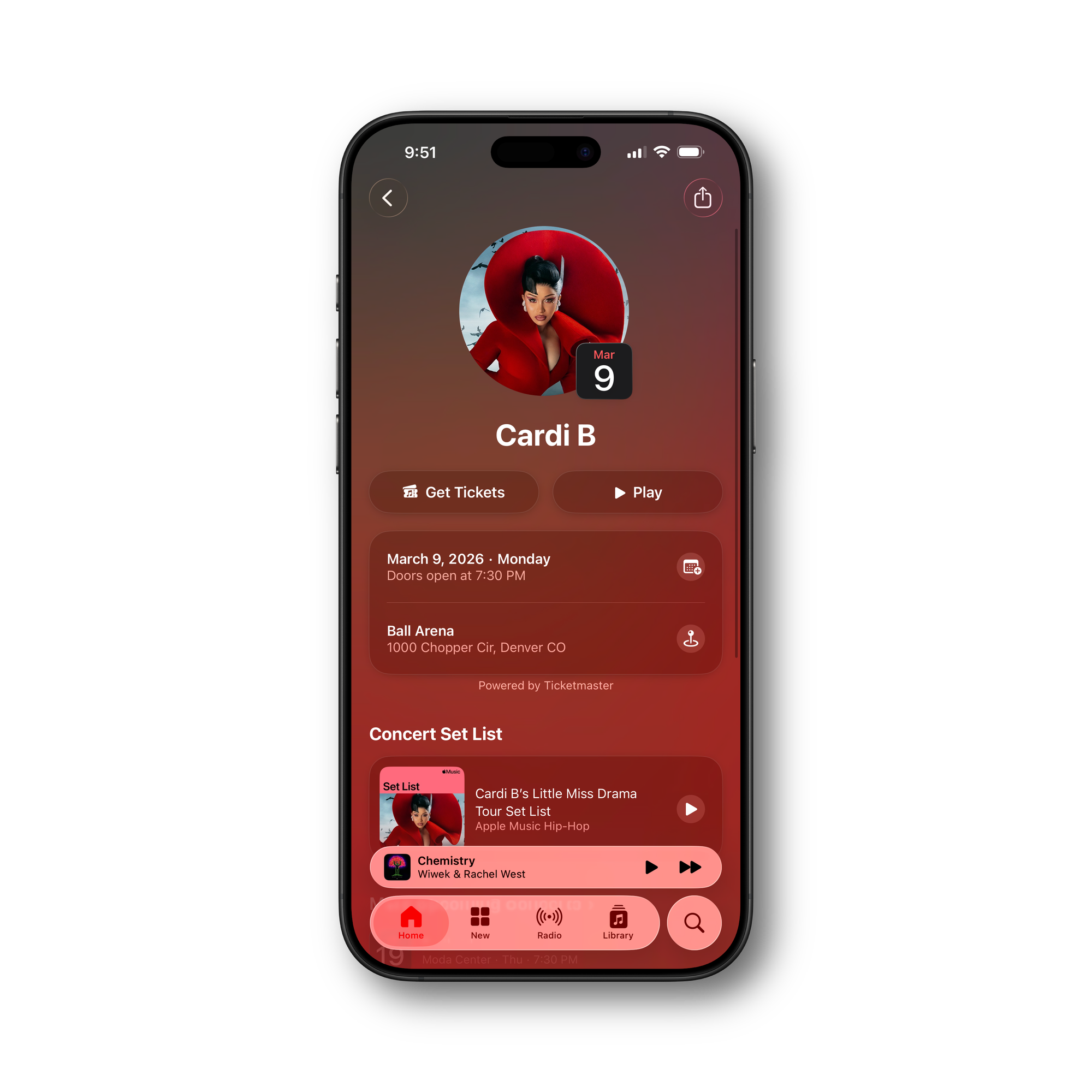
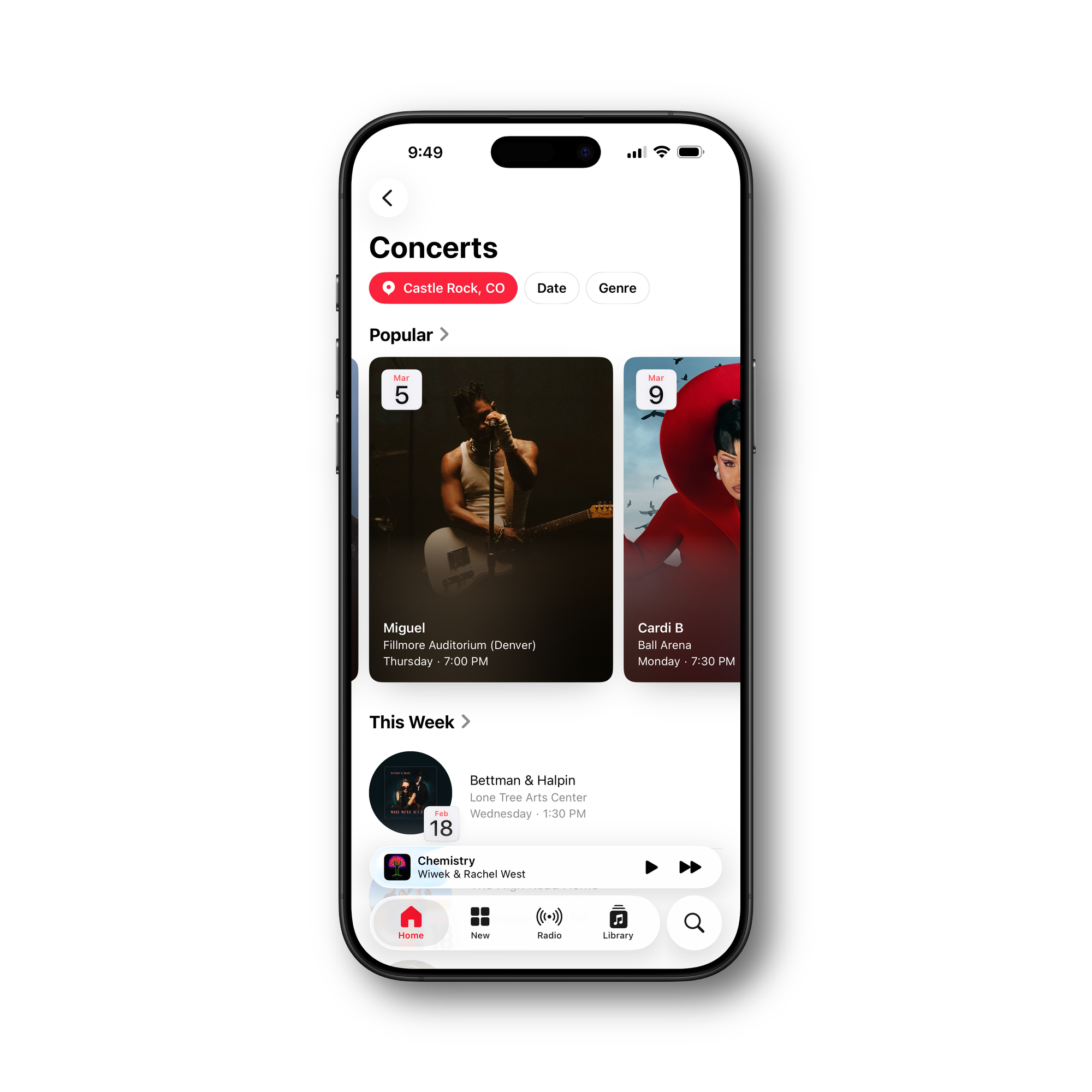
Playlist Playground isn't the only Apple Music improvement in this release. iOS 26.4 adds a Concerts Near You feature that surfaces upcoming live shows and tour dates for artists in your library. The section pulls in event details automatically, so you don't need to leave the app to find out whether a band you love is playing nearby.
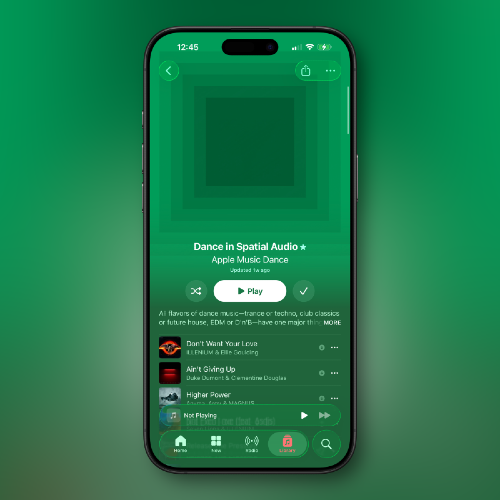
Apple has also redesigned the album and playlist views with new full-screen artwork that fills the display when browsing. The play, shuffle, and download buttons have been repositioned for more comfortable one-handed use, and the background dynamically adapts to match the dominant colors in your album art. And in what sounds like a small thing but turns out to be surprisingly useful: you can now add a single song to multiple playlists at once. In the "Add to Playlist" interface, there's a new list button that lets you select several playlists in one step rather than repeating the process individually.
Unified Apple Account Hub Across Media Apps
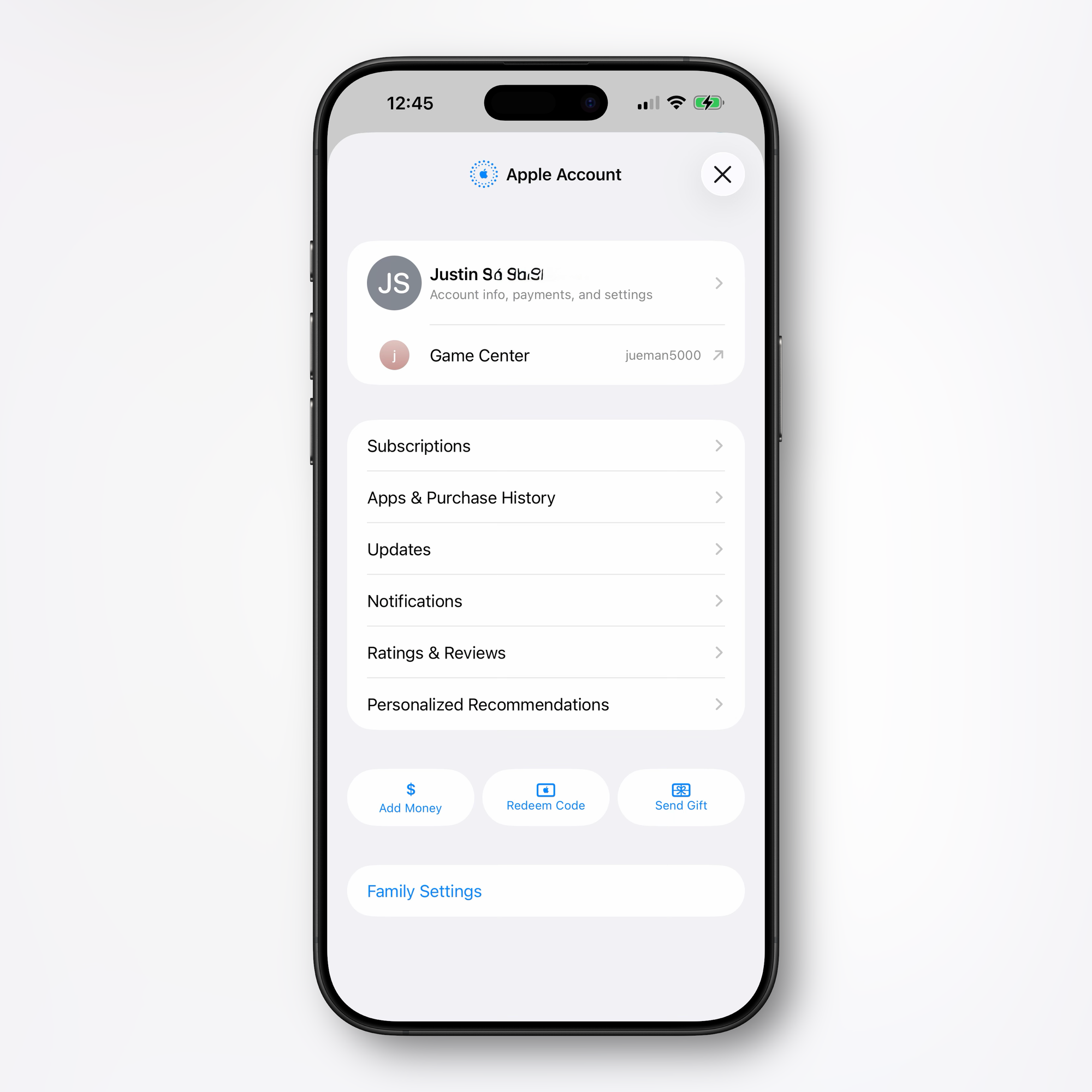
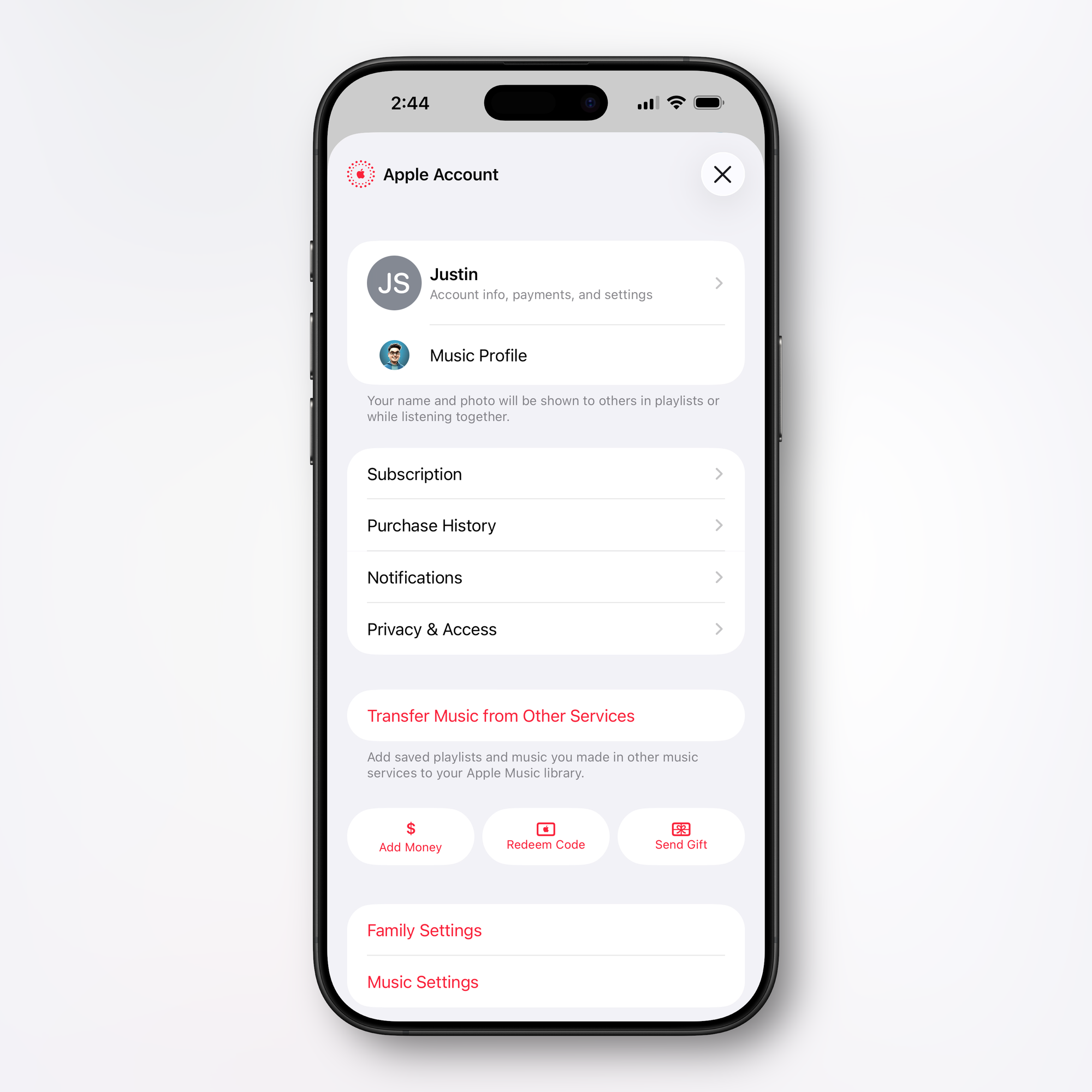
iOS 26.4 introduces a unified Apple Account hub that replaces the individual profile screens previously found in the App Store, Apple Music, Apple Podcasts, and Apple TV. The redesigned interface creates a consistent experience across all four apps, instead of each having its own distinct layout for account management, they now share the same design language and structure.
In practical terms, this means quicker access to subscriptions, purchase history, and common account actions from any of these apps. Quick shortcuts like adding funds to your account and redeeming Apple gift cards or promo codes are now more prominently surfaced. The App Store version specifically consolidates your apps and purchase history into a single view, and adds a dedicated section for app updates, though that section now requires an extra tap to reach compared to before.
Ambient Music Widgets
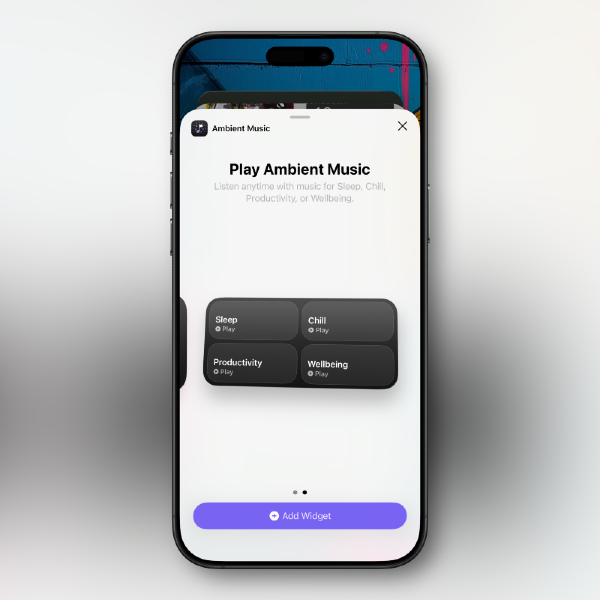
iOS 26.4 adds a new collection of Ambient Music widgets for the Home Screen, available in small and medium sizes. Each widget is tied to a specific mood — Chill, Productivity, Sleep, or Wellbeing and tapping it instantly starts playing an appropriate ambient soundscape without opening the Music app. It's a clean implementation of a feature that previously required navigating deeper into the app or asking Siri.
Apple Podcasts: Enhanced Video Experience
Apple Podcasts gets a major upgrade to its video capabilities in iOS 26.4. The update introduces what Apple calls "advanced video podcast capabilities" powered by HLS (HTTP Live Streaming) technology. In practice, this means smoother switching between watching a video podcast and listening to the audio version, a transition that previously required more taps and often interrupted playback.
HLS also brings automatic quality adjustment based on your network conditions, so video podcasts adapt on the fly when you move between Wi-Fi and cellular rather than buffering or dropping quality abruptly. Video episodes can now be downloaded for offline viewing, matching what's already possible with audio. Apple is also adding support for dynamic video ads in Podcasts — podcast creators can insert video ads, including host-read spots, directly into HLS video episodes. This is supported at launch by Acast, Amazon's ART19, Triton's Omny Studio, and SiriusXM.
Stolen Device Protection Now On by Default
Stolen Device Protection, the security layer Apple introduced after a wave of targeted iPhone thefts, is now enabled automatically for all iPhones updating to iOS 26.4. Previously, users had to find and activate the feature manually and many never did.
When Stolen Device Protection is active, performing sensitive actions (like changing your Apple ID password, turning off Find My, or accessing stored passwords) while away from trusted locations like home or work requires a Face ID or Touch ID authentication. Some of those actions also trigger a one-hour security delay that requires a second biometric check, preventing a thief who knows your passcode from making critical account changes before you can react.
If you're updating to iOS 26.4 and haven't already set up Stolen Device Protection, it will be on when you finish. You can verify or adjust the settings at Settings → Face ID & Passcode → Stolen Device Protection.
RCS End-to-End Encryption (Now in Beta Testing)
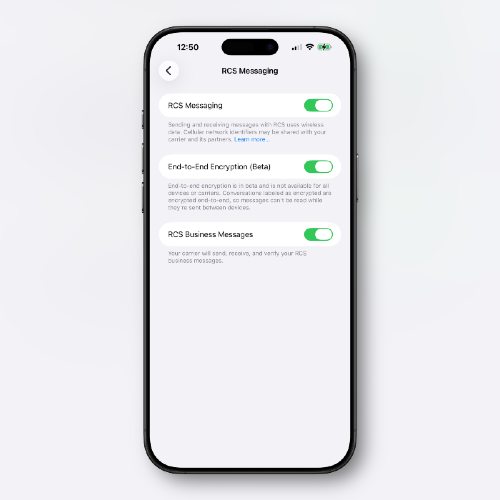
iOS 26.4 introduces beta testing for end-to-end encrypted RCS messaging, a significant step toward bringing the same level of privacy to cross-platform texting that iMessage has had for years. Apple has been working with the GSMA on implementing the encryption standard, and iOS 26.4 is where that work becomes visible to users for the first time.
In the beta, you can find the new toggle at Settings → Messages → RCS Messaging → End-to-End Encryption (Beta), which should be enabled by default once you update. When messaging another iPhone user with the feature enabled, a lock icon appears in the conversation thread to indicate the exchange is encrypted end-to-end. The lock icon also appears on existing iMessage threads, since iMessage has supported encryption since 2011.
One important caveat: Apple has confirmed that RCS end-to-end encryption will not ship in the stable public release of iOS 26.4. The feature is still being refined and is expected to arrive in a future update. Android-to-iPhone RCS encryption is also still in development and will follow in a later release. For now, the beta toggle lets developers and testers verify the implementation ahead of a broader rollout.
Family Sharing: Adults Can Now Use Their Own Payment Method
One of the longest-standing frustrations with Apple's Family Sharing has finally been addressed in iOS 26.4. Previously, when Purchase Sharing was enabled, all purchases by family members were billed to the family organizer's payment method. Adult members had no way to use their own card, even if they had one on file. iOS 26.4 changes this: adult members in a Family Sharing group can now use their own payment method when making purchases, independent of the family organizer.
This is a meaningful quality-of-life improvement for families made up entirely of adults, partners, roommates, siblings — who want to share subscriptions like Apple TV+ or Apple Arcade without routing every App Store and media purchase through a single person's credit card. Purchase Sharing still functions as before if that's your preference; the difference is that adult members now have the option to pay for their own purchases themselves.
CarPlay: Video Playback and AI Assistant Access
Two significant CarPlay changes arrive in iOS 26.4. First, CarPlay now supports video playback for select apps, including the Apple TV app, when the vehicle is parked. This is the feature Apple announced at WWDC 2025 and has been building toward through the iOS 26 beta cycle. It's limited to parked use for safety, but it's a meaningful addition for anyone who's ever wanted to watch something while waiting in the car.
Second, and perhaps more surprising: AI assistants from third-party services including OpenAI's ChatGPT, Google's Gemini, and Anthropic's Claude are now accessible through CarPlay for the first time. This extends the AI assistant integration Apple has been building on iPhone to the in-car experience, letting you use these services hands-free while driving.
Control Center: Offline Music Recognition
The Shazam-powered Music Recognition toggle in Control Center gets a significant upgrade in iOS 26.4: it now works offline. Previously, tapping the Recognize Music button with a poor or nonexistent connection would fail outright, and you'd miss the moment entirely. In iOS 26.4, your iPhone captures the audio data even without a connection, then automatically delivers the song identification as a notification once you're back online.
It's a small change in theory but a meaningful one in practice, the situations where you most want to identify a song (a venue, a store, a spotty-signal area) are often exactly the situations where your connection is unreliable. To use the feature, make sure the Recognize Music control is added to your Control Center: long-press any blank area, tap Add a Control, and search for "Recognize Music."
Camera: Audio Zoom
The Camera app picks up a new Audio Zoom feature in iOS 26.4. When you zoom in while recording video, the microphone now focuses on the subject, reducing background noise and improving audio clarity at the center of the frame. This mirrors the way optical zoom works visually, applying the same logic to sound capture.
Audio Zoom can be toggled on or off in the Camera settings. Go to Settings → Camera → Audio Zoom. It's particularly useful for recording speeches, live performances, or interviews without external microphone equipment.
Apple Health: Average Bedtime and Blood Oxygen Returns
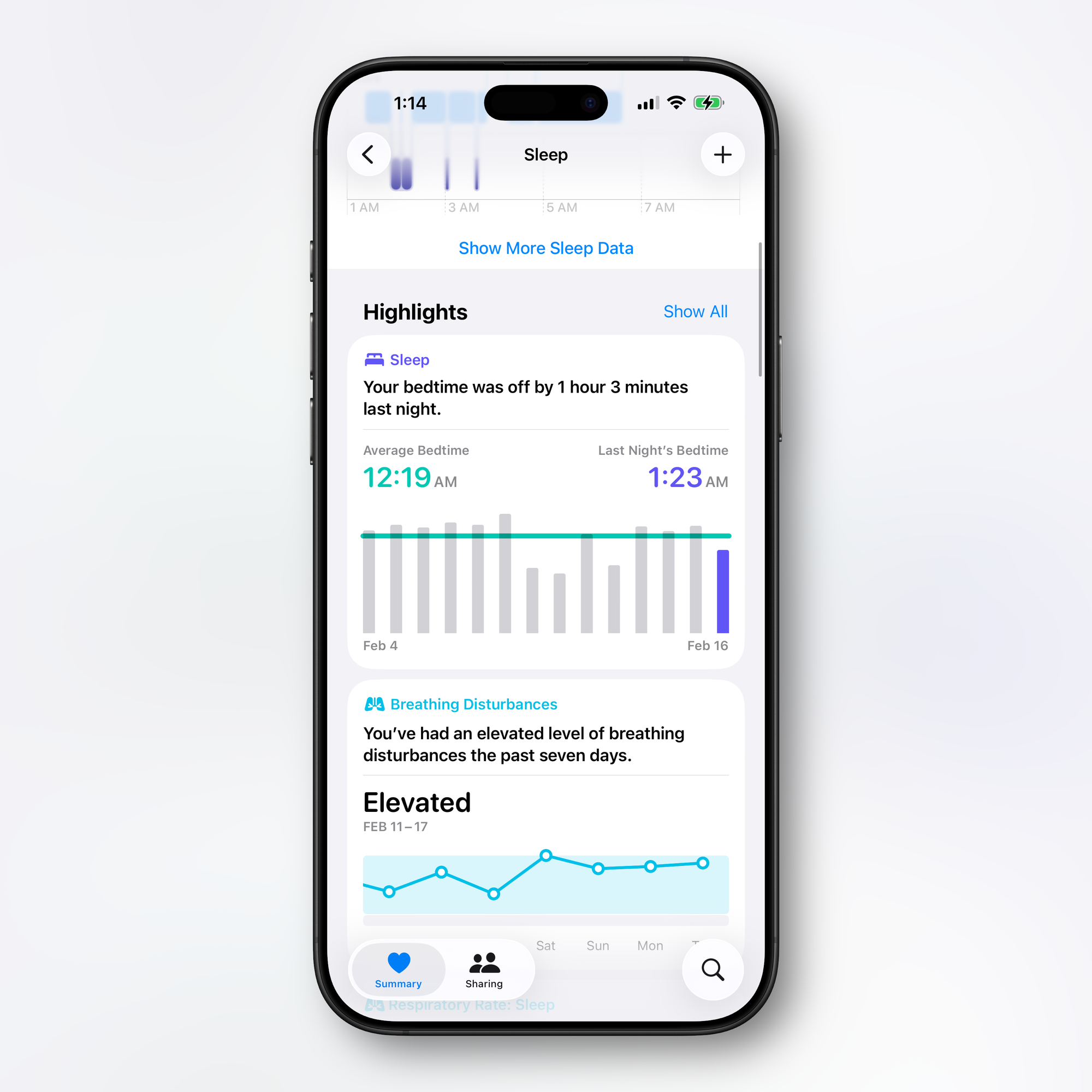
The Health app gains a new Average Bedtime metric in the Sleep section, showing your typical bedtime alongside last night's bedtime for direct comparison. This gives a clearer picture of how consistent your sleep schedule actually is, rather than just showing nightly totals.
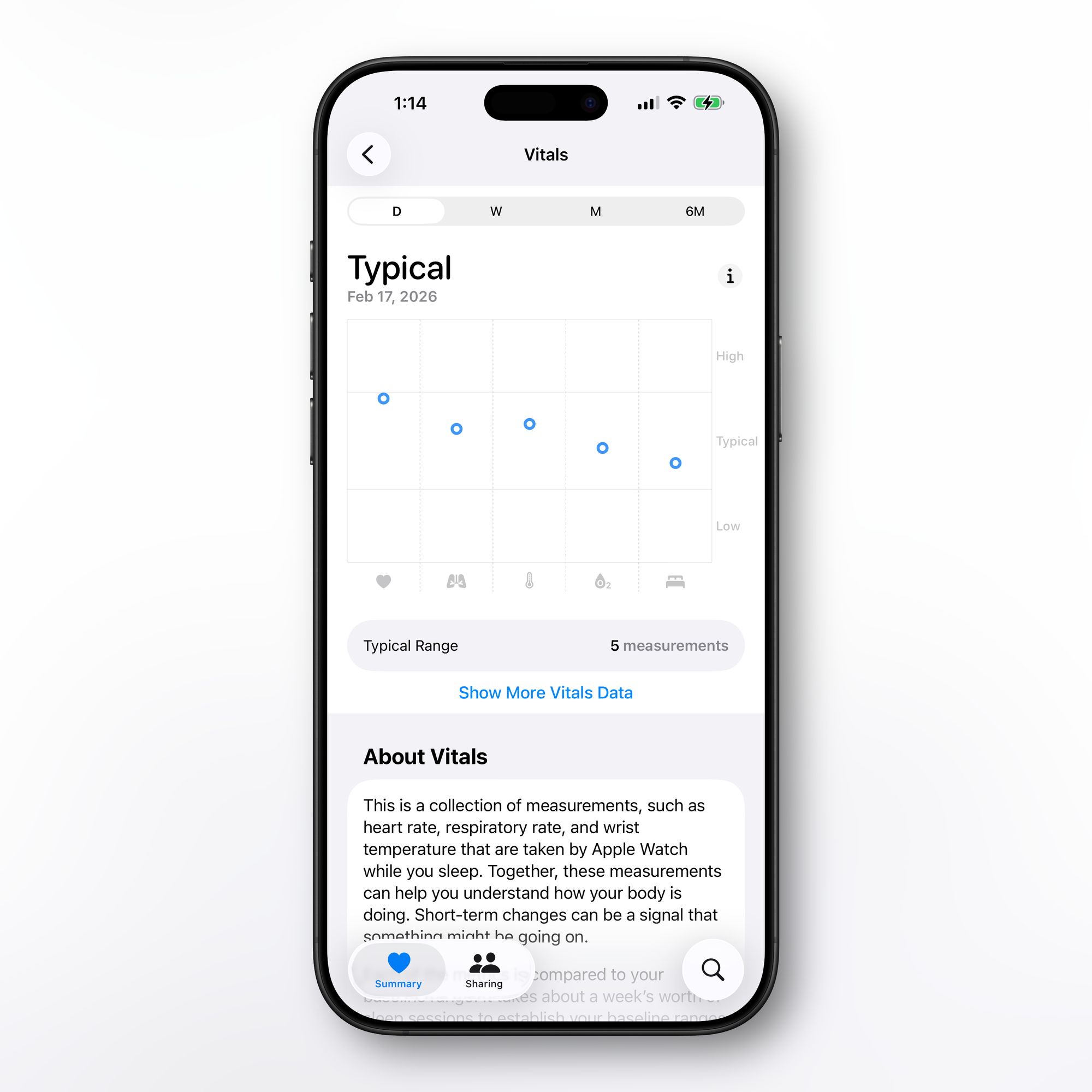
Blood Oxygen has also returned to the Vitals graph in the U.S. In iOS 26.3 and earlier, the Vitals overview included a Blood Oxygen section but the graph itself didn't display a measurement. iOS 26.4 restores the actual reading to the graph, following Apple's redesigned Blood Oxygen feature that relaunched in August 2025.
Reminders: Urgent Smart List
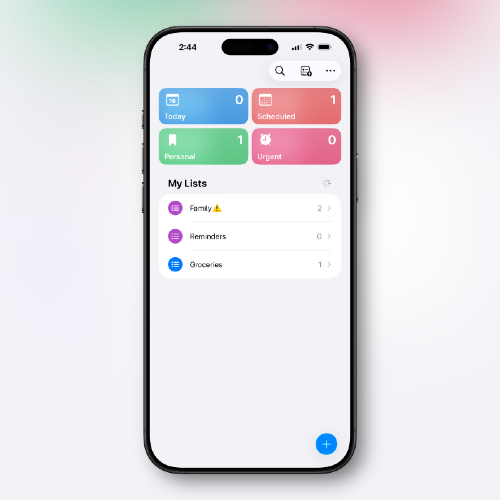
iOS 26.2 introduced the ability to mark a Reminder as "Urgent". When you do, the app fires a proper alarm rather than a standard notification, and a Lock Screen Live Activity keeps the reminder visible until you mark it complete. iOS 26.4 builds on that foundation by adding a dedicated Urgent Smart List that automatically collects every task you've designated as urgent. You can also now mark a reminder as Urgent directly from the Quick Toolbar or by touching and holding on any task, without digging into the item's detail view. It makes reviewing your highest-priority items much faster, especially if you use Reminders across multiple lists.
Personal Hotspot: Per-Device Data Usage
A practical quality-of-life improvement lands in the Personal Hotspot settings: you can now see how much data each connected device has consumed through your hotspot. Go to Settings → Personal Hotspot → Data Usage (this section only appears after you've recently used hotspot) and you'll see a breakdown by device. Non-Apple devices are grouped together as "Other Devices," and a total usage figure is shown alongside the per-device numbers. It's especially useful if you share your hotspot with others or need to keep a close eye on a limited data plan.
New Emoji: Unicode 17
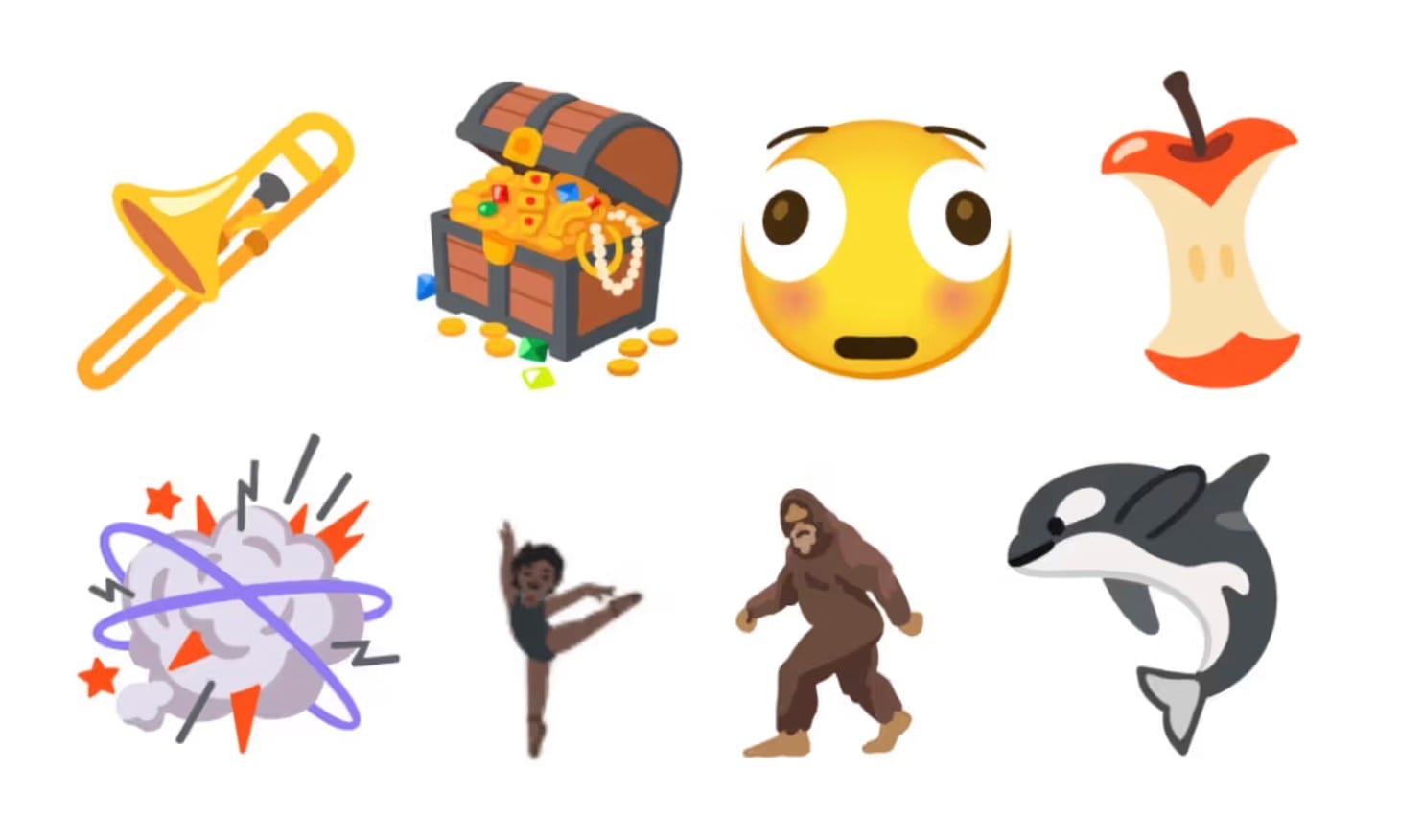
iOS 26.4 brings the Unicode 17 emoji set to iPhone. New characters include a trombone, treasure chest, distorted face, Bigfoot-style hairy creature, fight cloud, orca, and landslide. There are also new skin tone modifier options for the people wrestling and dancers with bunny ears emoji, plus a gender-neutral variant for the ballet dancer emoji. These are the first new emoji since iOS 26.2 and follow the Unicode Consortium's annual finalization of the standard.
Freeform Creator Studio
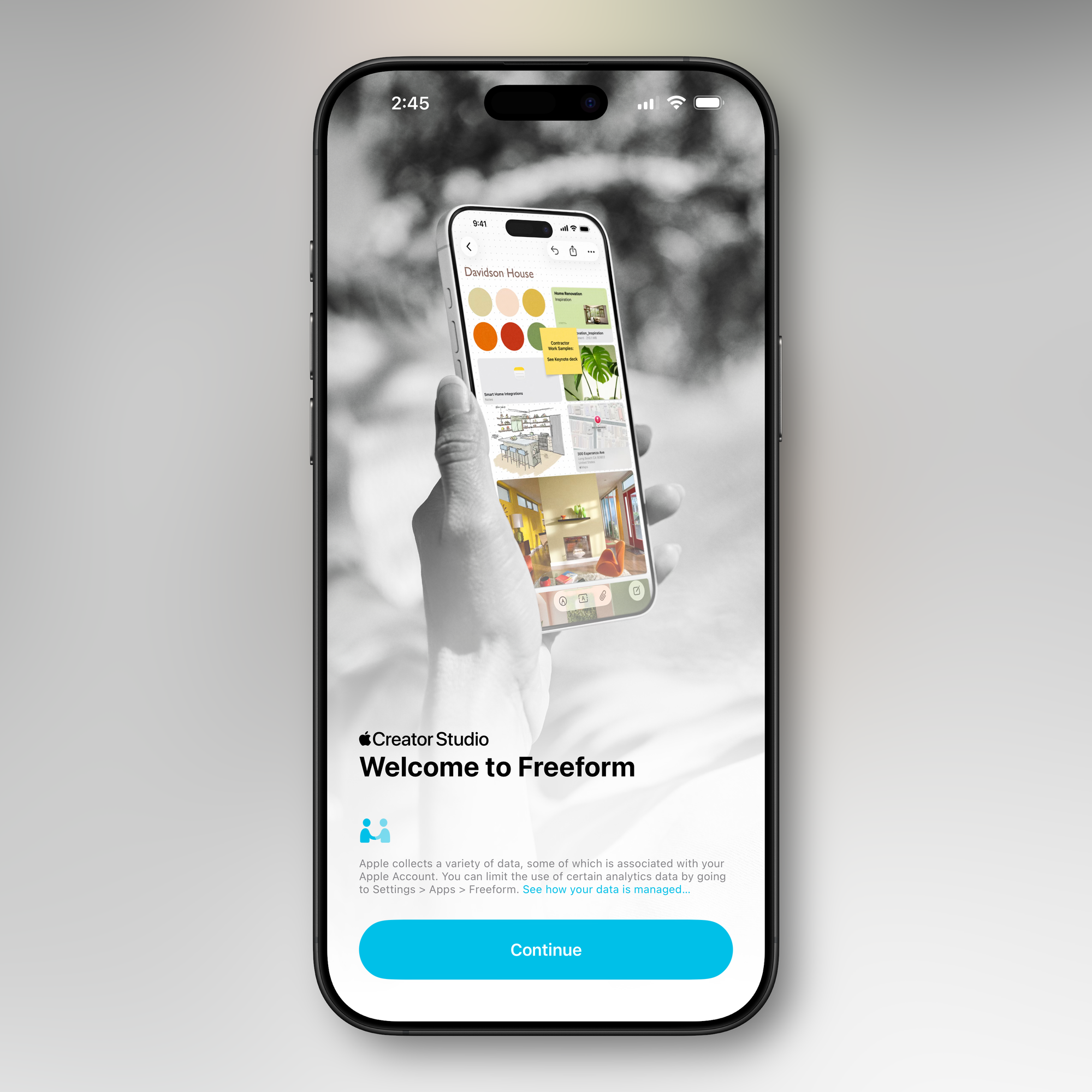
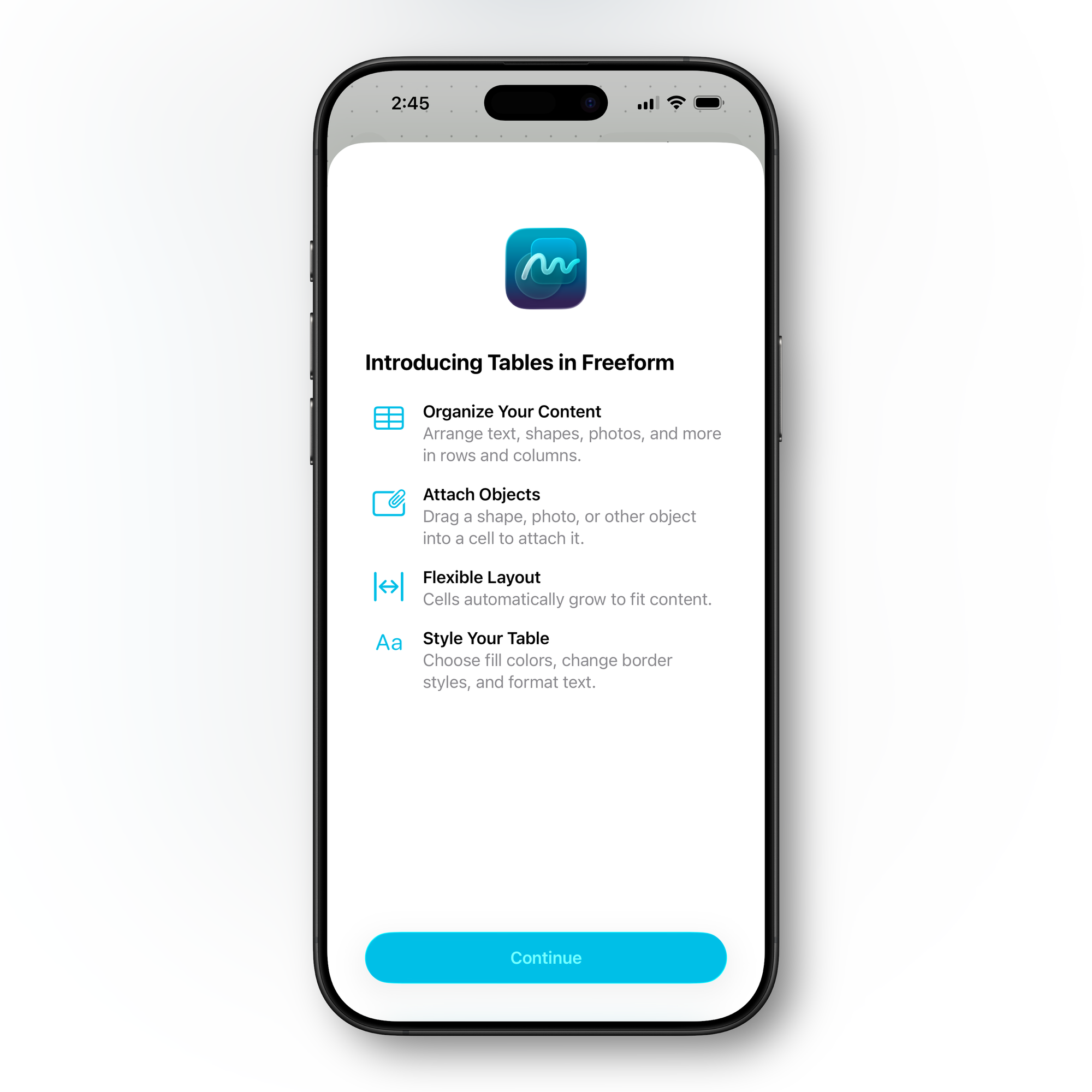
Freeform Creator Studio is now live for subscribers. The premium subscription adds a dedicated Content Hub to Freeform that houses shape options and unlocks access to free high-quality graphics, photos, and illustrations not available to non-subscribers. It also adds AI capabilities for creating and editing images inside Freeform. Apple had previewed Creator Studio when Freeform launched, and it's finally here as a paid tier.
iCloud Photos and Files Search on iCloud.com
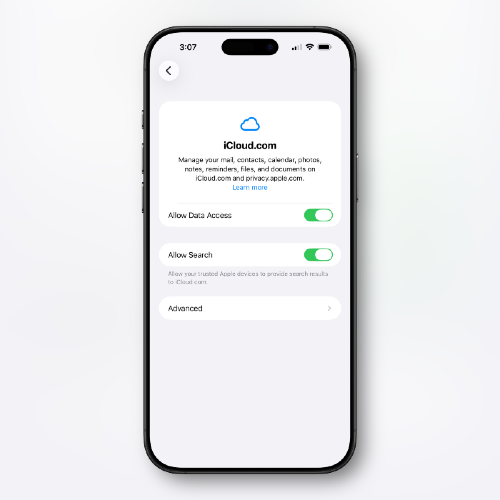
A new toggle in Settings lets you enable search for Photos and iCloud Drive content on iCloud.com. Under Settings → [Your Name] → iCloud, you'll find an "Allow Search" option that authorizes trusted Apple devices to surface your cloud content in iCloud.com search results. It's a useful addition for anyone who frequently accesses their files through a browser.
App Store: Search Bar Returns to the Top
The Search bar in the App Store has moved back to the top of the Search tab, where it was before Apple shifted it to a floating circle in an earlier iOS 26 release. The Search tab has also been reintegrated into the standard bottom navigation bar rather than appearing as a separate floating element. Same change applies to the Games app.
Accessibility: Reduce Bright Effects and More
What was previously called "Reduce Highlighting Effects" in Accessibility has been renamed to "Reduce Bright Effects" with a clearer description. The setting minimizes bright flashes when tapping on elements like buttons and the keyboard. The rename better communicates what the toggle actually does for users who rely on it to reduce visual stimulation.
iOS 26.4 also makes subtitle and caption settings accessible directly from the captions icon while viewing media, so you can adjust them without leaving the video and navigating into Settings. And the Reduce Motion setting now more reliably suppresses Liquid Glass animations for users sensitive to screen motion, addressing feedback that the toggle wasn't fully effective against the new interface's movement effects.
Dark Mode: Consistent Control Center Popups
A small but visually coherent fix: when your iPhone is in Dark Mode, popup menus in Control Center now display with a dark background instead of the mismatched light background that appeared before. It's a polish item, but one that was noticeably jarring on an otherwise dark interface.
Wallpaper Gallery Redesign
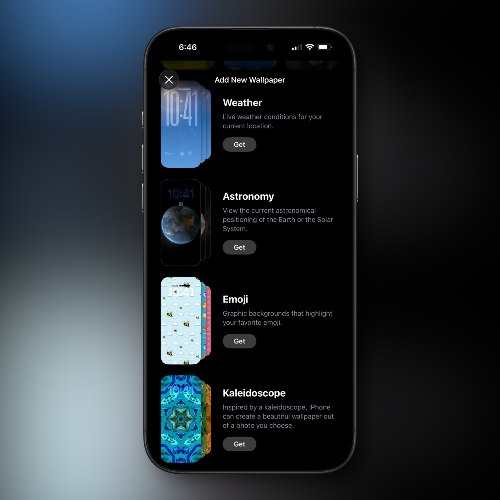
The Wallpaper Gallery in Settings has been reorganized with clearer separation between wallpaper categories. Some wallpapers — including options from the Weather, Astronomy, Emoji, Colors, and other categories — are no longer pre-installed; they download on demand when you select them, freeing up storage. The Apple Watch face gallery in the Watch app received the same treatment.
Shortcuts: Set Battery Charge Limit
A new "Set Battery Charge Limit" action is available in the Shortcuts app, letting you automate your iPhone's maximum charge threshold. Combined with the per-device charge limit controls that have existed since iOS 26, this makes it easy to build automations around charging behavior, for example, setting an 80% limit on weekdays and 100% on weekends.
Keyboard Accuracy Fix
iOS 26.4 addresses a keyboard accuracy bug that has affected iPhone users throughout the iOS 26 cycle. The issue caused incorrect characters to register when typing quickly tapping one key would occasionally log as an adjacent key, leading to more typos than expected for fast typists. Apple lists "improved keyboard accuracy when typing quickly" directly in the RC release notes, making it one of the explicitly confirmed fixes in this update.
Live Captions: Chinese (Taiwan) Support
Live Captions in the Accessibility settings now includes Chinese (Taiwan) as a supported language option, expanding real-time captioning availability for users in that region.
iPadOS 26.4
iPadOS 26.4 receives the same feature set as iOS 26.4, including all of the Apple Music improvements, Playlist Playground, Podcasts video enhancements, Stolen Device Protection now enabled by default, Ambient Music widgets, Camera Audio Zoom, Health updates, Reminders Urgent Smart List, the unified Apple Account hub redesign, the Family Sharing independent payment change, offline Music Recognition in Control Center, the keyboard accuracy fix, and the new emoji set. The Personal Hotspot data usage tracking also applies to iPads with cellular.
macOS Tahoe 26.4
Battery Charge Limit
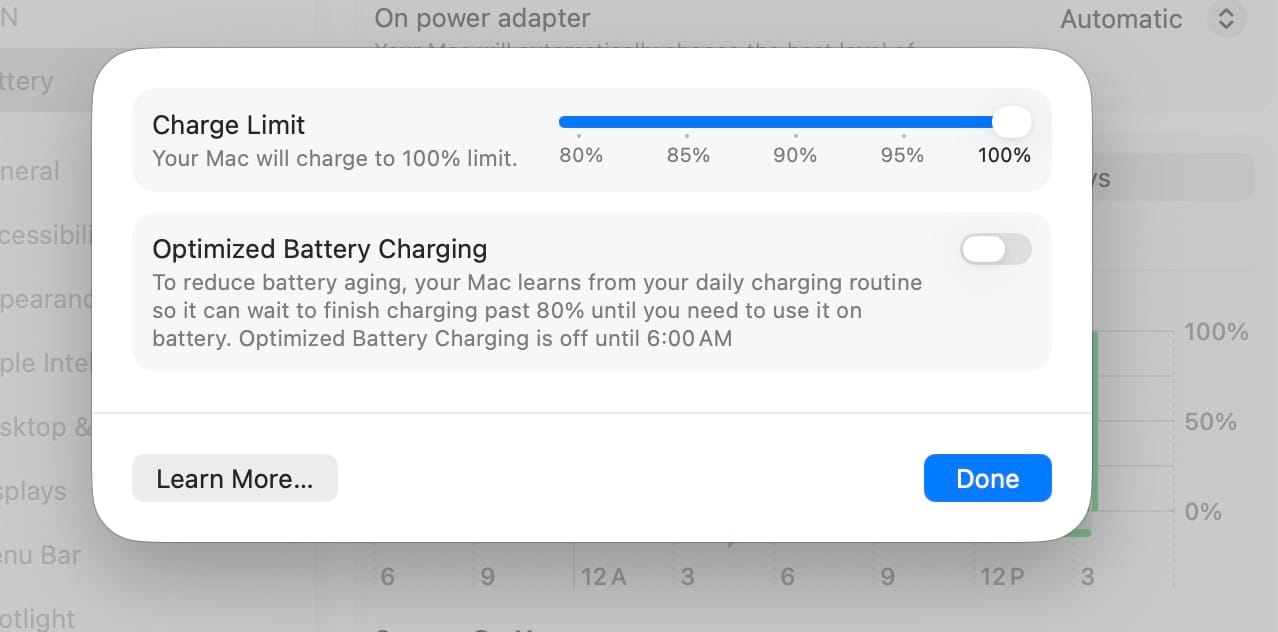
One of the most requested Mac features in recent memory has finally arrived natively: a built-in battery charge limit. Under System Settings → Battery, Mac users can now set a maximum charge level anywhere between 80% and 100%. If you leave your MacBook plugged in most of the day, capping the charge at 80% is one of the most effective ways to preserve long-term battery health. Apple has built this into the system directly — no third-party utility required.
Safari Compact Tab Bar Returns
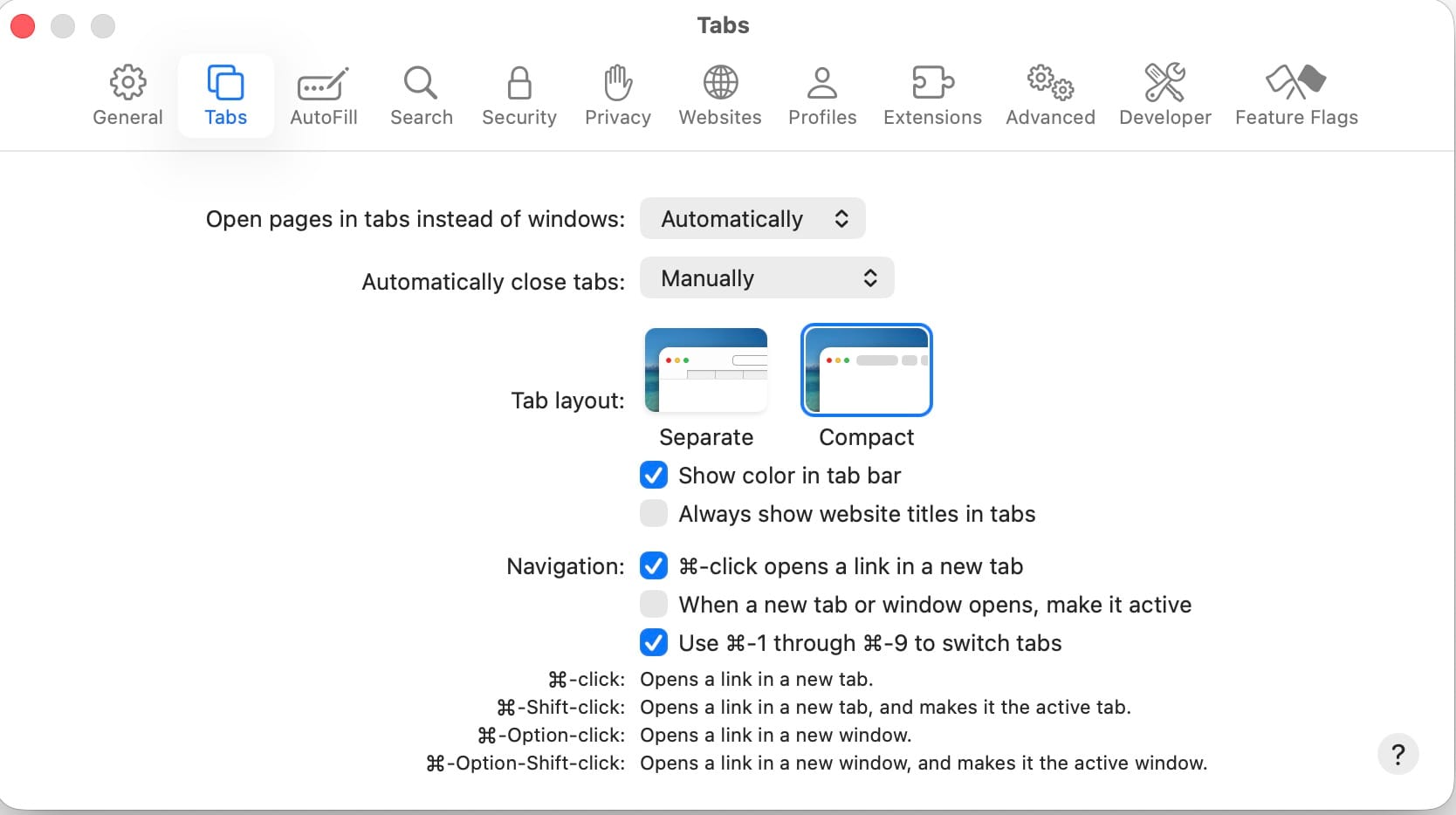
Apple removed the compact tab bar from Safari when macOS Tahoe launched, as part of the Liquid Glass interface redesign. User feedback pushed Apple to bring it back, and in macOS Tahoe 26.4, the compact tab layout is available again as an option. The compact bar also lets you search directly from the active tab rather than having to click into a separate field. Go to Safari → Settings → Tabs to re-enable it.
Reminders: Urgent Keyboard Shortcut
The Reminders Urgent feature gets a Mac-specific addition in macOS 26.4: you can now mark any reminder as Urgent using a keyboard shortcut, without taking your hands off the keyboard. On iPhone the shortcut is the Quick Toolbar or touch-and-hold; on Mac it's a direct keyboard command, keeping Reminders power users in their flow. The Urgent Smart List filtering is also present on Mac, automatically surfacing all tasks you've flagged as urgent in one place.
Family Sharing: Adults Can Use Their Own Payment Method
The Family Sharing payment change confirmed in the iOS 26.4 release notes applies to Mac as well. Adult members in a Family Sharing group can now use their own payment method for App Store and media purchases, rather than everything being routed to the family organizer's card. The change is confirmed in Apple's macOS 26.4 release notes.
Subtitle and Caption Settings While Viewing Media
macOS 26.4 makes subtitle and caption controls easier to find while watching video. You can now access caption and subtitle settings directly from the captions icon during playback including a real-time preview without having to stop what you're watching and navigate into System Settings. This matches the improvement coming to iOS 26.4 and makes it more consistent across Apple's platforms.
Rosetta 2 Deprecation Warnings
Apple silicon Mac users will begin seeing alerts when they launch apps that still rely on Rosetta 2. The warnings serve as a heads-up that support for Intel-translated apps is winding down. macOS Tahoe 26 is the final version of macOS to run on Intel Macs, and Rosetta support will be phased out after macOS 27. If you have apps that trigger these warnings, now is the time to check with developers about native Apple Silicon versions or start planning for replacements.
It's worth noting: Rosetta itself is still fully functional in macOS Tahoe 26.4. The warnings are notices, not shutoffs. But they represent a clear signal from Apple about the timeline ahead.
watchOS 26.4
Workout App: Single-Tap to Start
watchOS 26.4 fixes one of the most-complained-about changes Apple made when it redesigned the Workout app in watchOS 26. The redesigned app presented a scrollable list of workout type icons, but tapping the icon itself did nothing. Only the Play button in the corner would actually start a session, which ran counter to decade-old muscle memory and felt unintuitive to nearly everyone who tried it.
In watchOS 26.4, tapping the workout type icon now starts the workout with a single tap, exactly as users expected from the beginning. The icon and the Play button both do the same thing now. It's a small fix in code terms but a big win for anyone who's been quietly annoyed every time they went to start a run or a swim since September.
Average Bedtime Metric
watchOS 26.4 adds an Average Bedtime metric to the sleep tracking features that sync to the Health app. The metric shows your typical bedtime over time, giving you a more meaningful baseline for understanding how your sleep schedule affects your overall sleep quality. This is the watch-side counterpart to the Average Bedtime data now visible in the iOS 26.4 Health app.
tvOS 26.4
iTunes Movies and TV Shows Apps Removed
The legacy iTunes Movies and iTunes TV Shows apps have been officially removed from Apple TV in tvOS 26.4. These apps have been non-functional for some time for the past several years, they've simply directed users to open the Apple TV app to make purchases. The cleanup removes the dead-end apps from the interface entirely. If you were still launching them out of habit, those purchases and rentals have lived in the Apple TV app this whole time.
Continuous Audio Connection for HDMI Output
tvOS 26.4 adds a Continuous Audio Connection option for HDMI output. This keeps the audio connection active even when the Apple TV is in standby, preventing the delay or audio dropout that could occur when waking the device with some HDMI receiver configurations. It's a useful option for home theater setups that experienced audio sync or handshake issues.
visionOS 26.4
Foveated Streaming for Apps and Games
visionOS 26.4 introduces foveated streaming support for apps and games. Foveated streaming delivers high-quality video to the precise area of the display where you're looking, while compressing the peripheral regions you're not directly focusing on. The result is higher visual fidelity where it matters most, with lower overall bandwidth and latency requirements. It's a meaningful rendering improvement for games and video-intensive applications that want to push visual quality on Vision Pro.
Written by

Subscribe to our newsletter
Subscribe to our newsletter to get the latest Apple updates and news








Member discussion