

How to Use Playlist Playground in Apple Music (And Write Prompts That Don't Come Back Generic)
A playlist generator has sat inside Apple Music since March, no qualifying hardware required, if you know how to prompt it.


Part of Hidden in Plain Sight, our series on Apple features that already shipped and already work, sitting one tap away in apps you already use.
Apple Music has a built-in tool that builds an entire playlist for you from a sentence. It's been sitting inside the app since March, right in the normal "New Playlist" flow, and there's a good chance you've never tapped it, or tried it once, got a forgettable playlist back, and never opened it again. That second part is usually a prompt problem, not a tool problem. Here's how it works and how to write prompts that actually get you something worth keeping.
What Playlist Playground Does
Playlist Playground is a prompt-based playlist generator. Instead of adding songs one at a time or picking through Apple's curated mixes, you type a description of what you want, mood, genre, activity, era, artist references, whatever, and Apple Intelligence assembles a roughly 25-song playlist with a custom title in a few seconds.
It's not a separate app or a hidden menu. It lives inside the same flow you already use to make any playlist, which is exactly why it's easy to overlook.
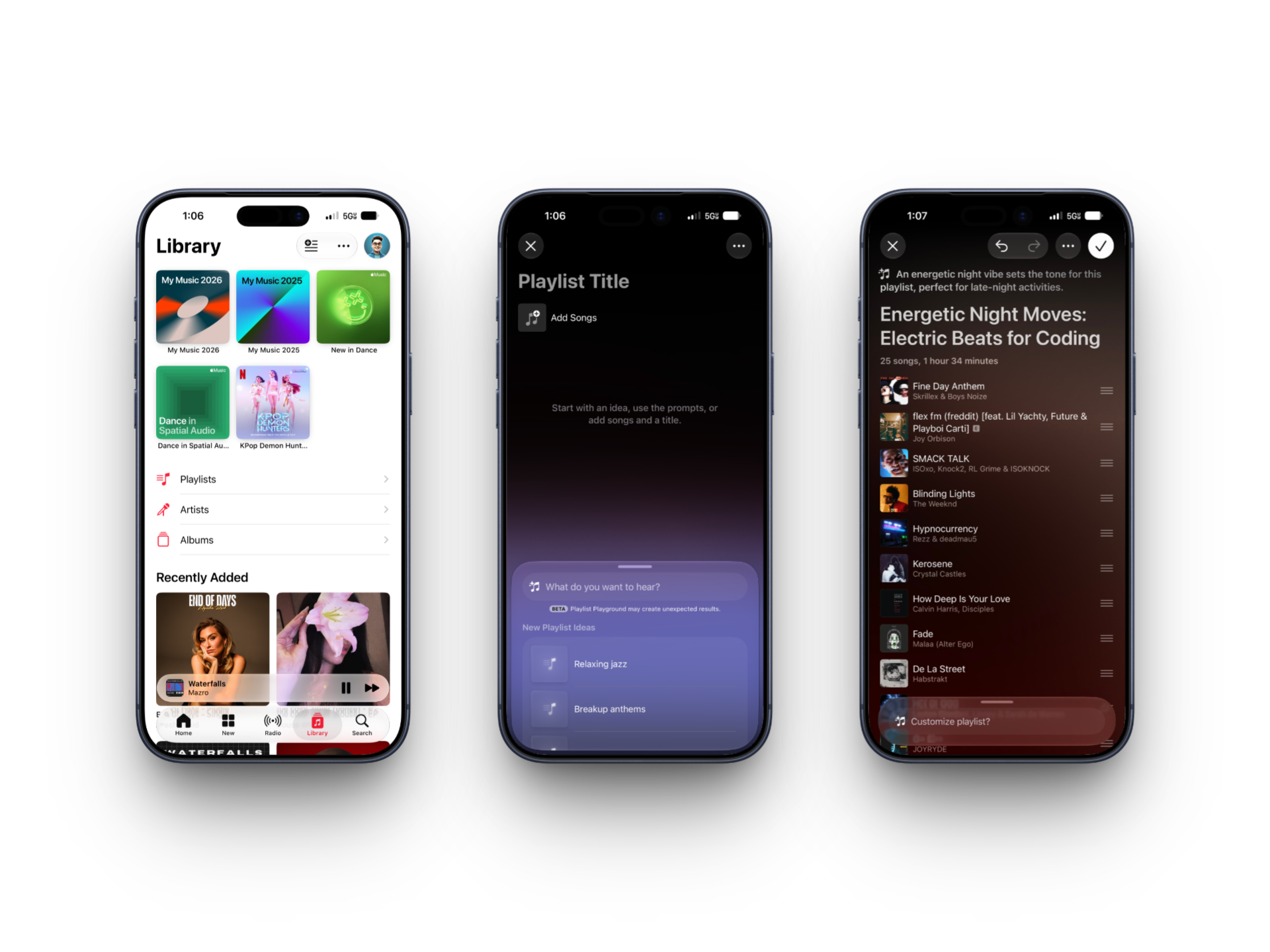
How to Use It
- Open Apple Music and go to the Library tab.
- Tap the "+" on iPhone, or New Playlist on iPad.
- You'll see the Playlist Playground field along with a few suggested prompt ideas.
- Type your own prompt, or tap one of Apple's suggestions.
- Tap Generate. Apple Music builds a full playlist in seconds.
- Tap Save to add it to your library, or keep prompting to adjust it first.
It works on iPhone, iPad, Vision Pro, and Apple Music on Android. Generation happens on Apple's servers rather than on your device, so unlike most Apple Intelligence features, it isn't limited to iPhone 15 Pro or newer, any device running iOS 26.4 or later can use it.
Writing Prompts That Actually Work
Playlist Playground is sensitive to how specific your prompt is. A one-word request like "workout" or "electronic" tends to produce a safe, predictable mix built from whatever's most popular in that category. The fix isn't a longer prompt for its own sake, it's stacking the right kinds of detail.
Stack mood, genre, and context in one prompt. Each piece narrows the result. "Electronic" pulls anything tagged electronic. "Late-night electronic" narrows the energy. "Late-night electronic with no vocals" narrows it again to something you could actually work or drive to without lyrics pulling your attention. Three qualifiers usually outperform one.
Anchor it with specific artists or a specific era instead of a genre label. Genre tags are broad and inconsistently applied across a catalog this size. Naming two or three reference artists gives the tool something more precise to match against: "80s new wave, The Cure, Siouxsie and the Banshees" returns a tighter, more accurate playlist than "80s new wave" alone.
Name the activity, not just the sound. "90s alternative for a long drive" and plain "90s alternative" pull noticeably different results, the activity framing tends to favor songs with more consistent tempo and fewer jarring transitions, since that's what the context implies. The same goes for "focus music for deep work" versus just "focus music," or "dinner party background music" versus "jazz."
Be specific about what you don't want, not just what you do. "No vocals," "nothing too upbeat," "skip anything mainstream" all function as real constraints, not filler. If a first attempt keeps surfacing the same handful of well-known tracks, adding "deeper cuts" or "less obvious picks" to the prompt measurably changes the output.
A few starting points to adapt:
- "Late-night coding music, instrumental, minimal, no vocals"
- "90s R&B for a Sunday morning, nothing too upbeat"
- "High-energy 2010s pop-punk for a workout, no ballads"
- "Road trip mix: classic rock and 70s soul, deeper cuts over greatest hits"
- "Dinner party background music, jazz and bossa nova, low-key"
Iterate instead of restarting. If the first playlist feels generic, don't scrap it and type a new prompt from scratch. Use a follow-up prompt to adjust what's already there, "make it more upbeat," "add more 80s synth," "swap out anything too mellow." The tool is built around refinement, and a second or third pass on the same playlist usually lands closer to what you actually wanted than a fresh attempt with a longer initial prompt.
What to Do After It Generates
Once a playlist is built, it behaves exactly like any other playlist in your library:
- Remove tracks you don't want by swiping or using the options menu.
- Reorder songs to fix the flow.
- Add more songs manually, either from search or from suggestions Apple Music surfaces alongside the generated list.
- Customize the cover art and description before saving.
- Save, share, or add it to your profile the same way you would any playlist.
Worth Knowing Before You Try It
Playlist Playground is still labeled "beta," and it's been in that state since launch. It tends to lean on well-known tracks over deeper cuts unless your prompt is specific, and it's currently limited to Apple Music subscribers in the US with English set as their preferred language. It also doesn't generate its own cover artwork automatically, you'll need to add that yourself if you want something beyond the default.
None of that makes it not worth using. It's genuinely faster than building a playlist from scratch, and it's a solid starting point even if you end up heavily editing the result. The point of this series is exactly this: features Apple already shipped, that already work, sitting one tap away in an app you open every day.
Read us first
See more TBTL when you search Google
Add Tech Between the Lines as a preferred source and our Apple coverage shows up more often in your Top Stories. It takes one tap, and you can change it anytime.
Prefer TBTL on Google