

iOS 27 Public Beta 1: Siri AI, Liquid Glass Controls, and Everything New
The iOS 27 public beta is here. See how to install it, which iPhones get Siri AI, and every new feature across iOS, iPadOS, macOS, watchOS, and tvOS.


The iOS 27 public beta is available now, giving anyone with a compatible iPhone, iPad, or Mac the first public look at the software Apple has been testing with developers since WWDC in June. It follows three developer betas and roughly five weeks of internal testing, and it's the version most people will actually use to decide whether iOS 27 is worth installing ahead of its official release in September.
The headline feature in the iOS 27 public beta is Siri AI, a rebuilt, conversational assistant with its own app and cross-device memory. Around it, Apple shipped an opacity slider for Liquid Glass, meaningful performance gains on every supported device, a redesigned Weather app, and the biggest overhaul to parental controls since Screen Time launched in 2018. iOS 27 keeps every iPhone that ran iOS 26, while Apple Watch, iPad, and Mac all lost older hardware from their compatibility lists.
This guide covers everything confirmed in the iOS 27 public beta across iOS, iPadOS, macOS Golden Gate, watchOS, and tvOS, plus how to install it and exactly which devices qualify for Siri AI.
How to Download the iOS 27 Public Beta
Installing the iOS 27 public beta takes a few minutes and doesn't require a computer.
- Back up your device first, through iCloud or a computer. Downgrading later requires a full restore, not a simple rollback, so a fresh backup is worth the two minutes it takes.
- Sign up for free at beta.apple.com using the same Apple Account you use on the device.
- On the device itself, open Settings (System Settings on Mac) → General → Software Update → Beta Updates.
- Select the Public Beta option for iOS 27, iPadOS 27, macOS Golden Gate, watchOS 27, or tvOS 27, whichever platform you're installing. visionOS 27's public beta hasn't opened yet; Vision Pro owners are still on developer betas only.
- Tap Download and Install, then restart when prompted.
Install the iOS 27 public beta on a secondary device rather than your primary iPhone, iPad, or Mac if you can. Public betas are more stable than the early developer seeds, but bugs, battery drain, and app compatibility issues are still normal at this stage of the cycle.
iOS 27 Public Beta 1
Siri AI: The Rebuilt Assistant
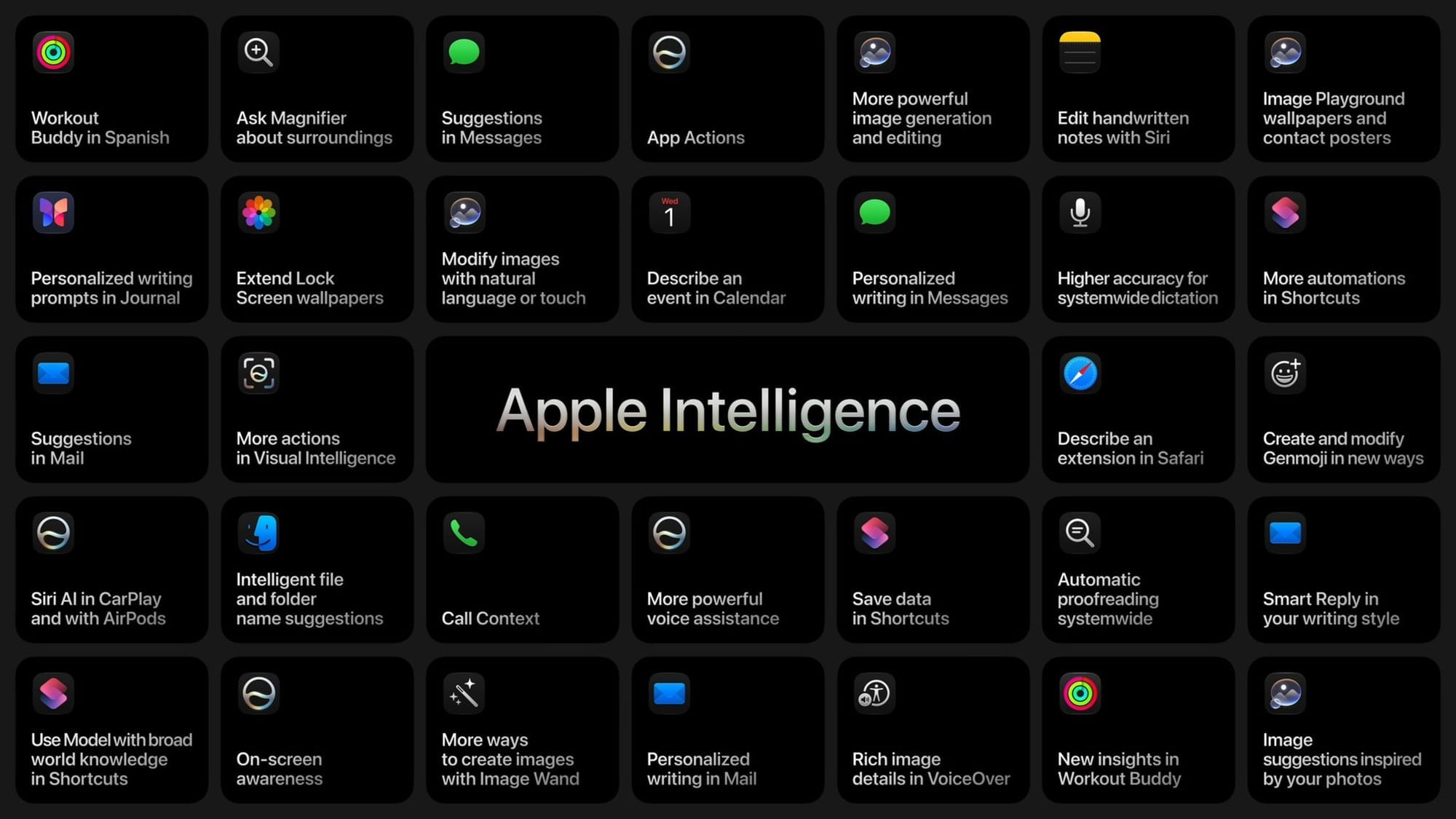
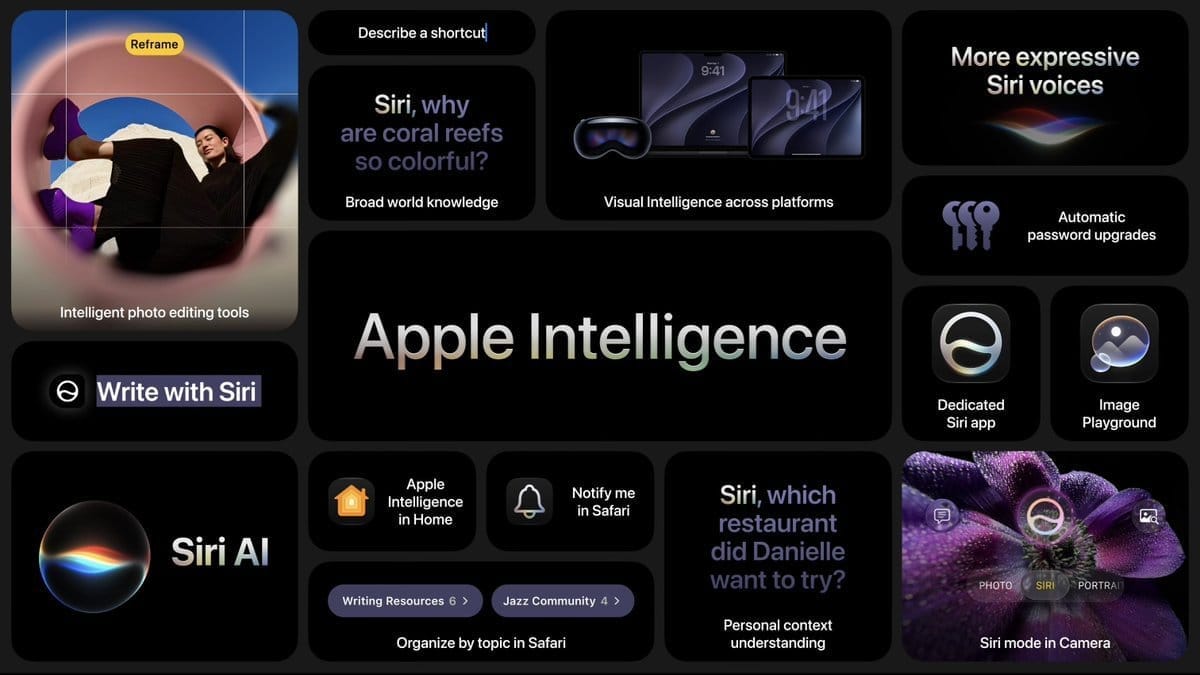
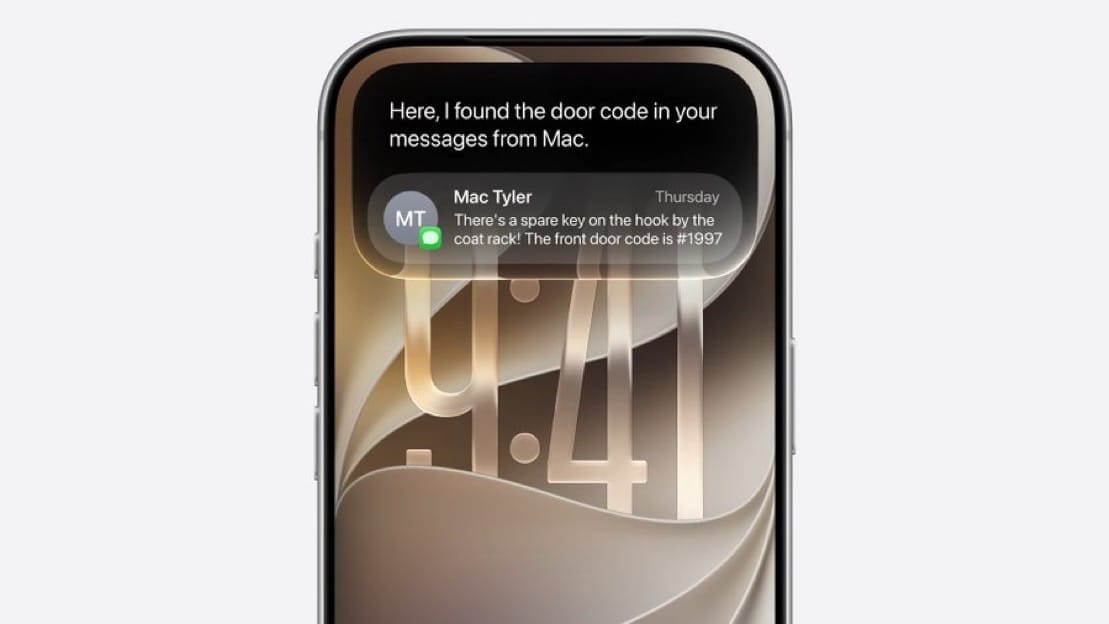
After two years of delays since its original WWDC 2024 preview, Apple shipped a conversational, context-aware Siri it's officially branding Siri AI. It's built on a new architecture and handles multi-step requests in a single prompt, holding context across a back-and-forth conversation instead of resetting with every question.
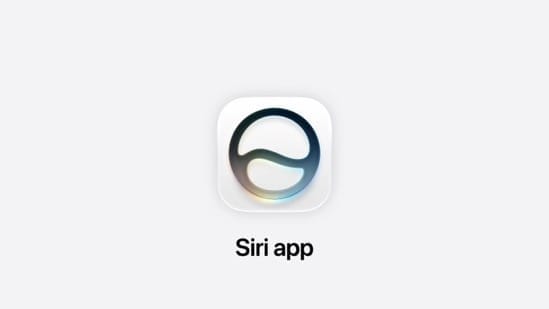
A dedicated Siri app stores your conversation history and syncs it via iCloud, so a conversation you start on iPhone continues on iPad, Mac, Apple Vision Pro, or Apple Watch with full context carried over. Siri AI is free with a daily usage allowance, and additional usage is available through iCloud+.
On iPhones with a Dynamic Island, the Siri AI animation now appears there instead of at the bottom of the screen. Swiping down from the center of the screen opens the new "Search or Ask" interface, which has also moved Notification Center: it now opens by swiping down from the top-left corner instead of the center. "Hey Siri" and the power-button activation both still work as before.
Siri AI launches in English only, with additional languages planned. It will not be available in the European Union at launch due to the Digital Markets Act, and it's also unavailable in China pending regulatory approval there. Siri AI's web answers also raise a bigger question than most day-one coverage is asking: as the default assistant on more than a billion iPhones, what Siri decides to say about a topic now carries real weight. We dug into that angle in our analysis of Siri AI as an answer engine.
Heads up if this is your first time enabling it: Siri AI requires joining a waitlist in Settings, and access can take anywhere from a few hours to a few weeks to arrive even on a fully compatible device. Apple Intelligence assets also get redownloaded periodically between beta updates, which can temporarily knock your phone back to the old Siri while the new model finishes downloading again. If Siri suddenly feels like a downgrade right after updating, give it time before assuming something's broken.
Which iPhones Actually Get Siri AI
Not every iPhone that runs iOS 27 gets Siri AI. The requirements break down into three tiers based on RAM, and each tier gets a different set of features.
| Tier | iPhones | RAM | What you get |
|---|---|---|---|
| No Siri AI | 11, 12, 13, 14, 14 Pro, 15, 15 Plus, SE (2nd/3rd gen) | Under 8GB | Liquid Glass redesign, performance gains, and every non-AI feature. No Siri AI, no Writing Tools, and the notification gesture stays unchanged since the new "Search or Ask" panel requires Siri AI to appear. |
| Siri AI | 15 Pro, 15 Pro Max, 16e, 16, 16 Plus, 16 Pro, 16 Pro Max, 17e, 17, 17 Air, 17 Pro, 17 Pro Max | 8GB+ | Conversational AI, personal context awareness, on-screen understanding, in-app actions, the dedicated Siri app, and Visual Intelligence. Most processing runs through Apple's Private Cloud Compute rather than entirely on-device. |
| Siri AI + advanced on-device model | 17 Pro, 17 Pro Max, Air | 12GB | Everything in the tier above, plus Advanced Dictation (Apple's AFM Core Advanced model running fully on-device, better accuracy, automatic punctuation, no network needed) and expressive voices (customizable pace and personality in Siri's tone). Both are opt-in previews. As of beta 3, the voice customization sliders are finally functional. |
The practical shortcut: 8GB of RAM or more gets you Siri AI. 12GB additionally gets you the advanced dictation and voice tools. Either way, you still need to join the waitlist in Settings before any of it turns on. For the deeper rundown, including how the tiers apply to iPad and Mac, see our full breakdown of which devices get Siri AI.
Write with Siri Replaces Writing Tools
Apple removed the standalone Writing Tools panel, the one with dedicated "Friendly" and "Professional" buttons, in favor of Write with Siri. It's a deeper integration than the old tools ever were.
Open any app using standard system text fields, like Notes, and before you start typing you'll see a Write with Siri button in the keyboard's suggestion bar. If you start typing first, a smaller Siri icon appears next to your usual predictive word suggestions instead.
Tap it and a text field expands out of the Dynamic Island, asking what you want to do with the document. You can ask Siri to draft something from scratch, proofread what's there, or rewrite the whole thing in a different tone. Because it's tied into the rest of Siri, it can also pull in your personal context to make smarter suggestions. If you ask it to rewrite existing text, it makes the edit and shows a before-and-after comparison at the bottom of the screen with quick undo controls and an "Edit with Siri" button for follow-up requests.
You don't need the keyboard at all. With Siri's on-screen awareness, you can speak your request out loud and Siri will know you mean whatever text field is currently focused. Write with Siri also learns how you communicate with specific contacts and adapts its tone accordingly for Smart Reply and other writing suggestions. The same system runs on iPadOS 27 and macOS Golden Gate.
Liquid Glass Opacity Slider
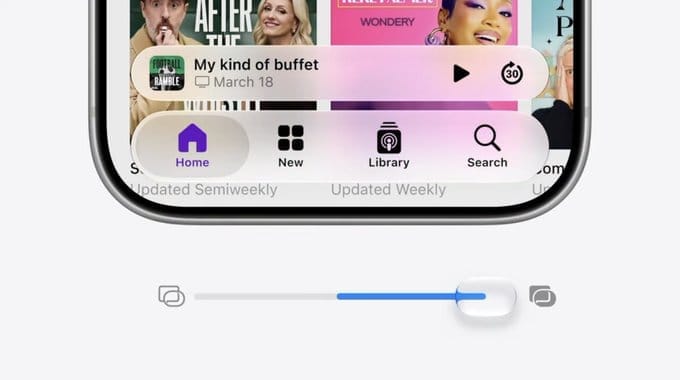
Apple added a slider that controls how transparent or opaque Liquid Glass interface elements appear, directly addressing feedback that last year's translucent aesthetic was hard to read in certain conditions. It's available on every platform, including macOS, iPadOS, and watchOS. The slider is really the visible tip of a deeper rebuild: Apple retuned how the material diffuses busy backgrounds and sharpened icon layers underneath it, which we covered in detail in why Apple fixed Liquid Glass without starting over.
Faster Everywhere
Apple rebuilt the CPU scheduler with particular attention to older hardware, and the numbers are specific: apps launch up to 30 percent faster, new photos appear in the camera roll up to 70 percent faster, AirDrop transfers are up to 80 percent quicker, and file browsing is up to five times faster. Cellular handoff when moving out of Wi-Fi range is also improved. None of this requires anything from you. It's the same iOS 27 install everyone gets, and it applies all the way back to the iPhone 11. The same scheduler-level work carries over to macOS Golden Gate, and it's substantial enough that we compared it to Apple's Snow Leopard playbook in our full performance deep dive.
Search Rebuilt From the Ground Up
Spotlight, Mail, and Photos search all run on new infrastructure that indexes new files and data almost immediately after they arrive on the device, instead of the noticeable delay from prior versions. In Settings, the indexing message now reads "Optimizing Search and Siri," a small wording change from the generic progress indicator it replaced, and a more accurate description of what's happening in the background during that wait.
Weather App: Highlights and Switchable Forecast Views
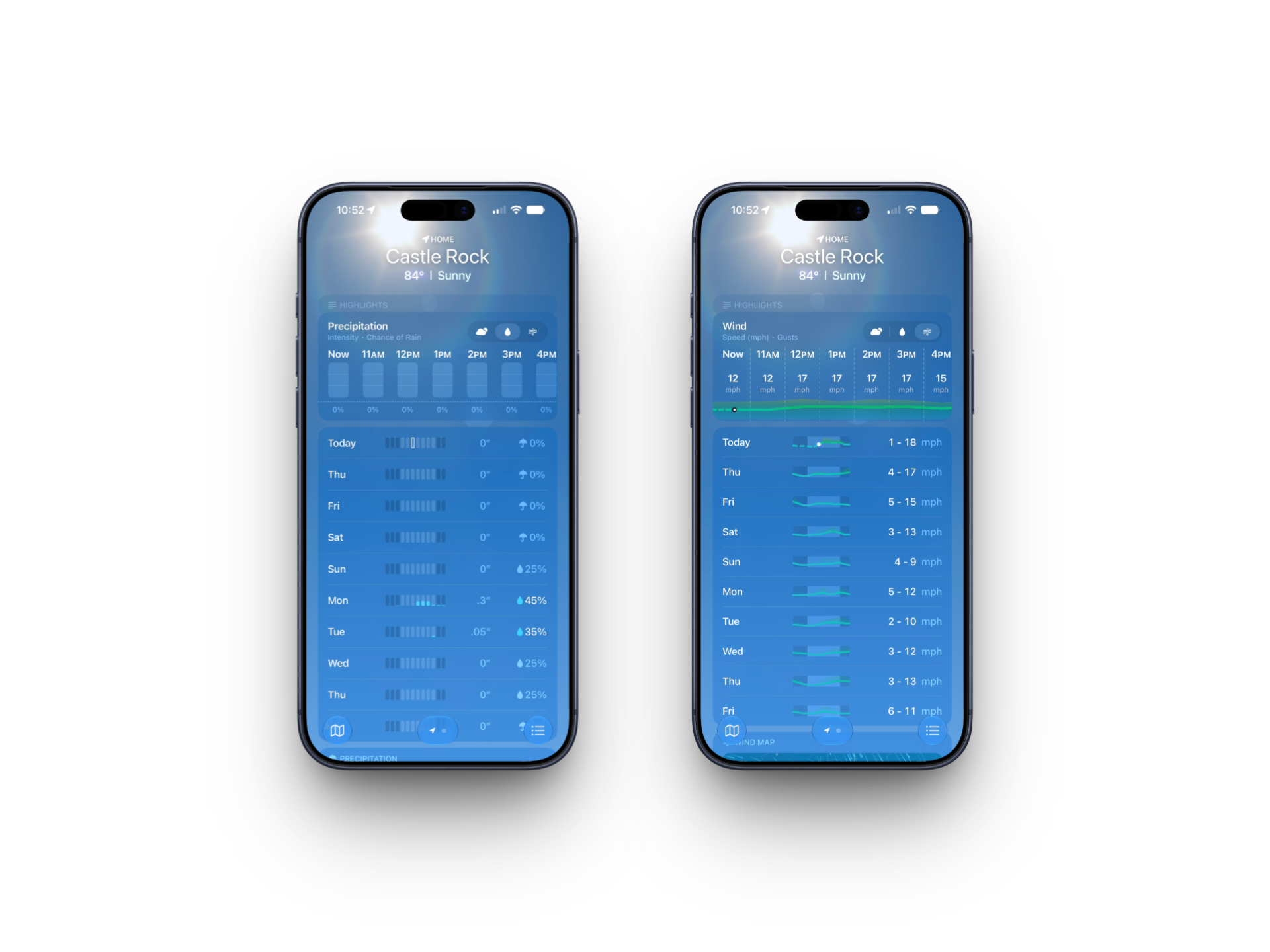
Apple Weather gets its first real redesign since its Dark Sky-powered relaunch. The old one-line summary near the top of the home screen ("Rain expected later today") has been replaced with a dedicated card called Highlights, which surfaces specific near-term conditions worth knowing about, like a temperature swing or wind picking up in the afternoon. It reads more like a short list of things that would actually change your plans than a generic template.
Three icons now sit above the hourly and 10-day forecast rows: Conditions (the default), Precipitation, and Wind. Tapping Precipitation swaps the entire forecast to show rain and snow chances by the hour and by the day. Tapping Wind does the same for estimated wind speed. Previously, getting that data meant leaving the home screen for a separate detail view. Now it's one tap, and the view stays switched until you change it back. For a closer look at both changes, including what Apple might add next, see our full breakdown of the new Weather app.
Child Safety: The Biggest Overhaul Since Screen Time
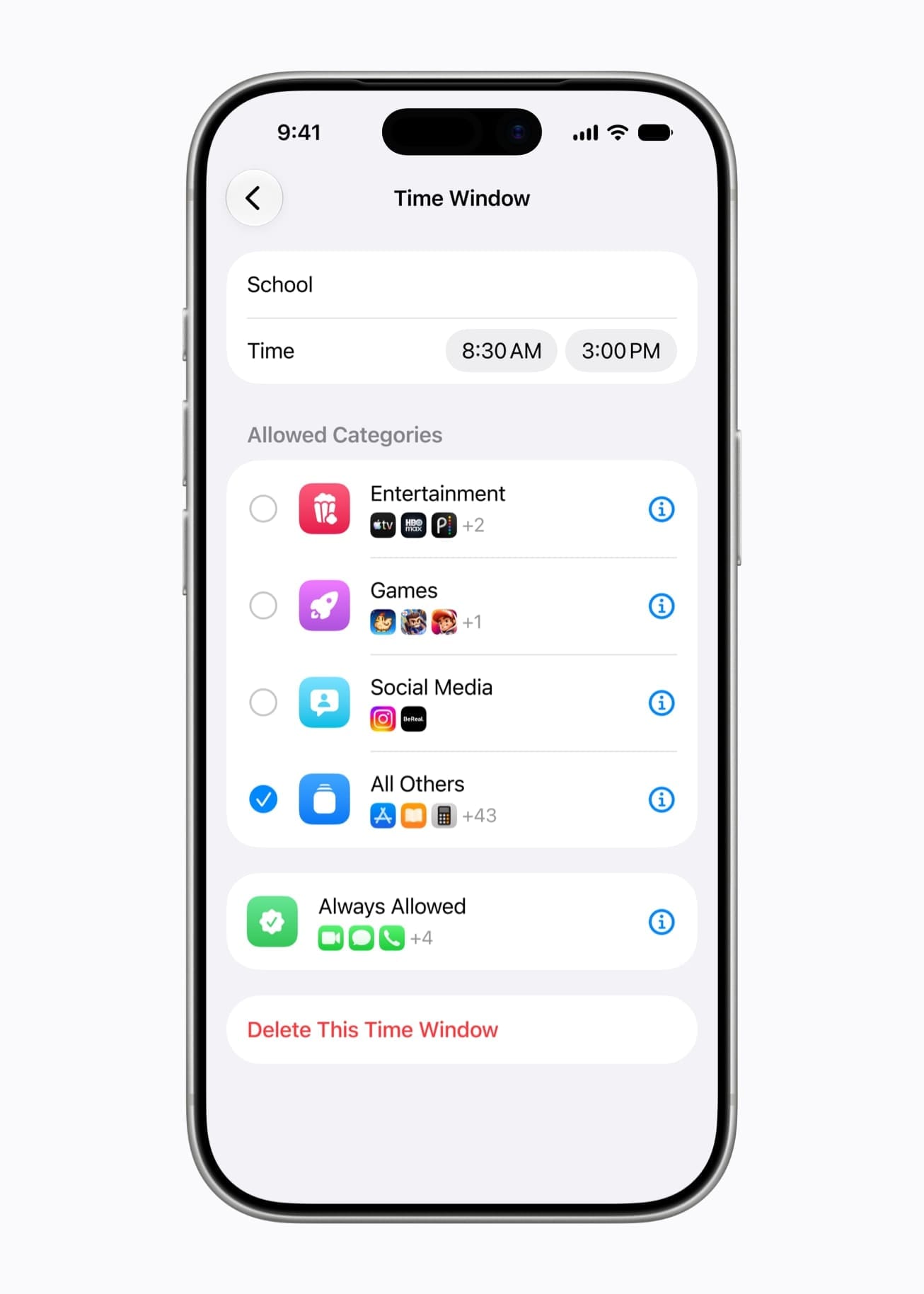
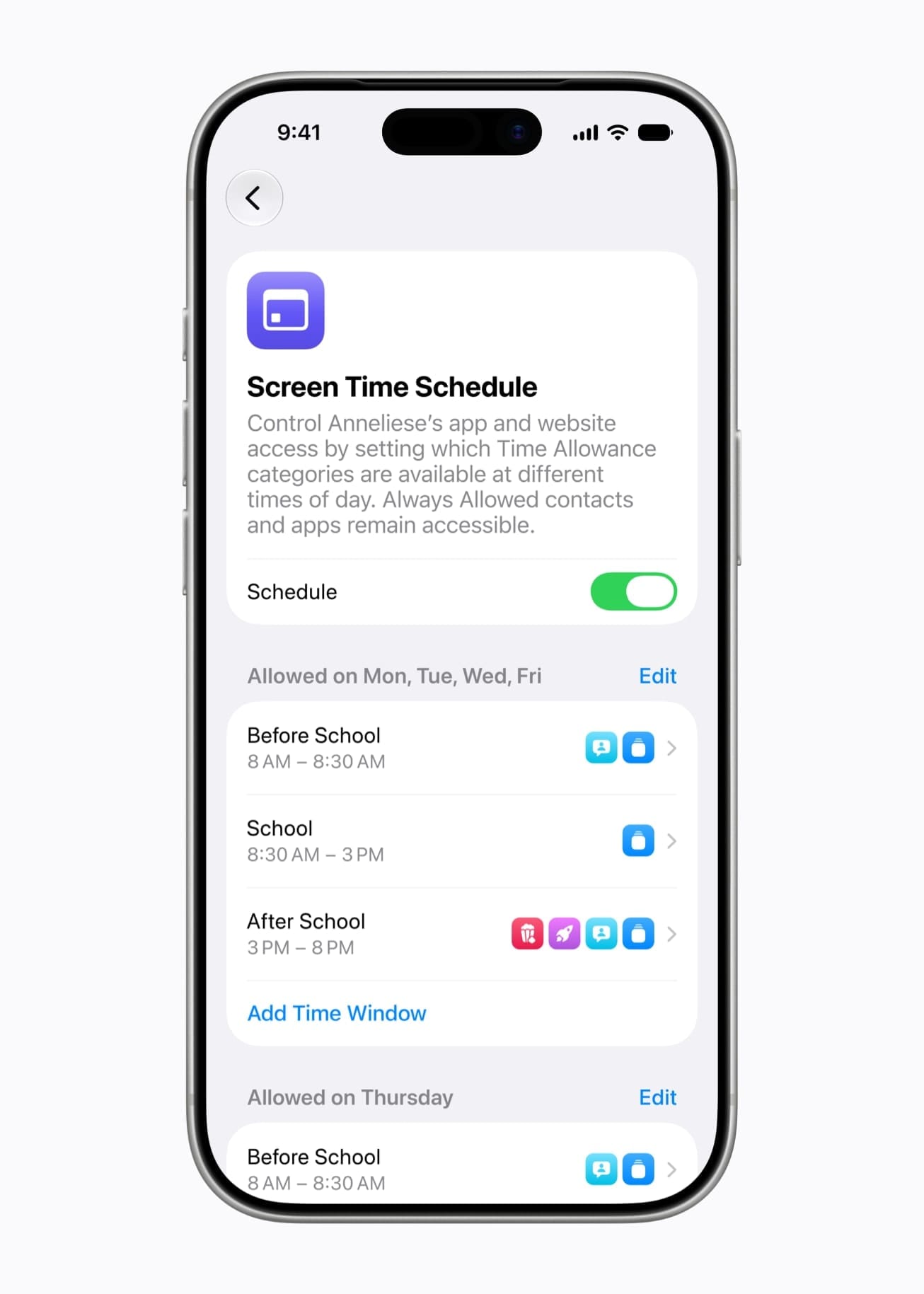
Apple rebuilt parental controls around a new permission model. The headline addition is Ask to Browse, which requires a child to get parental approval before visiting any new website in Safari, the same way Ask to Buy already gates app downloads. It's on by default for children under 13, works identically across iPhone, iPad, and Mac, and covers embedded content too: if an approved page embeds a video from a blocked service, that embed stays blocked. Parents can pre-approve entire site lists rather than approving one request at a time.
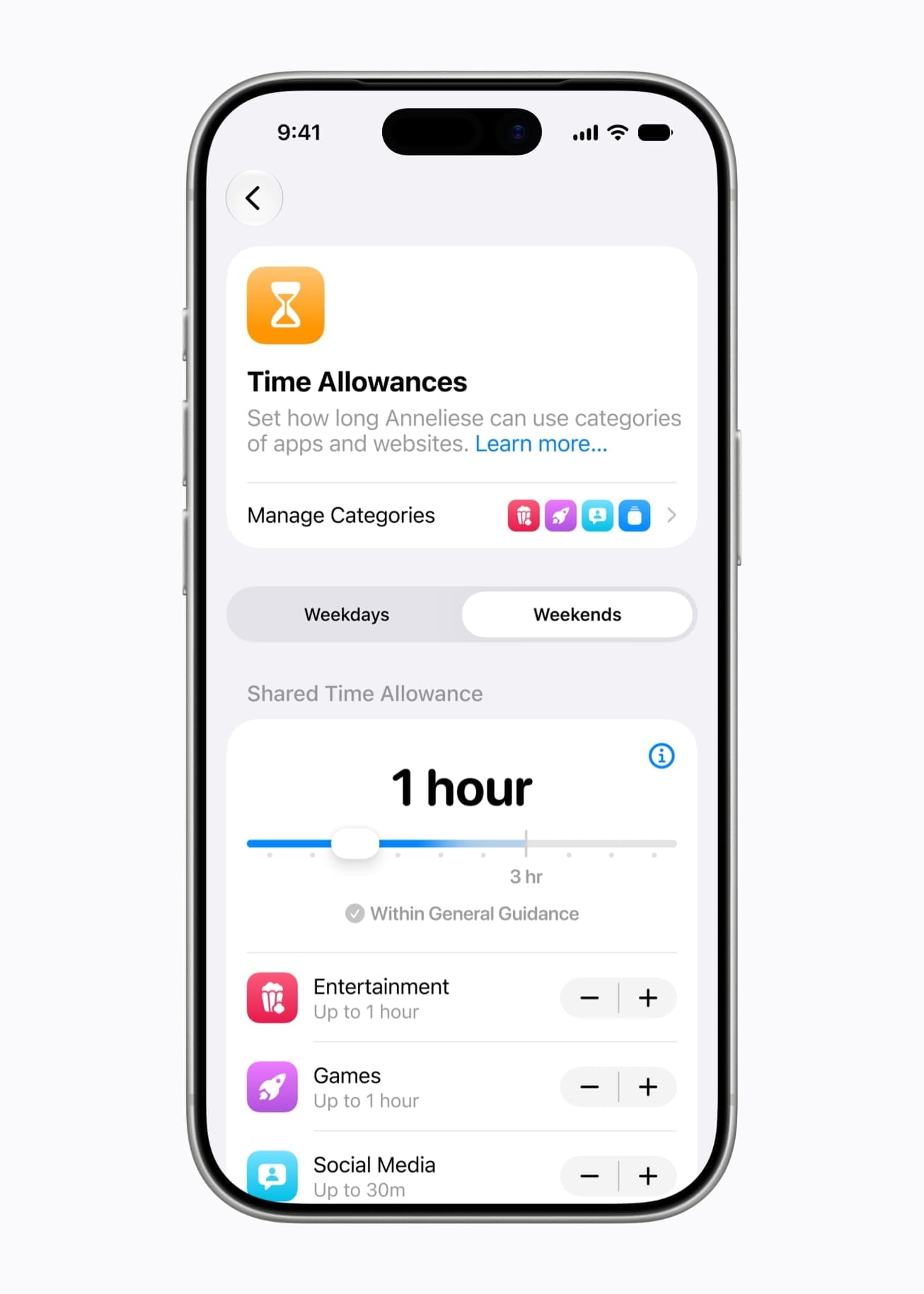
Screen Time moves from one blunt daily limit to category-based Time Allowances, covering groups like Entertainment, Games, and Social Media with separate time budgets for each. Apple provides age-based starting suggestions, but parents set the actual numbers. Schedules add a time-of-day layer on top, letting a parent allow educational apps during school hours while keeping social and gaming apps unavailable until after class, without manually toggling anything twice a day.
Communication Safety, which has blurred nudity in Messages and FaceTime for several release cycles, now also detects gore and violent content, intervening with a warning before the content displays. Detection happens on-device and is limited to Apple's own apps unless a third-party developer builds on Apple's SensitiveContentAnalysis framework themselves.
Setup Assistant also now walks parents through choosing which apps a child can access from the very first screen, offering a small essential set, a broader curated set, or a fully custom pick, rather than handing over an open device and restricting it afterward.
To turn these on: go to Settings → Screen Time (System Settings → Screen Time on Mac) with Family Sharing configured for the child's account, select the child's name, and enable Ask to Browse, Time Allowances, and Schedules from there. Communication Safety's expanded detection is on by default once the update installs. For the complete rundown of every new control, including the developer frameworks behind them, see our full guide to iOS 27's child safety features.
Apple Wallet Insights
Wallet's new Insights feature, which debuted in select regions with beta 1, is now available in the US. Find it by tapping the three-dot icon in Wallet's top-right corner. It connects your saved payment accounts to surface spending trends, recurring transactions, and account balances in one place, with a visual style similar to the Health app's trend charts. Some testers are still seeing an incomplete rollout where tapping Continue on the intro screen just drops into the standard Add to Wallet flow, so don't be surprised if it's not fully functional on your device yet.
Apple Cash Bill Splitting and Create a Pass
Apple Cash now supports receipt-based bill splitting. Photograph a receipt after paying a bill in full, assign line items to specific people, and Apple automatically generates Apple Cash payment requests for reimbursement. It works across Wallet and Messages and is US-only.
Separately, a new Create a Pass feature lets you generate digital Wallet passes by scanning physical items with the camera, turning gym membership cards, loyalty cards, and similar credentials into digital passes.
RCS Gets Real Reactions and Inline Replies
Two upgrades landed for RCS conversations with Android users. Inline replies now work the way they do in iMessage: long-press a specific message and reply directly to it instead of sending a new message at the bottom of the thread. Reactions also finally display properly on the Android side. Previously, tapping a heart or thumbs-up on an RCS message sent the recipient an awkward text notification instead of an actual reaction.
Both are part of the RCS 2.7 standard, which also includes editing and unsending messages after they're sent. Apple hasn't enabled those yet, though their absence so far doesn't rule out a later beta. Both sides of the conversation still need an RCS-capable phone and carrier.
AirPods: Custom EQ and Heart Rate Sync
AirPods get direct EQ control for the first time, through a graph-style interface in AirPods settings with low, mid, and high frequency bands. A Recommended option keeps Apple's default tuning, while Custom lets you adjust the curve with a live waveform preview as you make changes. The feature is tied to Apple's H2 audio chip, which means it's available on AirPods Pro 2, AirPods Pro 3, AirPods 4, and AirPods Max 2. The original AirPods Max, without the H2 chip, doesn't get it. For the full rundown on which models are supported, the single-profile limitation, and where Apple's three-band implementation still leaves room to grow, see our dedicated AirPods Custom EQ breakdown.
Separately, AirPods Pro 3 owners gain heart rate data sync via expanded GymKit support, routing readings through iPhone during workouts.
Photos: New AI Editing Tools
The Photos app has a new Apple Intelligence Tools section in its editing interface with three additions: Extend, which generates new image content at the edges of a frame so you can drag the borders outward and synthesize surrounding scenery; Enhance, which applies AI-driven automatic color, lighting, and quality adjustments tailored to each photo; and Reframe, which shifts the perspective of spatial photos after capture. Clean Up, the existing object-removal tool, also gets improved output quality. All three require an Apple Intelligence-compatible device. Apple has acknowledged Extend and Reframe were still producing inconsistent results during testing, so don't be surprised if they arrive more fully baked in a later update than they appear now.
Smaller Changes Worth Knowing
A handful of additional changes have shown up across the beta cycle:
- The Reminders app icon swapped its solid colored bullet points for hollow, outlined ones.
- Control Center's status bar now groups Wi-Fi with your cellular signal on the left side instead of splitting them apart.
- Independent volume controls split alarms and timers into their own slider, separate from alerts and system sounds, for the first time.
- Apple Music's artist pages have a more prominent shuffle button and updated name display, and AutoMix has been updated.
- iMessage gets a status slider for more direct control over your availability visibility in conversations.
- Call screening, which automatically answers unknown callers and asks for a name and reason before ringing through, has been extended and refined.
- A new Call Context feature in Phone surfaces relevant information mid-call, like pulling up a flight number automatically while you're on the line with an airline.
- Apple TV can now be updated remotely from the Home app's Updates section, without needing to turn the Apple TV on first.
- AirPort Utility is being discontinued and will no longer be available for new App Store downloads once iOS 27 ships.
- Automatic proofreading now runs across nearly every app on the system, including third-party apps, flagging errors without requiring you to trigger it manually.
iPadOS 27 Public Beta 1
iPad picks up everything shared with iOS 27, including Write with Siri, the Liquid Glass opacity slider, and the rebuilt search infrastructure, plus several changes of its own.
Windowing and Multitasking
Window tiling now supports splitting the screen into thirds and quarters in addition to halves. iPhone apps can be resized within iPadOS rather than running only at fixed iPhone dimensions, letting them scale up in a window. The Menu Bar can now stay permanently visible on screen, useful for anyone working in landscape with a keyboard, and the active app's name now shows in the status bar so it's easier to track which window has focus.
AirPods Custom EQ and a Simplified Settings Menu
The same H2-chip Custom EQ system described above is live on iPad, available for AirPods Pro 2, AirPods Pro 3, AirPods 4, and AirPods Max 2. The AirPods settings menu that houses it has also been simplified for easier navigation.
Screen Time Redesign
iPadOS 27 carries the same Screen Time overhaul detailed in the iOS section above, with the updated interface, Time Allowances, Schedules, and expanded Communication Safety detection.
Photos
iPadOS 27 adds slideshow customization to Photos, and iCloud Shared Albums now support full-resolution photos with compatibility extending to Android and Windows, useful for mixed-device households.
macOS Golden Gate 27 Public Beta 1
The End of Intel Support
macOS Golden Gate requires Apple silicon. macOS Tahoe 26 was the final release to support Intel Macs, and Golden Gate makes that official. This was announced a year in advance, so it shouldn't be a surprise, but it's the formal end of the transition. Four Intel machines lose new-feature support: the 2019 MacBook Pro 16", the 2019 Mac Pro, the 2020 MacBook Pro 13" with four Thunderbolt 3 ports, and the 2020 iMac.
New Golden Gate Bridge Wallpaper


A new default wallpaper featuring the Golden Gate Bridge matches the macOS 27 Golden Gate codename. It's the most visually obvious addition on Mac so far this cycle.
Design Refinements
Windows now share a uniform corner radius across every app for a more consistent look. Sidebars extend to the screen edges to reduce visual distraction, the menu bar is more transparent, and app icons have been refreshed with Liquid Glass effects. The opacity slider from iOS is available here too.
Siri AI on Mac
Siri AI can be invoked via a right-click context menu on any file, window, text, or image anywhere in the system. It's also available through a dedicated Siri app window, the standard keyboard shortcut, and the menu bar. Apple demonstrated selecting multiple presentations and asking Siri AI to compare them and help choose the best one. Spotlight is rebuilt on the same new search infrastructure as iOS, with Siri AI integrated directly for natural language queries and multi-step actions from the search bar itself.
Safari's New First-Launch Highlights
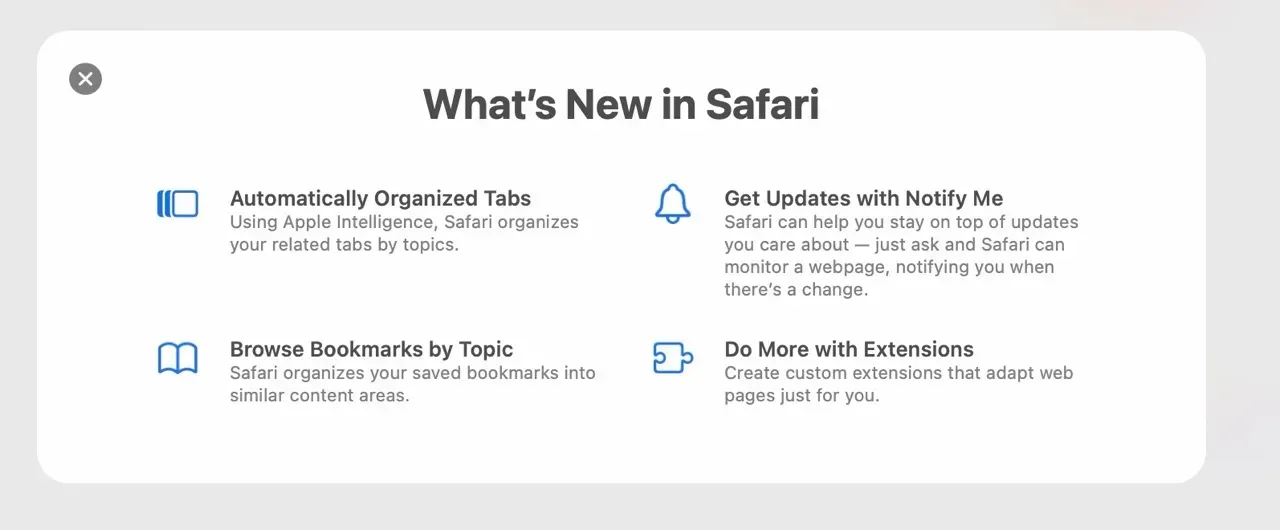
Opening Safari for the first time on the beta now shows a highlight screen calling out four features: automatic tab organization that groups open tabs without manual sorting, browsing bookmarks by topic instead of one long list, Notify Me for tracking a page and getting alerted when it changes, and the ability to build custom extensions by describing what you want in plain language rather than relying only on developer-built ones.
watchOS 27 Public Beta 1
The Steepest Device Cut in Apple Watch History
watchOS 27 requires an S9 chip or later, which erases three entire generations in a single release: Apple Watch Series 6, 7, and 8, the second-generation SE, and the original Apple Watch Ultra are all dropped. The supported list is Apple Watch Series 10, Series 11, Ultra 2, Ultra 3, and SE 3, plus the Series 9, which runs watchOS 27 but without the Apple Intelligence features that require an S10 chip or later.
Siri AI Finally Arrives on Apple Watch
The first two watchOS 27 betas shipped without Siri AI working on Apple Watch at all. Beta 3 changed that. Siri AI and the standalone Siri app are both live now, bringing a genuinely conversational assistant to the wrist for the first time. The new Siri app takes the center position in the Dynamic app grid, with surrounding apps chosen based on what you use. Conversations sync across devices, so you can start asking Siri something on your watch and pick the thread back up on iPhone, iPad, Mac, or Vision Pro with full context intact. As with iPhone, give it time to finish loading in the background after updating before assuming it's broken.
New and Updated Features
The Smart Stack now surfaces transit cards and IDs directly, and Wallet can display card balances right on the watch face. A consolidated Find My app replaces the previous fragmented approach to locating devices and people. GymKit expands beyond Apple Watch-only equipment pairing to sync heart rate and workout data through iPhone as well. A new tap gesture adds another way to navigate the watch without raising your wrist or pressing a button, and guest key support in Wallet lets you share access to home locks and hotel rooms from your watch. Workout Buddy, the AI-powered audio coaching feature, now supports Spanish.
Performance
Apple improved battery efficiency and step tracking accuracy, along with faster Wi-Fi connectivity, quicker app extension launches, and faster media playback starts. Water detection is more efficient, and the dynamic app grid loads and responds more fluidly than in earlier betas.
tvOS 27 Public Beta 1
tvOS 27's device cuts are modest by this cycle's standards: the Apple TV HD from 2015 and the first-generation Apple TV 4K from 2017 both lose support, leaving the second- and third-generation Apple TV 4K as the only supported models. Apple TV can now be updated remotely through the Home app's Updates section, the same way HomePod has worked for a while, without needing to turn the Apple TV on first. Beyond that, tvOS 27 hasn't seen significant beta-specific changes surface yet.
visionOS 27 Public Beta 1
Siri AI arrives on Apple Vision Pro with a purpose-built spatial interface, a 3D visualization you can position anywhere in your environment. The dedicated Siri app is available here too, with conversation history syncing across your other devices via iCloud. The full Apple Intelligence feature set is now available on visionOS, bringing it in line with iPhone, iPad, and Mac. Both Vision Pro models, the original M2 version and the M5 refresh, are supported. Unlike Siri AI's EU restrictions on iPhone and iPad, Siri AI is available in the EU on visionOS from day one.
iOS 27 Compatible Devices: What's Supported and What Got Cut
iPhone support didn't move an inch this year. iOS 27 runs on the exact same 31 iPhone models as iOS 26, all the way back to the 2019 iPhone 11, including both generations of iPhone SE. Everywhere else, Apple cut deeper than it has in years. Sixteen devices across the rest of the lineup lose support this fall: five watchOS models (the steepest cut in Apple Watch history), five iPadOS models, four Intel Macs, and two older Apple TV models. HomePod and visionOS came through untouched entirely.
If you're unsure whether your specific device makes the cut, or whether it qualifies for Siri AI once it does, the full device-by-device breakdown with compatibility tables for every platform is available in our complete iOS 27 device support guide.
iOS 27 Public Beta FAQ
Is the iOS 27 public beta safe to install?
t's safer than the developer betas that came before it, since it's based on the more refined beta 3 build, but it's still pre-release software. Expect occasional bugs, faster battery drain, and a handful of apps that haven't caught up yet. Install it on a secondary device if you have one.
When is the iOS 27 full public release?
Apple is targeting September 2026 for the general release, alongside the new iPhone lineup.
Can I downgrade from the iOS 27 public beta back to iOS 26?
Yes, but only through a full restore from a computer, not an over-the-air update. You'll need the backup you made before installing the beta to get your data back, since a backup made on iOS 27 won't restore onto iOS 26.
What's the difference between the iOS 27 developer beta and public beta?
Almost nothing functionally. The public beta is the same build as the current developer beta, in this case beta 3, opened up to anyone through the free Beta Software Program instead of requiring a paid Apple Developer account.
Does my iPhone support Siri AI in iOS 27?
Any iPhone with 8GB of RAM or more supports Siri AI, which covers the iPhone 15 Pro and every iPhone released after it. See the tier breakdown earlier in this article for exactly which features each tier unlocks.
The iOS 27 public beta is available now to anyone enrolled in Apple's Beta Software Program. See the installation steps near the top of this article to get started, and remember to back up before you install.
Which iOS 27 feature are you installing the public beta to try first: Siri AI, the Liquid Glass slider, or something further down this list? Let us know in the comments below.
Read us first
See more TBTL when you search Google
Add Tech Between the Lines as a preferred source and our Apple coverage shows up more often in your Top Stories. It takes one tap, and you can change it anytime.
Prefer TBTL on Google