

Skylight Calendar 2 Review: A Genuinely Useful Device That Can't Quite Get Out of Its Own Way
The Skylight Calendar 2 fills a real gap in busy households, but a pattern of half-finished features and inconsistent AI keeps it from being as good as it should be.


There's a specific kind of household chaos that hits somewhere around the kindergarten years. It's not just that everyone is busy; it's that everyone is busy on different schedules, and the overlap between those schedules is what keeps the whole thing from falling apart. My wife works varying nights. My son just started kindergarten. Mornings have become a small triage exercise. So when the Skylight Calendar 2 landed on our counter, the appeal was immediate and obvious: one shared screen that shows what today actually looks like for everyone in the house, no unlocking phones or juggling apps required.
After several months of daily use, watching Skylight push a steady stream of updates the whole time, I've landed somewhere I didn't entirely expect. The Skylight Calendar 2 works. It fills a real gap. I don't want to give it back. But I've also watched a pattern emerge across several of its features where Skylight's ambition consistently outruns its execution, and that gap matters when you're paying $299 upfront plus $79 a year for the Plus subscription.
A Quick Setup Note
The Skylight Calendar 2 only works on a 2.4GHz WiFi network. It does not support 5GHz or 6GHz bands. Most modern routers and mesh systems broadcast all bands under a single network name, and the Skylight will fail to connect or drop off intermittently if it lands on the wrong one. This is the most common setup frustration in the Skylight community and it catches people off guard on day one.
The fix usually means logging into your router admin panel and splitting your 2.4GHz and 5GHz networks into separate SSIDs, then connecting the Skylight specifically to the 2.4GHz one. Most routers let you do this under the wireless settings section, and ISP-provided routers usually have a simplified version of the same option buried in advanced settings. It is not a complicated process if you are comfortable poking around a router interface, but it is not a beginner task either, and it is the kind of thing that turns a fun unboxing into a frustrating hour of Googling.
If you have a mesh system like Eero, Orbi, or Google Nest WiFi, the process varies by brand and some make it harder than others to separate the bands. A quick search for your specific router model and "separate 2.4GHz SSID" will get you where you need to go faster than the manufacturer's own documentation will.
Reddit's r/skylightcalendar has no shortage of posts about this exact issue, and the answer is always the same. Check your router setup before the box arrives and you will save yourself the headache entirely.
Skylight Calendar 2 Hardware and Display
The Calendar 2 is a 15.6-inch IPS touchscreen running at 1920x1080, with a display Skylight claims is 60% brighter than the original. The processor is roughly three times faster, which is noticeable in daily use. The body is 20% slimmer, borrowing the design language of the larger Calendar Max, and the magnetic Snap Frames let you swap border colors without tools. The device wall mounts cleanly in portrait or landscape orientation; if you want tabletop use in portrait, the new stand only works landscape, which is a step back from the original.
None of that hardware is why anyone buys this. The reason to buy the Skylight Calendar 2 is the one thing it does better than anything else in its category: it puts everyone's schedules in one place, at a glance, without asking anyone to do anything. Google Calendar syncs two-way out of the box. Apple Calendar can do the same, but it requires an app password setup that's a few more steps than most people expect. Outlook and others sync one direction only. Every morning I walk into the kitchen and I know what my wife has on her schedule, what my son's day looks like, and when I need to be somewhere. That ambient visibility is worth quite a bit in a house with overlapping schedules.
A couple of practical notes worth flagging before purchase. The Calendar 2 has no battery and must be plugged in at all times, so outlet proximity shapes where you can actually put it. Wall mounting near an existing outlet is the cleanest solution; counter placement in a specific spot may need a cord you weren't planning for. And if you're hoping to pull in a corporate Outlook or Exchange account, there's a real chance your IT department will block the OAuth sync request before it goes through. Personal accounts work reliably; work accounts at security-conscious employers are a coin flip.
One UX note worth updating from earlier impressions: the photo screensaver used to mean the calendar disappeared entirely behind family photos until you tapped to wake it, which undercut the whole ambient-visibility pitch. That's no longer true. Skylight has since layered weather, the time, the date, and your next two upcoming events directly over the screensaver photos. That's a real change to the value proposition of the feature, since screensaver mode no longer means losing visibility into your day. It's a genuinely smart fix to a legitimate complaint, and the kind of update that makes the screensaver worth turning on rather than something to work around.
Skylight has also listened on update fatigue. Every new feature used to arrive as a What's New pop-up on the screen, which gets old fast on a device the whole family walks past all day. You can now control that under Settings, then New Feature Announcements: Immediately, a Weekly roundup every Monday evening, or Never. It's a small setting, but it's another example of Skylight responding to a common complaint rather than ignoring it.
Skylight Sidekick AI: Promising but Inconsistent
Skylight's AI suite, called Sidekick, is one of those features that sounds exactly right and works inconsistently enough to erode trust, at least in its core import function. The pitch is that you can forward an email, upload a PDF or photo, and have Sidekick parse it into calendar events automatically. I've used it several times to import my son's daycare lunch menu, which is the kind of structured, repetitive information that should be a perfect candidate. The results ranged from clean to genuinely frustrating. Some imports came through with duplicated entries. Others had date errors. A few sessions uploaded only part of the menu, missing days with no indication anything was skipped. On a couple of occasions, nothing imported at all.
Sidekick has grown beyond event import, and the newer Activity Planner is worth noting separately. You answer a few prompts about your schedule, location, and budget, and Sidekick surfaces tailored activity suggestions ready to drop straight into your calendar. My first run genuinely impressed me: it found a local summer kick-off concert happening nearby that Saturday, and adding it was a single tap. One data point isn't a verdict, but it suggests Skylight finds better footing with AI when it's surfacing suggestions rather than parsing documents. The import inconsistency hasn't gone away, but the suite as a whole is more interesting than it was at launch.
Skylight Calendar 2 Meal Planning Feature
If Sidekick's event import is where Plus shows its rough edges, Meal Planning is where it shows what the subscription can do when it's working. The feature lets you build a weekly meal plan from the device or app, import recipes by snapping a photo of a handwritten card or cookbook page, generate grocery lists automatically from those recipes, and ask Sidekick to suggest meals based on what you have on hand or dietary preferences you're working around. It's one of the few places where the AI component is doing something meaningfully more complex than a search box would, and it tends to deliver.
I'll be honest: I haven't leaned on it heavily, since managing a weekly dinner plan hasn't been the primary reason the Skylight earns its place in our kitchen. But I've used it enough to see the appeal clearly, and it's consistently called out as the standout Plus feature by other Skylight Calendar 2 reviewers. For a household that meal plans regularly, having that workflow live on the same screen as the calendar and the grocery list is a genuinely well-thought-out integration. It's the version of Skylight where the subscription makes obvious sense.
Rewards, Disney Mode, and the Skylight Plus Subscription Cost
The Rewards system is where Skylight's tendency toward half-finished features is most visible. The idea is sound: kids earn stars by completing chores and routines, stars accumulate toward custom rewards that parents define, and the whole thing is visible on screen. For a household with kids learning to take ownership of daily tasks, that feedback loop should be motivating.
In practice, the implementation feels stripped down in ways that matter. Star values can only be assigned and managed through the mobile app, not from the device itself. The rewards are essentially text labels with a star threshold, with no capacity to attach images, notes, or context. You can now remove stars from a child's total, which addressed a genuine gap, but that's still app-only. The system has the feel of a feature that got launched before it was done. It's not broken. It just doesn't have the depth that would make a kid actually care about it past the first week.
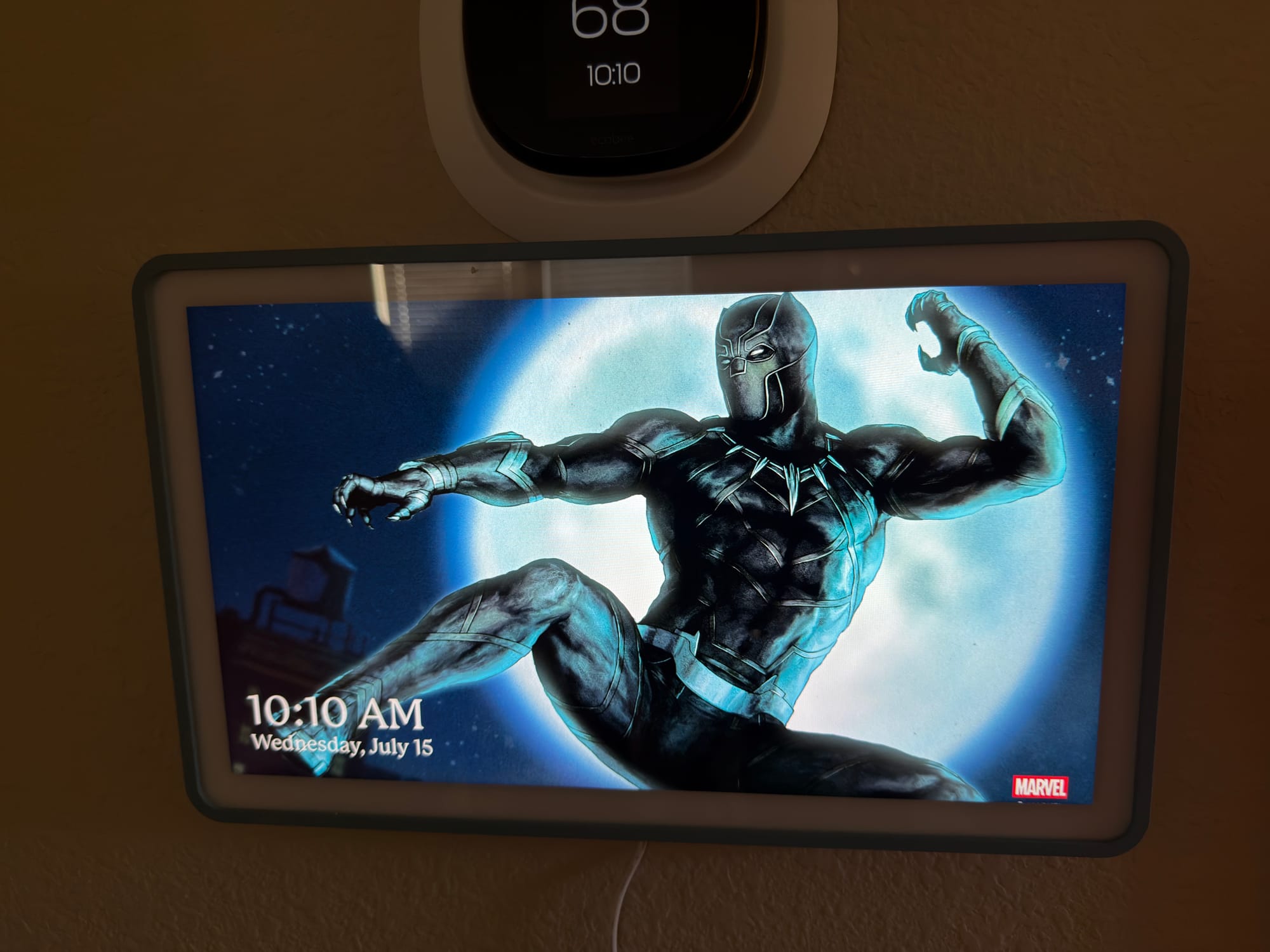
Skylight has since layered Disney Mode on top of this tier: 16 character profile avatars from Disney, Pixar, Marvel, and Star Wars, cinematic screensavers, and themed animations when tasks are completed or rewards are redeemed. For households deep in that universe, there's novelty there. As a feature that moves the needle on daily utility, it doesn't. It's a cosmetic layer on top of a system that still needs more substance underneath it.
Track Habits is a more thoughtful Plus addition. Routines can be flagged as habits to track over time, with streaks that survive a skipped day. Skylight's framing of celebrating effort rather than perfection is genuinely the right instinct for kids. It pairs with the Week View to show progress over time and has more staying power than anything else in the Rewards tier.
Which makes the Skylight Plus subscription cost a persistently tricky conversation. All of these features, Rewards, Disney Mode, Track Habits, Sidekick, and Meal Planning, sit behind the $79-per-year Calendar Plus paywall. That puts the Skylight Calendar 2 at $379 in year one and $79 every year after. Spread that over five years and you're at $695 for a kitchen calendar. Some of that subscription earns its place: Sidekick is compute-heavy and genuinely ambitious, and Meal Planning delivers on what Plus promises. But a star chart with app-only management and a Disney skin bundled alongside those features doesn't read as a fair value exchange. It reads like padding that makes the tier look fuller than it is.
Skylight Calendar 2 App and Lists
The Skylight mobile app has improved, though "improved" is doing some heavy lifting there. The biggest change is a meaningful Lists overhaul. What was once a bare line-item experience now supports sections, drag-and-drop reordering within and between sections, a three-dot menu for quick actions, and a cleaner overall layout. The Groceries list I would have described as basically a shopping notepad now has enough structure to be genuinely useful during a weekly shop. That's worth acknowledging plainly.
The All Tasks View is also new: tap Tasks in the app, switch the Day orb to All, and you get every chore, routine, and to-do across every household member in one scroll. It's a view that should have been there from the beginning.
One device-side UX quirk worth noting: you can toggle tasks to appear on the weekly calendar view, which sounds useful until you turn it on. Tasks take up enough space that they push actual calendar events off the screen. Most people who try it turn it back off. It's the kind of thing that should have been caught in user testing.
The app as a whole still feels like it was built to be secondary. The interface is utilitarian in a way that suggests most of the product thinking went into the device itself. The lists are better but still have no notes or quantity fields. The AI sort feature is legitimately useful when pulling together a grocery run, but the Skylight app overall still just kind of exists. The improvements are real; the gap from where it should be is also real.
Skylight Home View: Finally Here, Still Underwhelming
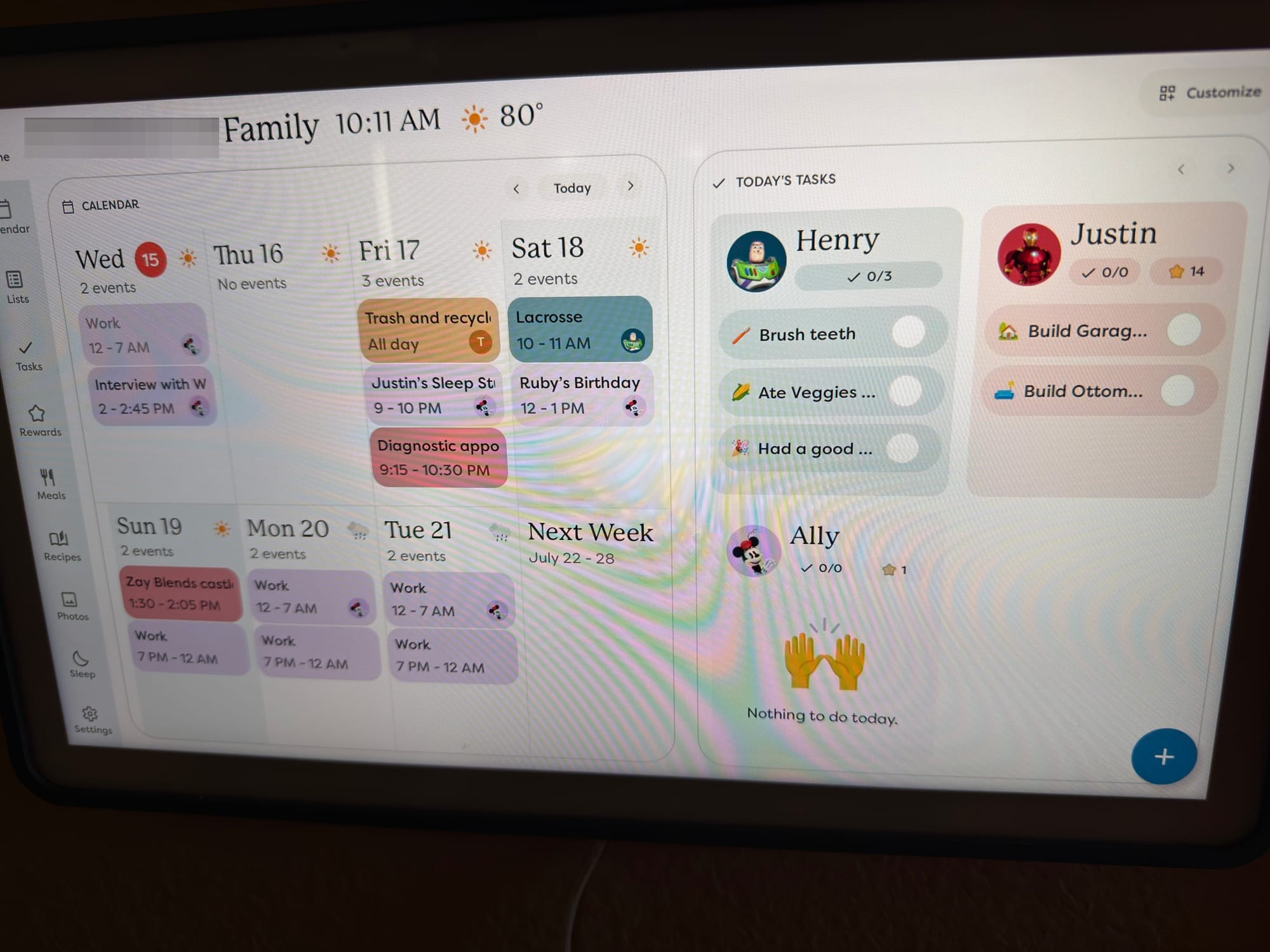
Home View was the feature that inspired the sharpest frustration about Skylight's rollout approach. It was announced as a brand new screen consolidating your weekly calendar, today's tasks, and shared lists in one place, essentially a family command center on the device itself. Users waited weeks. The Reddit response from Skylight was a steady loop of "it's rolling out." It eventually arrived for everyone.
And it's fine. The Home tab in the sidebar puts your week, tasks, and lists together without requiring navigation between views. That's useful. Skylight has made a couple of incremental improvements since launch, it now opens on the current day rather than the start of the week, and Up for Grabs chores now surface directly on the Home screen. But the implementation is still fairly cramped, and customization remains limited to toggling Tasks and Lists on or off. For a feature that generated genuine anticipation and an extended rollout window, it's improving, but still lands closer to a proof of concept than a finished product. The pattern holds, just a little less severely than it did at launch.
Task Management: Getting There
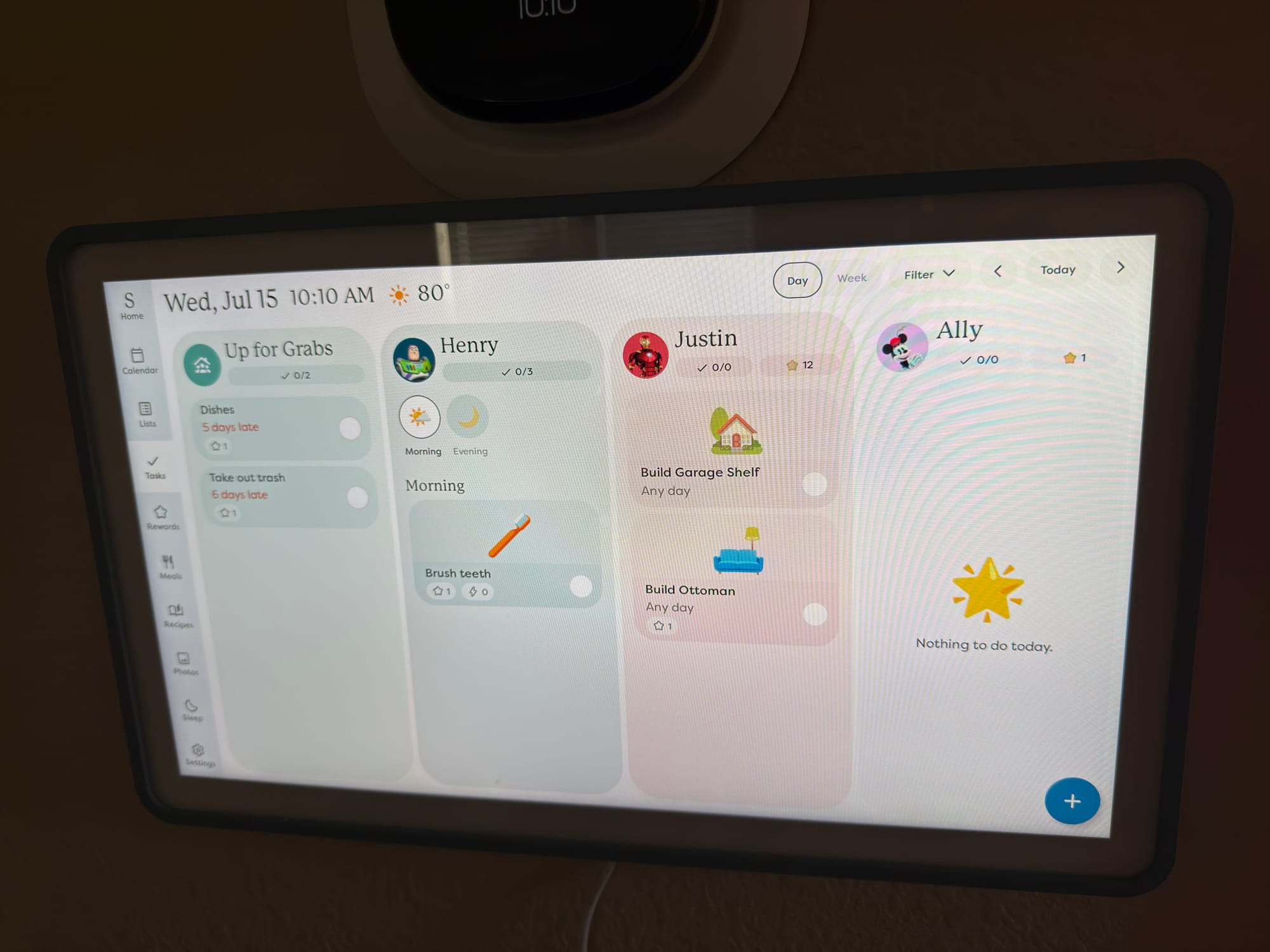
A few additions worth noting specifically for families with kids. Task Due Reminders, available to all users at no cost, let you assign a due time to any task and receive a push notification on your phone and a pop-up reminder on the device. For a household trying to remember that someone needs to leave for practice at 3:45, this is more useful than it sounds on paper.
Task Descriptions let you attach step-by-step instructions to any task, so "clean the bathroom" can actually explain what that means to an eight-year-old. It doesn't solve the bigger depth problems, but it meaningfully improves chore accountability and was clearly driven by real user feedback.
The One That Stumped Me
Twice now, an event on my calendar showed up on the Skylight with the wrong time. A meeting at 8:45 a.m. appeared as 2:45 p.m. on the device. Nothing I did corrected it. It eventually resolved itself, but I never understood what caused it or why it wouldn't respond to a manual fix. A calendar that shows the wrong time is, in a specific way, worse than no calendar at all.
October 10, 2026:
- You can now choose how often new feature pop-ups appear on the Calendar. Go to Settings, tap New Feature Announcements, and pick Immediately, Weekly (one roundup every Monday evening) or Never. It only applies to the Calendar itself, not the Skylight app on your phone.
August 27, 2026:
Skylight continues to ship updates at a steady pace. The most meaningful changes since publish:
- The photo screensaver now overlays weather, time, date, and your next two upcoming events directly on top of photos.
- Task Completed Notifications let you get notified the moment a chore is finished, with control over which family members you're notified about, no more wondering if something got done.
- Up for Grabs got a real upgrade: those chores now show up on the Home screen, can be reordered by drag-and-drop, and can finally be skipped if no one claims them that day.
- Sidekick imports now show a review step before anything is added to your calendar or recipe box, so nothing lands there without your approval.
Also shipped recently: German and Spanish language support, emoji search when adding events, and Month view now opens on the current week instead of day one.
Is the Skylight Calendar 2 Worth It? The Verdict
For all of that, I keep the Skylight Calendar 2 where it is. The daily visibility it provides for our family's overlapping schedules has genuinely changed how our mornings feel. The Up for Grabs task feature, which lets anyone in the household claim and complete unassigned chores, is a nice touch for a busy family with a kid old enough to participate, and it's gotten more capable since launch. The Meal Planning features, while not a central part of my workflow, are thoughtfully built for families who'd use them. And the updates that have landed since launch, including the Lists overhaul, Task Reminders, Activity Planner, Task Descriptions, and a screensaver that finally keeps weather and upcoming events visible instead of hiding the calendar entirely behind photos, show a team listening to real feedback and occasionally delivering on it.
Finishing things is still Skylight's weak spot: promising feature, thin implementation, slow rollout, incremental patches. Home View arrived eventually and landed underwhelming. Disney Mode is a licensed coat of paint on a Rewards system that still needs more depth. But the pace and relevance of what's shipped since this review published say something. This isn't a team resting on a good device, it's one actively working through its own backlog. The device is good and keeps getting more capable, and the software finally seems to be catching up to it. If you go in with that context, and you're willing to calibrate expectations around what works versus what's still maturing, the Skylight Calendar 2 earns its place in the kitchen.
- ✓At-a-glance visibility for every family member's schedule with no daily effort to maintain
- ✓60% brighter display and 3x faster processor than the original Skylight Calendar
- ✓Magnetic Snap Frames and a cleaner, slimmer design
- ✓Up for Grabs tasks is a genuinely useful feature for households with chore-age kids
- ✓Color coding per family member keeps overlapping schedules readable at a distance
- ✓Lists overhaul adds sections, drag-and-drop, and per-list menus, making them genuinely usable
- ✓Task Due Reminders are free for all users, not just Plus subscribers
- ✓Meal Planning is the Plus feature that most consistently earns the subscription cost
- ✕Requires a dedicated 2.4GHz WiFi network; 5GHz and 6GHz bands are not supported
- ✕Sidekick AI event import is inconsistent; errors, duplications, and silent failures erode trust
- ✕Skylight Plus subscription at $79/year gates features like Rewards that aren't finished enough to justify the ask
- ✕Rewards and Disney Mode are cosmetically fun but lack the depth to sustain kids' motivation
- ✕Home View arrived after a frustrating rollout and still feels half-finished
- ✕iOS app is improved but still feels like an afterthought compared to the device experience
- ✕Rare but unexplained event time errors that don't respond to manual correction
- ✕No battery; must be plugged in at all times, which limits placement flexibility
- ✕Corporate Outlook and Exchange sync may be blocked by employer IT policies
Frequently Asked Questions About the Skylight Calendar 2
Is the Skylight Calendar 2 worth it?
For households managing multiple family members' schedules, yes. The ambient, always-visible display is genuinely useful in daily life in a way that phone apps aren't. The caveats are the WiFi setup requirement, the subscription cost, and several features that feel unfinished. If you go in with realistic expectations, it earns its place.
How much does the Skylight Calendar 2 cost?
The device is $299. Skylight Plus, which unlocks Sidekick AI, Meal Planning, Rewards, and other features, costs $79 per year. First-year total comes to $378. Over five years, you're looking at $695.
Is the Skylight Calendar 2 worth it without a subscription?
The free tier covers calendar syncing, color-coded profiles, tasks, custom lists, and Task Due Reminders. That's actually a solid foundation and covers the core use case well. You'll miss Meal Planning and Sidekick import, but if your household's primary need is a shared family calendar display, the free tier is usable.
What WiFi does the Skylight Calendar 2 need?
It requires a 2.4GHz WiFi network. It does not support 5GHz or 6GHz bands. If your router broadcasts all bands under a single network name, you'll need to split them into separate SSIDs and connect the Skylight to the 2.4GHz one specifically. This catches a lot of buyers off guard.
Does the Skylight Calendar 2 work with Google Calendar?
Yes, and Google Calendar is the best-supported option. It syncs two-way, meaning changes made on your phone or in Google Calendar appear on the Skylight, and events added on the Skylight push back to Google Calendar.
Does the Skylight Calendar 2 work with Apple Calendar?
Yes, but two-way sync requires setting up an app-specific password, which is a few more steps than the Google setup. It works once configured; the setup process just isn't as smooth.
What is the difference between Skylight Calendar and Calendar 2?
The Calendar 2 has a faster processor (roughly 3x), a brighter display (60% brighter per Skylight), a slimmer body, and magnetic Snap Frames for swappable borders. Both devices run the same Skylight software and receive the same updates. If you already have the original and it's working fine, the hardware upgrade alone probably doesn't justify the cost.
Does the Skylight Calendar 2 require the internet to work?
Yes. The device requires an active WiFi connection to sync calendars, update tasks, and use Sidekick. If your internet goes down, the calendar stops updating. It is not functional offline.
How do I turn off new feature pop-ups on the Skylight Calendar?
On the Skylight Calendar, open Settings and tap New Feature Announcements. Choose Immediately to see each new feature as it ships, Weekly for one roundup every Monday evening, or Never to turn the pop-ups off. The setting only affects the Calendar, not the Skylight app on your phone.
Read us first
See more TBTL when you search Google
Add Tech Between the Lines as a preferred source and our Apple coverage shows up more often in your Top Stories. It takes one tap, and you can change it anytime.
Prefer TBTL on Google