


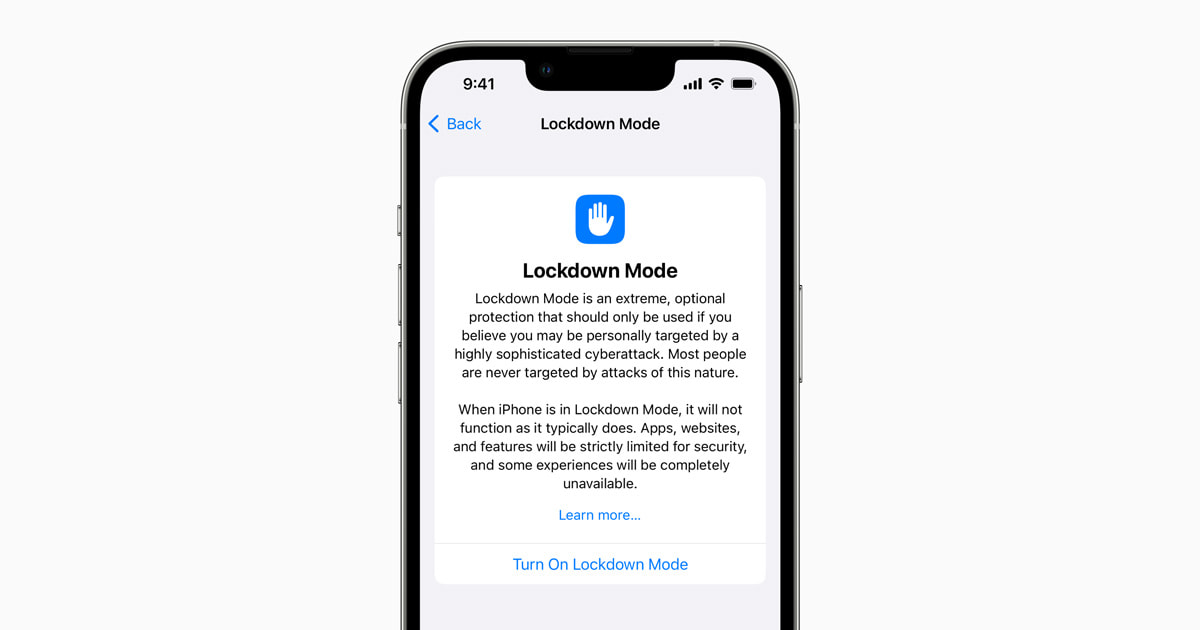


Lockdown Mode is the setting Apple built for the small number of people who might be targeted by expensive, government grade spyware. This week, a security research group called Calif showed a video of an iPhone 18 Pro with Lockdown Mode turned on being jailbroken, with the jailbreak still in place after the phone updated to iOS 27.2, according to MacRumors. It's a notable result, because Apple said earlier this year that it wasn't aware of any successful mercenary spyware attack against an iPhone in Lockdown Mode.
For almost everyone reading this, it doesn't change anything about how you use your iPhone today. Here's what was shown, what it means, and the one setting worth a quick look.
What Calif showed
The video starts with a PDF sent to the iPhone over AirDrop. The person on the receiving end accepts the file, and the jailbreak follows from there. The phone then installs iOS 27.2 and stays jailbroken afterward. Calif hasn't published the technical details, and it isn't clear whether the same method works on an iPhone that's already running iOS 27.2.
The same group jailbroke an iPhone Duo on launch day about a week earlier. Calif has said it reports the vulnerabilities it finds to Apple and doesn't plan to release a jailbreak tool to the public, so this isn't something that's out in the wild for anyone to use.
Should you be worried?
Probably not. There are three reasons this is a low risk for regular iPhone owners.
First, it required someone to accept a file. The demo didn't take over a phone silently. The PDF arrived by AirDrop and had to be accepted, which means the attacker needed to be physically nearby and the target had to say yes.
Second, it isn't public. A demonstration by researchers who report their findings to Apple is a long way from a tool criminals can use.
Third, the flaws involved are now on Apple's radar. Researchers reporting to Apple is how these holes get fixed in future updates, which is one more reason to keep your iPhone current.
The AirDrop setting worth checking
The practical takeaway is about AirDrop, not Lockdown Mode. Leaving AirDrop open to everyone means anyone nearby can try to send you a file. Setting it to Contacts Only means only people in your contacts can, and you can still switch to Everyone for 10 Minutes when you need to receive something from a stranger.
To check it:
- Open Settings and tap General.
- Tap AirDrop.
- Choose Contacts Only, or Receiving Off if you rarely use it.
You can also change it from Control Center: touch and hold the box with the Wi-Fi and Bluetooth controls, tap AirDrop, and pick an option. And the simplest rule still applies: if an AirDrop request shows up from someone you don't know, decline it.
What Lockdown Mode is, and who should use it
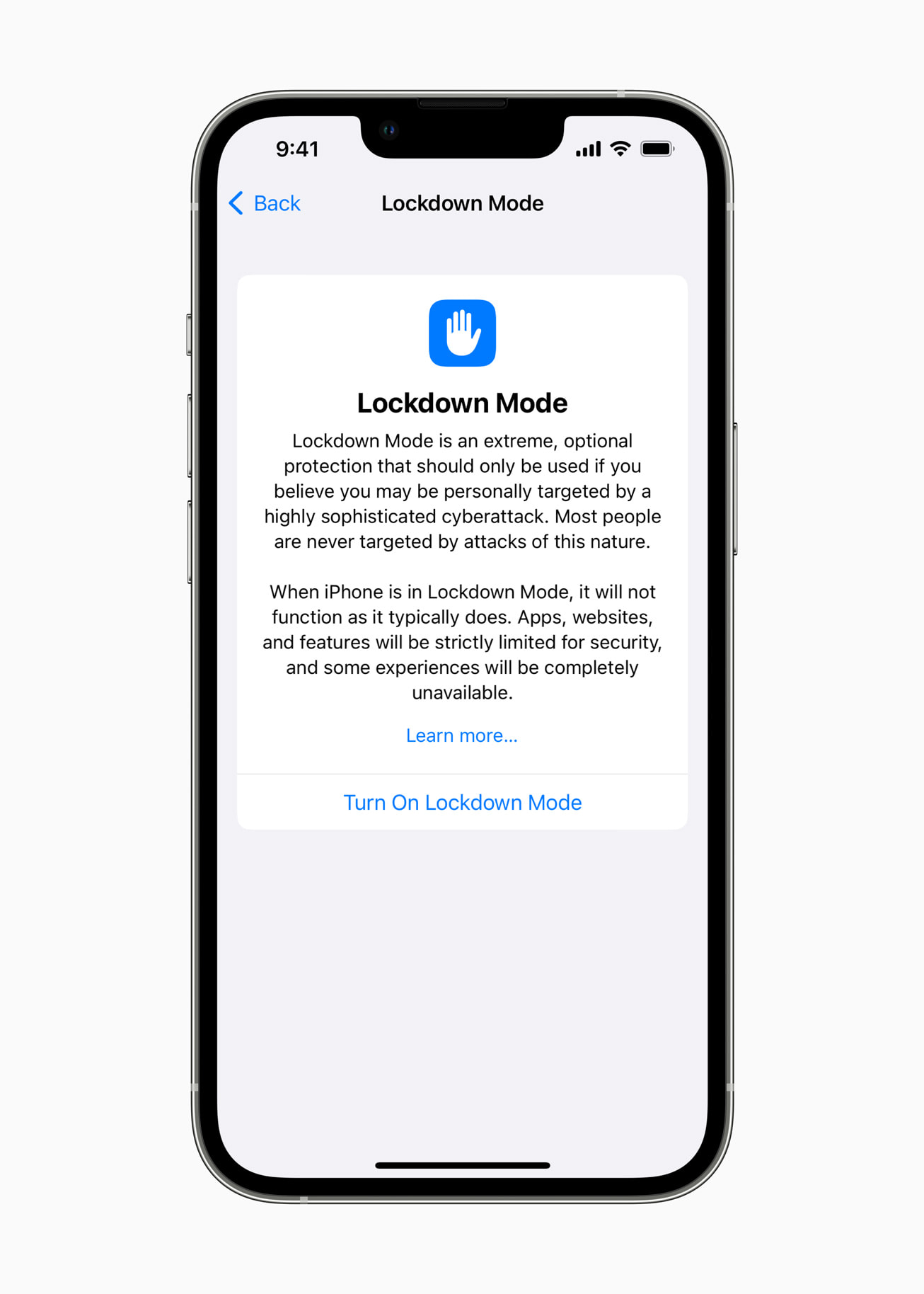
Apple describes Lockdown Mode as optional protection for the very few people who may be personally targeted by highly sophisticated digital threats. Most people will never face that kind of attack, and Lockdown Mode makes everyday use noticeably more limited, so it isn't meant to be left on by default.
When it's on, according to Apple's support page:
- Messages blocks most attachment types other than some images, video and audio, and turns off links and link previews.
- Safari blocks some complex web technologies, so some sites may load slowly or not work correctly.
- FaceTime blocks calls from people you haven't called in the past 30 days.
- Invitations to Apple services are blocked unless you've invited that person before, and Game Center is turned off.
- Location data is stripped from photos you share, and shared albums are removed.
- Your iPhone has to be unlocked to connect to accessories or a computer.
- It won't join non-secure Wi-Fi networks automatically, and 2G and 3G are turned off.
- Configuration profiles can't be installed, and the iPhone can't be enrolled in device management.
Phone calls, plain text messages and emergency features like SOS keep working. In iOS 27, you can also exclude specific contacts from the Messages limits, along with trusted websites and apps, though Apple warns that every exclusion reduces the protection.
How to turn on Lockdown Mode

- Open Settings and tap Privacy & Security.
- Scroll down and tap Lockdown Mode.
- Tap Turn On Lockdown Mode, then tap it again to confirm.
- Tap Turn On & Restart and enter your passcode.
It has to be turned on separately on each iPhone, iPad and Mac, though turning it on for your iPhone also covers a paired Apple Watch.
What happens next
Flaws that researchers report to Apple typically get fixed in a later security update, and Apple rarely comments on specific research before a patch ships. If an iOS update addresses this, we'll note it here and flag it in Should I Update?. Until then, the best protection for most people is the boring stuff: keep your iPhone updated, keep AirDrop on Contacts Only, and don't accept files from strangers.





Comments