

How to Secure Your Apple Account: The 8 Settings That Stop Most Takeovers
Most Apple Account takeovers start with a fake support call, a reused password or a watched passcode. These eight settings close those gaps in about 20 minutes.


When an Apple Account gets taken over, it is rarely because someone cracked it. A fake "Apple Support" caller talks someone into reading out a code. A password reused from a breached shopping site works on the email that resets everything else. A thief watches a passcode go in at a bar, then grabs the phone. Apple has built strong defenses against every one of those, and on most iPhones, at least one of them is switched off.
These are the eight settings that close the most common gaps, in about 20 minutes.
See who is already signed in
1. Review your device list
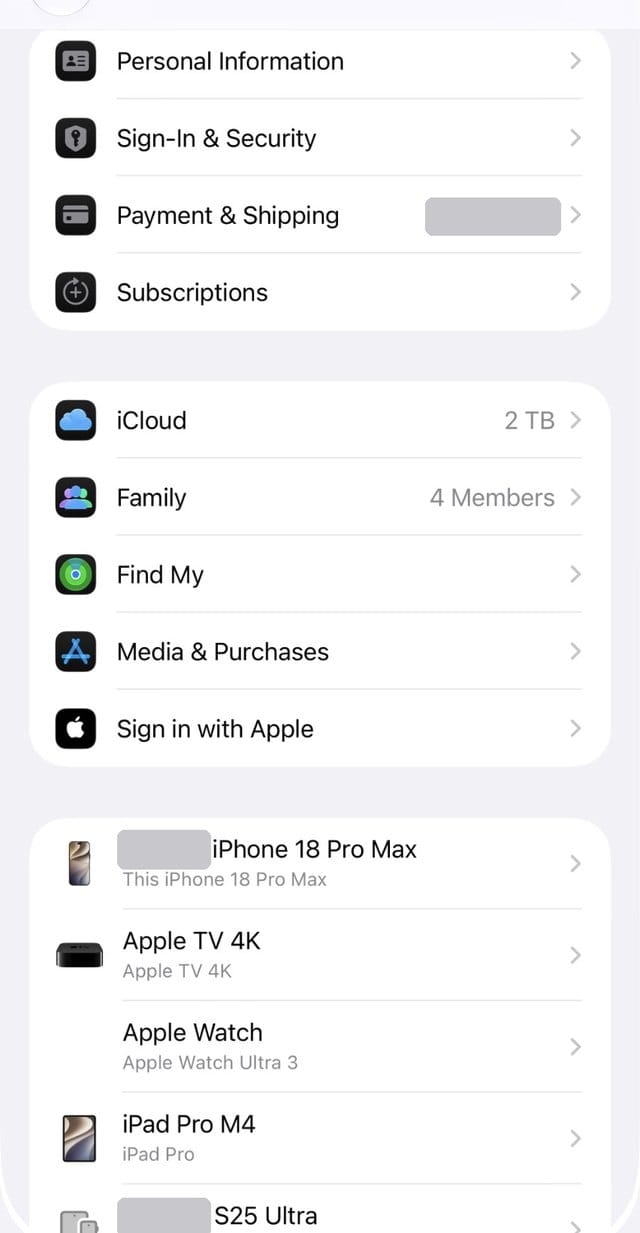
Open Settings > [your name] and scroll down to the list of devices signed in to your account. Every one of them can receive your codes and reach your iCloud data. Tap anything you do not recognize, or sold years ago, and choose Remove from Account. One exception, straight from Apple: if a device was stolen, remove it here but not from Find My, so Activation Lock stays on.
2. Add a second trusted phone number
In Settings > [your name] > Sign-In & Security > Two-Factor Authentication, add a trusted number that is not your iPhone's, such as a partner's phone. Apple suggests this for anyone with more than one number. If your iPhone is lost and it was your only trusted number, getting codes gets hard fast.
Make sure you can always get back in
3. Add a Recovery Contact
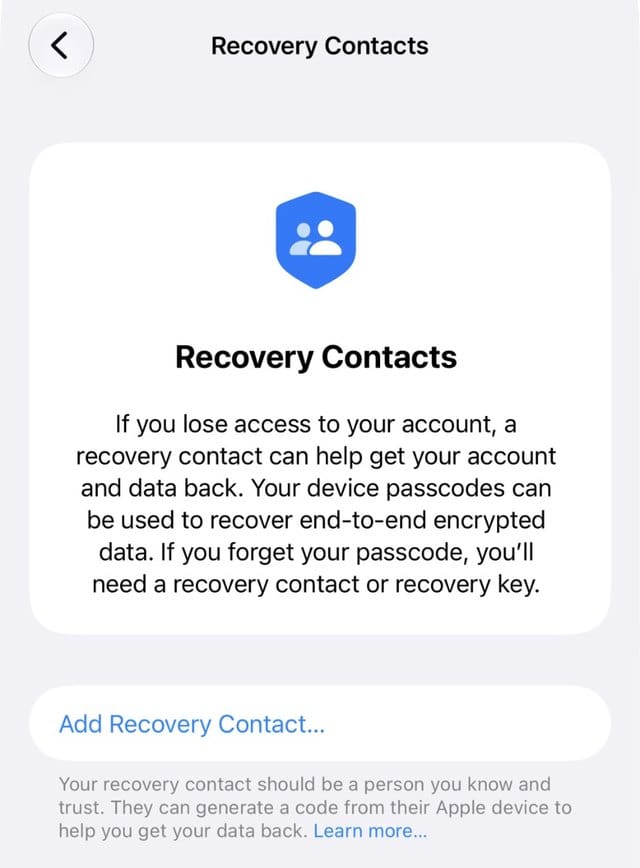
At Settings > [your name] > Sign-In & Security > Recovery Contacts, add someone you trust. If you are ever locked out, they can give you a code from their device. They never get access to your account or data. Apple says account recovery can take days or longer, and Apple Support cannot speed it up.
Protect the iPhone itself
4. Turn on Stolen Device Protection, and set it to Always
At Settings > Face ID & Passcode > Stolen Device Protection, turn it on and set Require Security Delay to Always. Saved passwords, erasing the phone and other sensitive actions then need Face ID with no passcode fallback, and changing your Apple Account password or passcode adds a one hour delay. Someone who watched you type your passcode still cannot take over your account.
5. Turn on both kinds of automatic updates
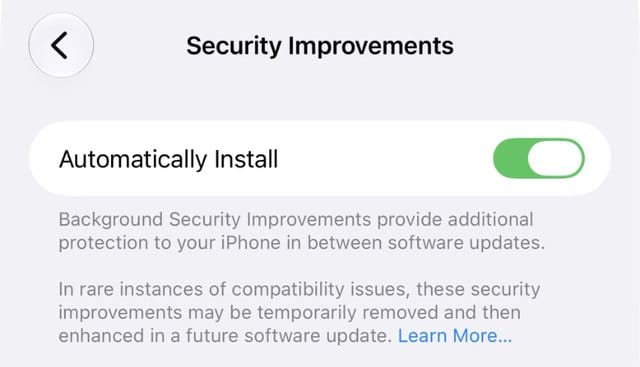
Turn on Settings > General > Software Update > Automatic Updates, then also Settings > Privacy & Security > Background Security Improvements. The second one installs the security patches Apple ships between full updates, and most people have never seen it.
Fix the passwords you already know are weak
6. Open the Passwords app and check Security
The Passwords app already flags weak passwords, passwords you reuse across sites, and passwords that showed up in known data breaches. Start with the leaked ones, then anything reused on email or banking. Wherever a site offers a passkey, take it: a passkey is never shared with the website, so there is nothing for a fake login page to steal.
7. Run Safety Check
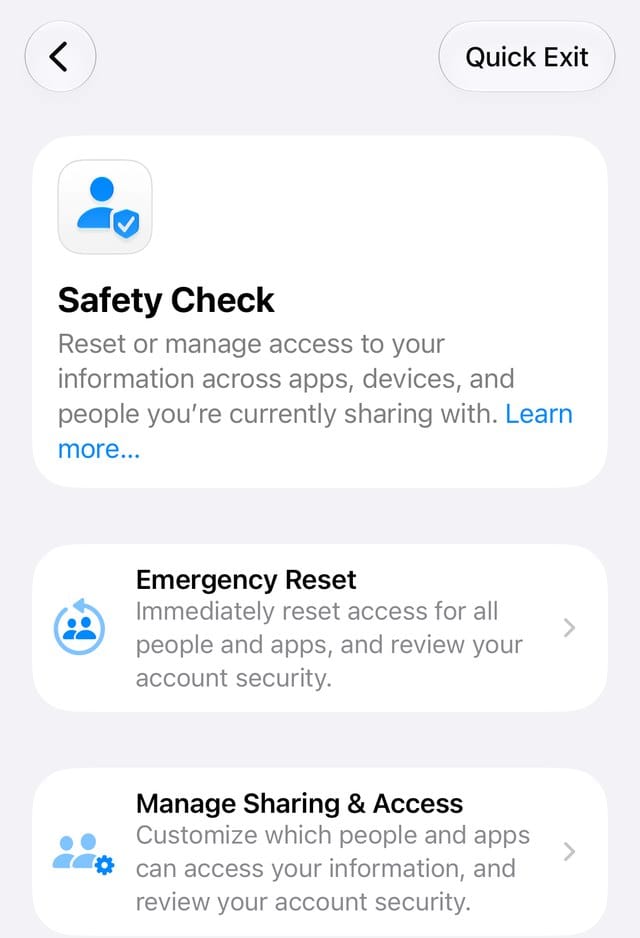
Settings > Privacy & Security > Safety Check walks through every person you share with and every app with access to your information. It takes five minutes and almost always turns up something to switch off.
And the rule that stops the rest
8. Apple never asks for your password or codes
In Apple's own words, "Apple never asks for this information to provide support." It also will not ask you to sign in on a website or turn off a security feature like Stolen Device Protection. If a call, text or email asks for any of that, hang up or delete it, and contact Apple yourself through the Apple Support app or apple.com.
A few of Apple's strongest options, like a Recovery Key or Advanced Data Protection, move responsibility for recovery from Apple to you. They are excellent for the right person and risky for the wrong one, which is why they are not on this list. Turn them on only once you know exactly how you would get back in without Apple's help.
Related: our iOS 27 problems and fixes page tracks every known issue and Apple's fixes.
Read us first
See more TBTL when you search Google
Add Tech Between the Lines as a preferred source and our Apple coverage shows up more often in your Top Stories. It takes one tap, and you can change it anytime.
Prefer TBTL on Google