

How to Set Up an iPhone for an Older Parent: The 10 Settings That Matter Most
Bigger text, scam calls that never ring, and help that is ready on the worst day. The ten iOS 27 settings that do the most for an older parent's iPhone, with exact steps.

Your mom calls because the text on her iPhone is "too small again." Your dad answered a call from "Apple Support" last month and nearly read out a code. Neither of them needs a new phone. They need an hour with someone who knows which settings to change, and most of those settings are already on their iPhone, switched off or buried three menus deep.
These are the ten changes that do the most for an older parent's iPhone in iOS 27, in the order we would make them. Each one takes a minute or two, and together they cover the three things families worry about most: reading the screen, avoiding scams, and getting help in an emergency.
Make it readable
1. Make text bigger and bolder
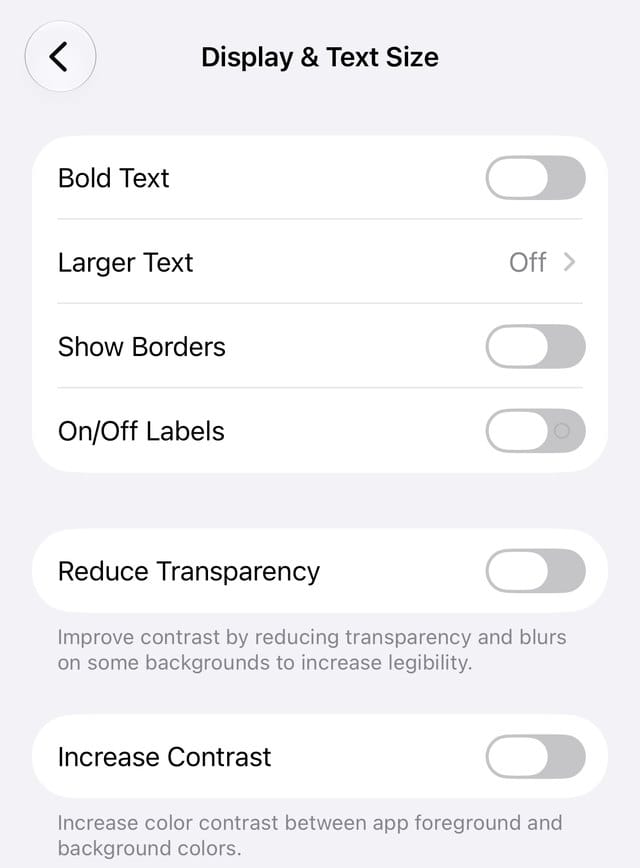
Go to Settings > Accessibility > Display & Text Size > Larger Text and drag the slider until a message is comfortable at arm's length with their usual glasses. Turn on Bold Text on the same screen; it helps as much as size does. For even bigger sizes, turn on Larger Accessibility Sizes, but test it, because Apple notes that very large text can make some buttons hard to tap. In iOS 27 the same controls also appear under Settings > Appearance.
2. Stop the screen going dark mid sentence
Slow readers lose their place every time the screen locks after 30 seconds. In Settings > Display & Brightness > Auto-Lock, choose 3 or 5 minutes. If the path looks different on their phone, swipe down on the main Settings screen and search for Auto-Lock.
3. Turn on Live Captions
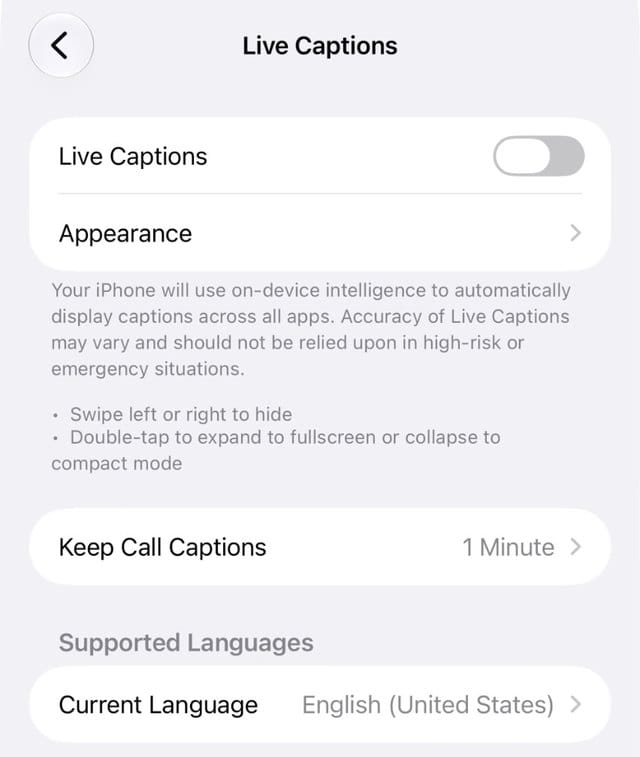
For a parent who says "what?" on every call, Settings > Accessibility > Live Captions puts speech on the screen as text during phone and FaceTime calls, videos and even conversations in the room. It needs an iPhone 11 or later, is not available in every language or region, and Apple says it should not be relied on in emergencies.
Shut the door on scams
4. Make unknown callers say who they are
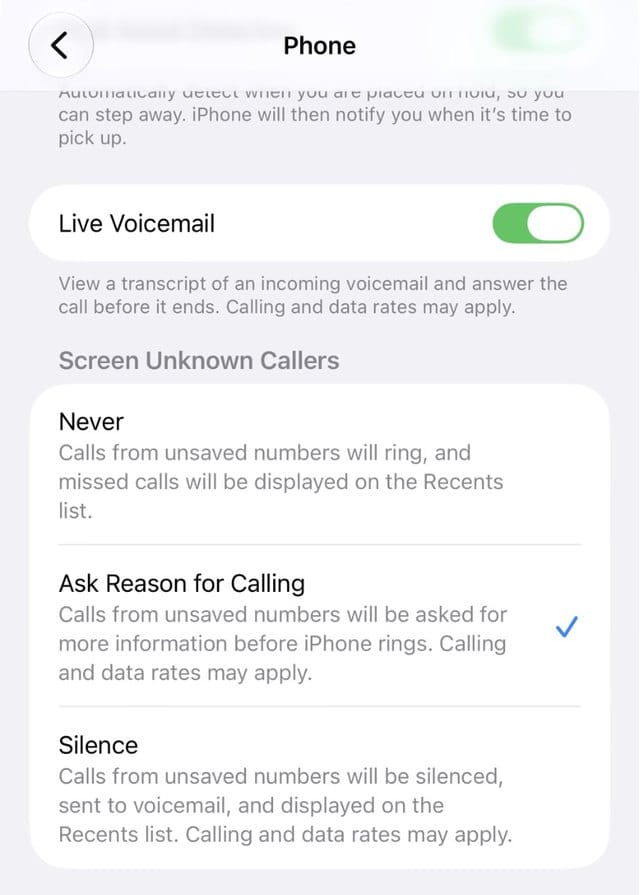
If you change only one scam setting, make it this one. In Settings > Apps > Phone > Screen Unknown Callers, choose Ask Reason for Calling. When a number that is not in Contacts calls, the iPhone answers and asks the caller for their name and reason before it ever rings. Robocalls tend to hang up; the pharmacy gets through. Screening does not work while roaming and switches off for 24 hours after an emergency call, so add regular callers like the doctor's office to Contacts.
5. Move texts from strangers out of the inbox
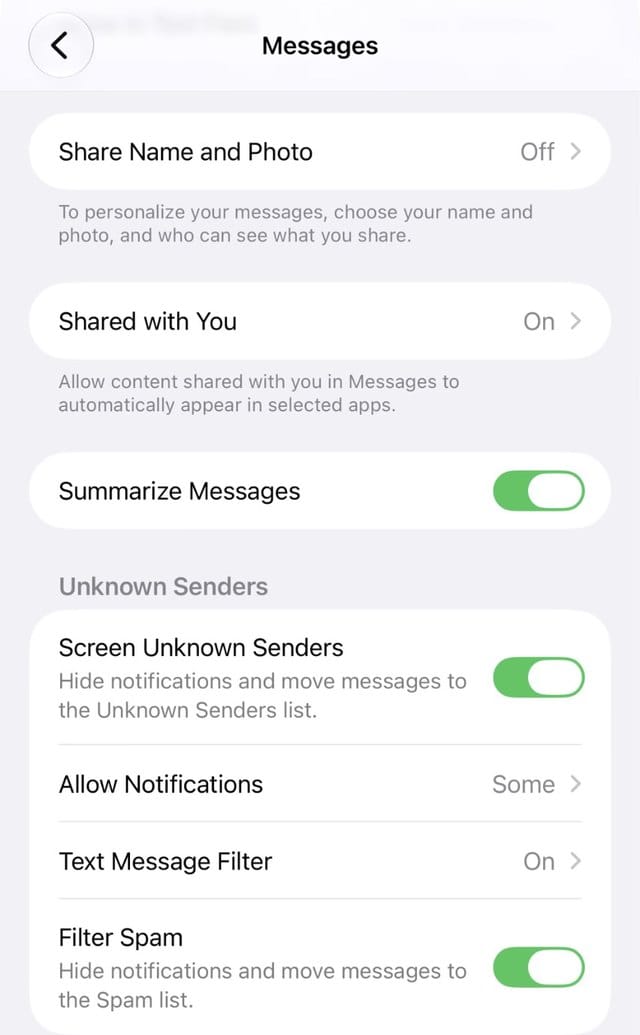
Nearly every "your package is held" and "suspicious charge" text comes from a number they do not know. In Settings > Apps > Messages > Unknown Senders, turn on Screen Unknown Senders so those texts land in a separate list. Show them how to open one and tap Mark as Known when a real message ends up there.
6. Turn on Stolen Device Protection, set to Always
In Settings > Face ID & Passcode > Stolen Device Protection, turn the feature on and set it to Always. Saved passwords, erasing the iPhone and other sensitive actions then need Face ID with no passcode fallback, and changing the Apple Account password or passcode adds a one hour security delay. A thief who watched them type their passcode still cannot take over the account. It requires iOS 17.3 or later, two factor authentication and Find My.
7. Add yourself as a Recovery Contact
A parent locked out of their Apple Account loses photos, contacts and messages at once. In Settings > [their name] > Sign-In & Security > Recovery Contacts, add yourself. If they ever get locked out, your iPhone can generate a code that gets them back in, and you never see their data or password.
Be ready for a bad day
8. Fill in Medical ID
Open the Health app, tap their picture, then Medical ID > Edit. Add medications, allergies and conditions, add you as an emergency contact, and turn on Show When Locked so paramedics can see it from the Lock Screen without the passcode. Turn on Share During Emergency Call as well, where available.
9. Walk through Emergency SOS
In Settings > Emergency SOS, turn on Call with 5 Button Presses, which many people find easier under stress than holding two buttons. After an SOS call, their emergency contacts get a text with their location. Explain how it works rather than rehearsing it, since it is easy to place a real call, and tell them that if a call starts by accident, the right move is to stay on the line and say they are OK.
10. Rehearse screen sharing with remote control
This one is for you. During a FaceTime call between two iPhones on iOS 18 or later, or a regular phone call when both are on iOS 26 or later, your parent can share their screen and you can ask to control it, tapping through the setting they cannot find from your own iPhone. You need to be saved in their Contacts, and it is not available in the European Union. Try it once while you are sitting together, so the Allow prompt is familiar, and tell them to only ever allow it for family on a call they started.
What we left out, on purpose
Assistive Access, Apple's simplified iPhone interface, is a powerful option for a parent living with memory loss, but it also removes features most older users still want, so it deserves its own decision rather than a default. Display Zoom fits less on the screen, and the large app icon option hides app names that many older users rely on. Try both, and keep them only if your parent prefers them.
The settings above are the start. The habits matter as much: a family rule to hang up and call back on a known number whenever money or a code comes up, and a printed card by the phone that says so. The iPhone already has most of the protection an older adult needs. An hour of setup is what turns it on.
Related: if something stopped working after the update, our iOS 27 problems and fixes page tracks every known issue.
Read us first
See more TBTL when you search Google
Add Tech Between the Lines as a preferred source and our Apple coverage shows up more often in your Top Stories. It takes one tap, and you can change it anytime.
Prefer TBTL on Google