

Setting Up a New iPhone? Do It in This Order
Most new iPhone headaches come from doing things in the wrong order. Here is the right one, from a few days before to the day you hand the old phone on.

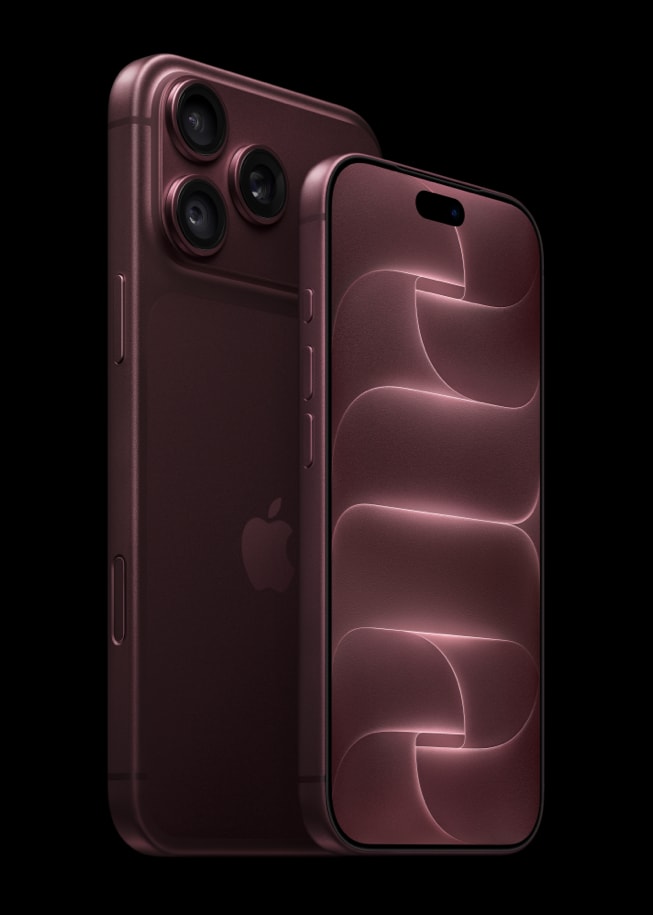
Most new iPhone problems are not problems with the new iPhone. They are problems with the order things were done in: the old phone erased before the authenticator codes moved, the number transferred before the carrier was ready, the Watch unpaired for no reason. Get the order right and setup day is boring, which is exactly what you want.
This is that order for iOS 27, from a few days before to the day you hand the old phone on.
A few days before
Update and back up the old iPhone
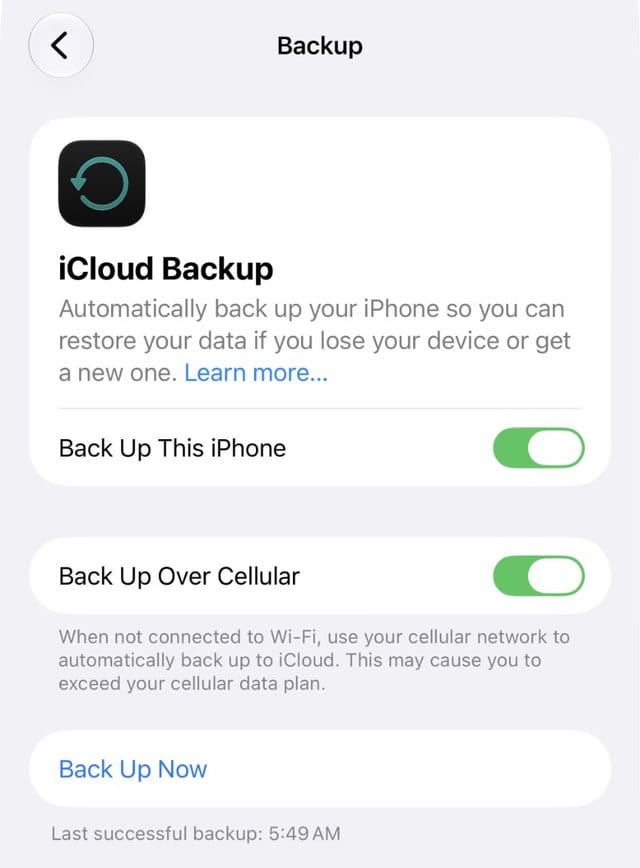
Install the latest iOS on the old phone in Settings > General > Software Update. Moving an eSIM directly between iPhones needs iOS 18.4 or later on both. Then back up at Settings > [your name] > iCloud > iCloud Backup > Back Up Now and check the time under the button.
Out of iCloud space? Borrow it free
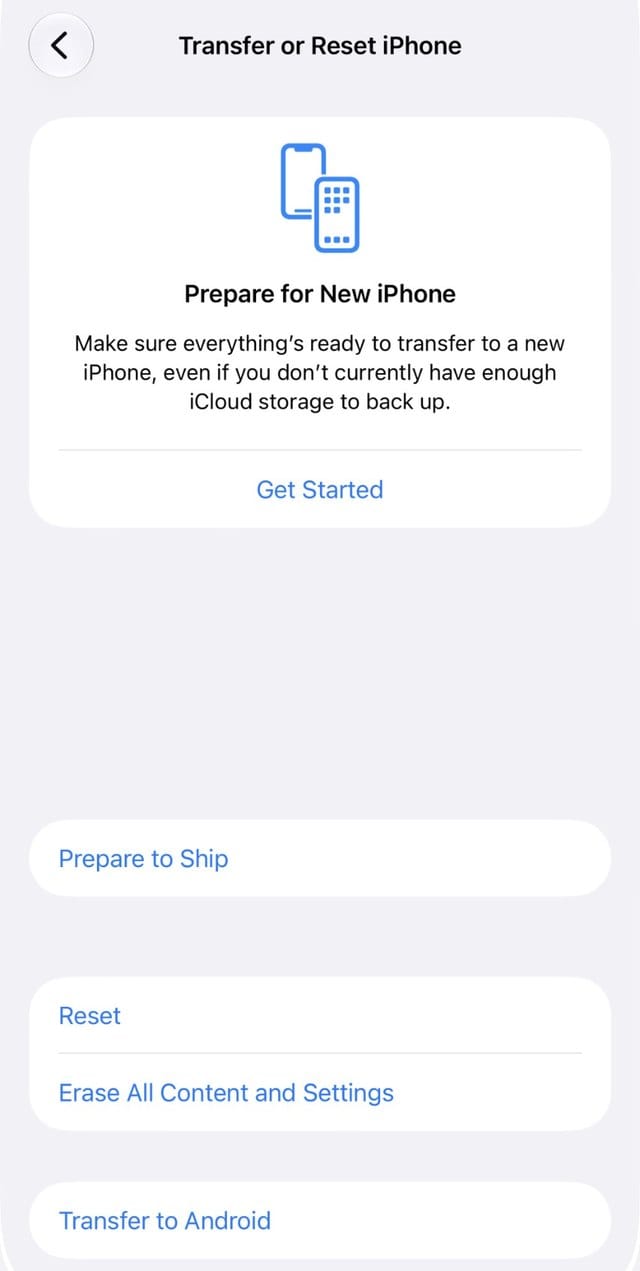
Apple lends you enough temporary iCloud storage for a full backup when you buy a new iPhone. Go to Settings > General > Transfer or Reset iPhone and tap Get Started under Prepare for New iPhone. You get 21 days to restore it, and Keep My Backup Longer adds 21 more if the phone has not arrived.
Know your SIM situation
iPhone 18 Pro, 18 Pro Max and the iPhone 17 lineup are eSIM only when bought in the U.S., Canada, Mexico, Japan and several other countries, and iPhone Air and iPhone Duo are eSIM only everywhere. If you are coming from a physical SIM, check that your carrier supports transferring it.
Setup day
Use Quick Start, and choose the right transfer
Put both phones on power side by side, with Wi-Fi and Bluetooth on, and turn on the new one. Follow the prompt on the old iPhone. When asked how to transfer, Download from iCloud lets you use the new phone right away while everything downloads in the background; transferring directly from the old iPhone makes you wait until it finishes. Choose iCloud if your backup is current.
Move your number
If setup does not offer it, go to Settings > Cellular > Set Up Cellular afterward and choose Transfer From Nearby iPhone. Apple's requirements: carrier support, both iPhones on the same Apple Account, and iOS 18.4 or later.
Bring the Apple Watch across
If you restore the new iPhone from a recent backup, it will ask whether to use your Apple Watch. Keep the watch unlocked on your wrist and tap Continue. There is no need to unpair it first.
The first hour
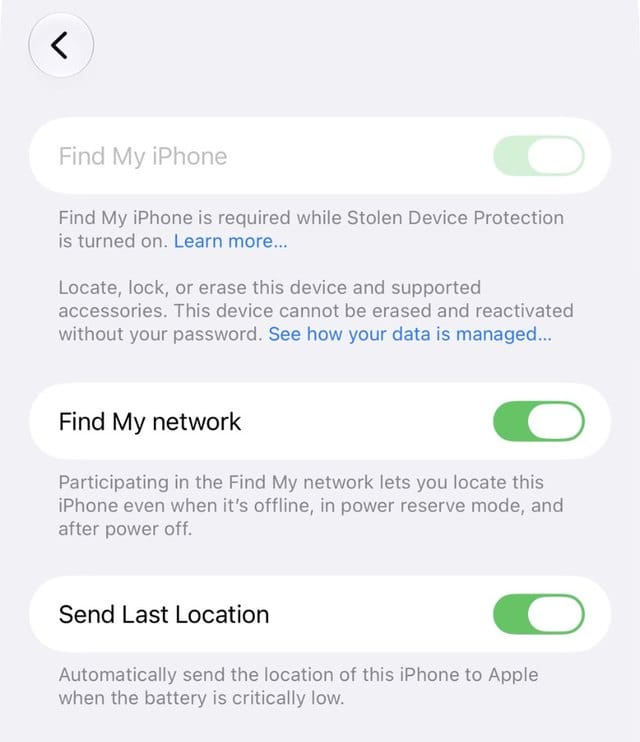
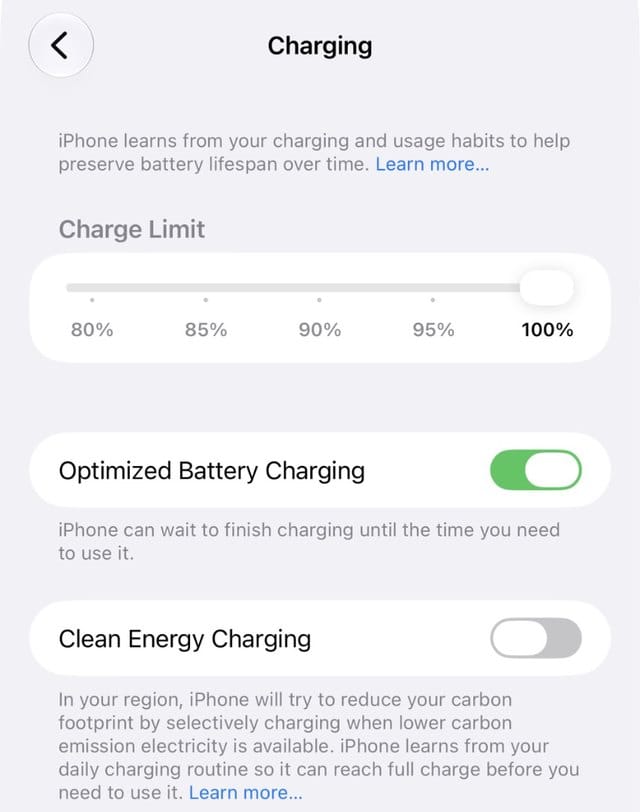
Turn on Stolen Device Protection (Settings > Face ID & Passcode) and set it to Always, make sure Find My is fully on, turn on automatic updates, and set a charge limit in Settings > Battery > Charging if your iPhone is a 15 or later. Then give the Action button a job other than Silent mode.
The first week
Expect the new phone to run warm and drain faster for a few days while it downloads and indexes everything; Apple says the same kind of background work after a major update temporarily affects battery life and heat. Before you trust the new phone, open every banking and authenticator app. Many need you to sign in again or move codes, and you want the old phone working while you do it.
For fast charging, the adapter matters: Apple says the iPhone 18 Pro models reach 50 percent in about 15 minutes with a 60W or higher USB-C adapter that supports Adjustable Voltage Supply, while iPhone 17, 17 Pro and 17 Pro Max need 40W or more for their fastest charge. There is no adapter in the box.
Only then: the old iPhone
Once the new phone has everything, including a working phone line, unpair the Watch if it is still on the old phone, sign out of your Apple Account, and erase it at Settings > General > Transfer or Reset iPhone > Erase All Content and Settings, choosing to erase the eSIM too. Apple says erasing turns off Find My and Activation Lock. If you are trading in with Apple by mail, Apple needs to receive the old phone within 14 days of when you receive the new one, so ship it early.
Related: if something misbehaves on the new phone, our iOS 27 problems and fixes page tracks every known issue.
Read us first
See more TBTL when you search Google
Add Tech Between the Lines as a preferred source and our Apple coverage shows up more often in your Top Stories. It takes one tap, and you can change it anytime.
Prefer TBTL on Google