

iPhone Storage Full? 7 Fixes That Free the Most Space in iOS 27
Storage Almost Full again? Start with the one screen that shows what is really using space, then work through the fixes that free the most room, safest first.


"iPhone Storage Almost Full." It shows up at the worst moment: mid concert, mid birthday, mid update. The usual reaction is to delete a few random apps and hope, and the message is back a week later. There is a better order of operations, and it starts with finding out what is actually using the space.
These are the fixes that free the most space on an iPhone running iOS 27, safest first.
Start with the one screen that tells you everything
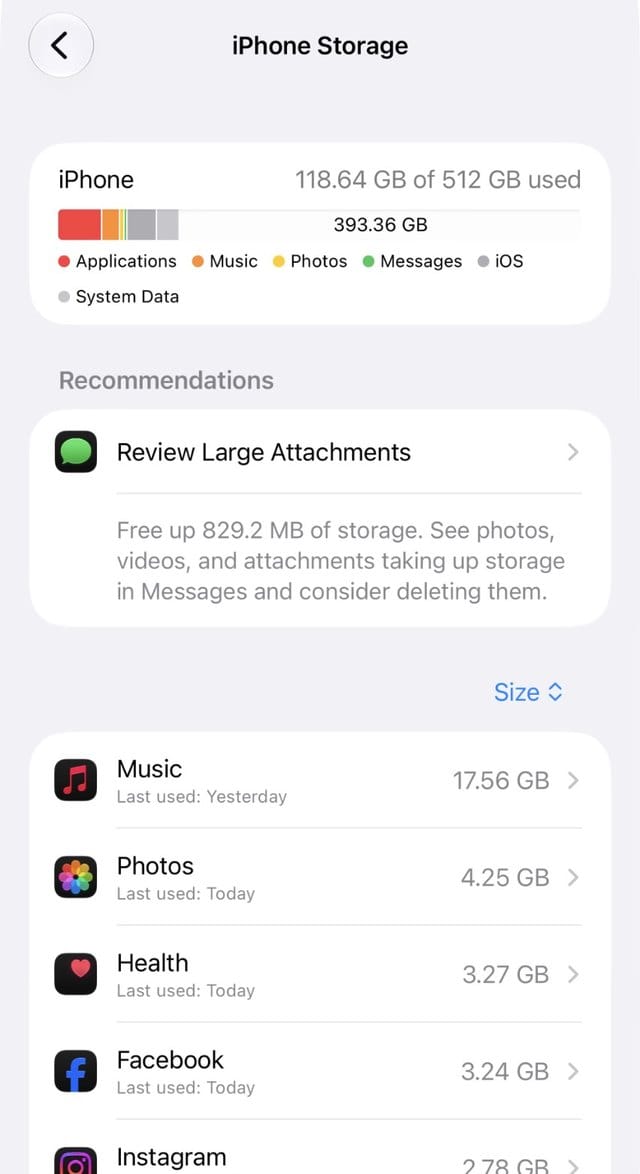
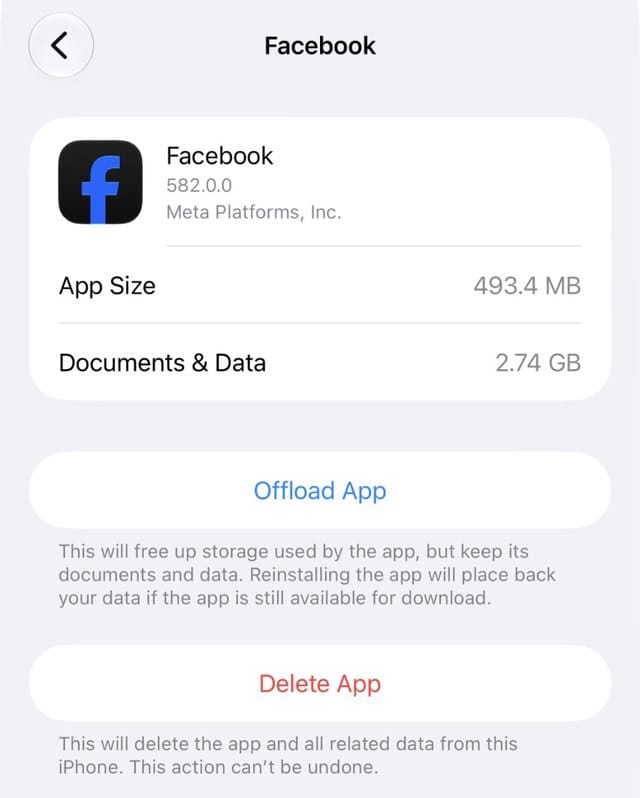
Open Settings > General > iPhone Storage and give it a minute to finish calculating. The bar at the top shows space by category, Apple's recommendations for your phone sit underneath (tap Show All), and every app is listed largest first. Tap any app to see how much is the app and how much is its documents and data.
Two categories cause needless panic: Other and System. Apple describes Other as things iOS needs and you cannot remove, like Siri voices, fonts, caches and the search index, and says no action is needed. Your iPhone also clears cached and temporary files on its own when it needs room. Leave those alone and focus on what you control.
The fixes that free the most space
1. Delete an update you are not installing yet
A downloaded iOS update sits in storage until you install it. In iPhone Storage, tap the update and choose Delete Update. It downloads again when you are ready.
2. Let iCloud hold your full size photos
Turn on iCloud Photos at Settings > [your name] > iCloud > Photos, then, in iOS 27, tap iPhone Storage and choose Optimize Storage. Apple keeps the full resolution originals in iCloud and stores space saving versions on your phone, starting with the photos you look at least. Your library has to fit in your iCloud plan, and deletions sync everywhere, so read the catches before you rely on it.
3. Empty Recently Deleted
Deleted photos and videos still use space for 30 days. In Photos, open Collections, then Recently Deleted (under Pinned in iOS 27), review it and delete what is there. One warning from Apple worth knowing: if you are over your iCloud storage limit, deleted items are removed immediately and cannot be recovered.
4. Offload apps instead of deleting them
In iPhone Storage, tap a big app you rarely use and choose Offload App. Apple says this frees the app's storage but keeps its documents and data, so you pick up where you left off when you reinstall. Delete App removes the data too. Games are usually the biggest wins.
5. Clear old videos out of Messages
Open a busy conversation, tap the name at the top, then tap Photos. Tap Edit, select the videos and photos you no longer need, and delete them. Years of group chat videos add up faster than anything else on most phones.
6. Remove downloads you have already watched or played
In Music, touch and hold an album and choose Remove, then Remove Download. In Podcasts, check that Remove Played Downloads is on in Settings > Apps > Podcasts. In the TV app, go to Library > Downloaded and swipe left to delete.
7. Shoot in the space saving format
In Settings > Camera > Formats, choose High Efficiency. Apple describes HEIF and HEVC as its space saving formats. If you turned on ProRAW or ProRes once to try them, turn them off: Apple says a 48 MP ProRAW photo is about 75 MB, and ProRes video can be up to 30 times larger than HEVC.
When the problem is iCloud, not your iPhone
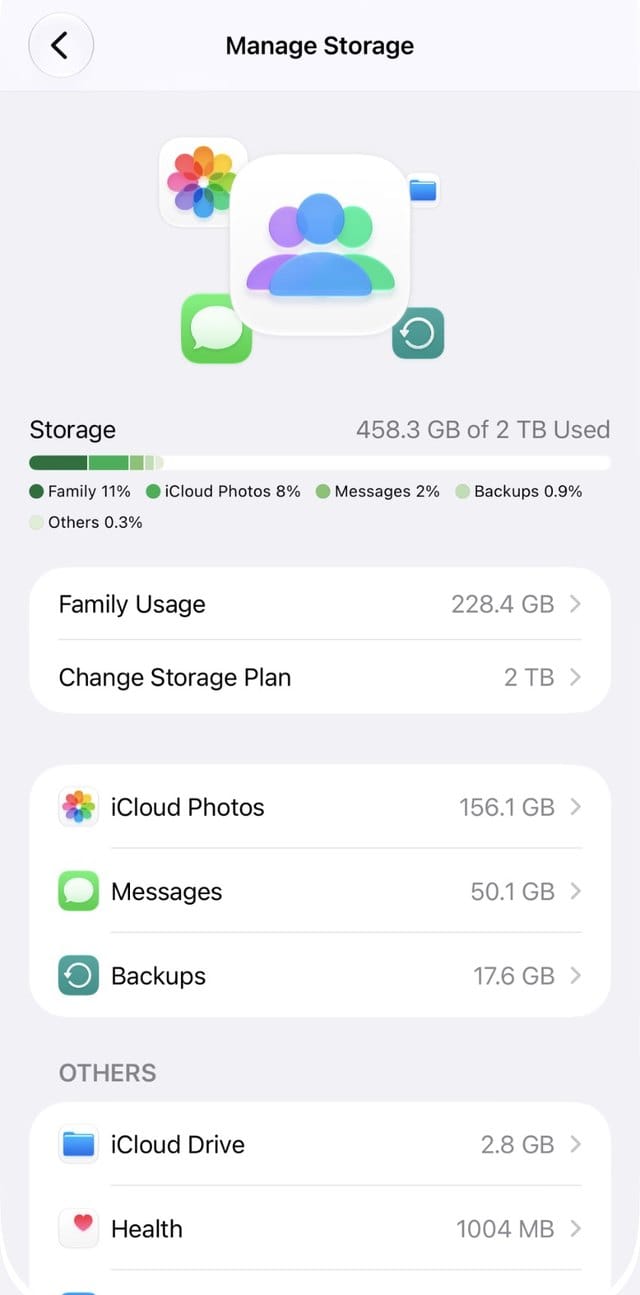
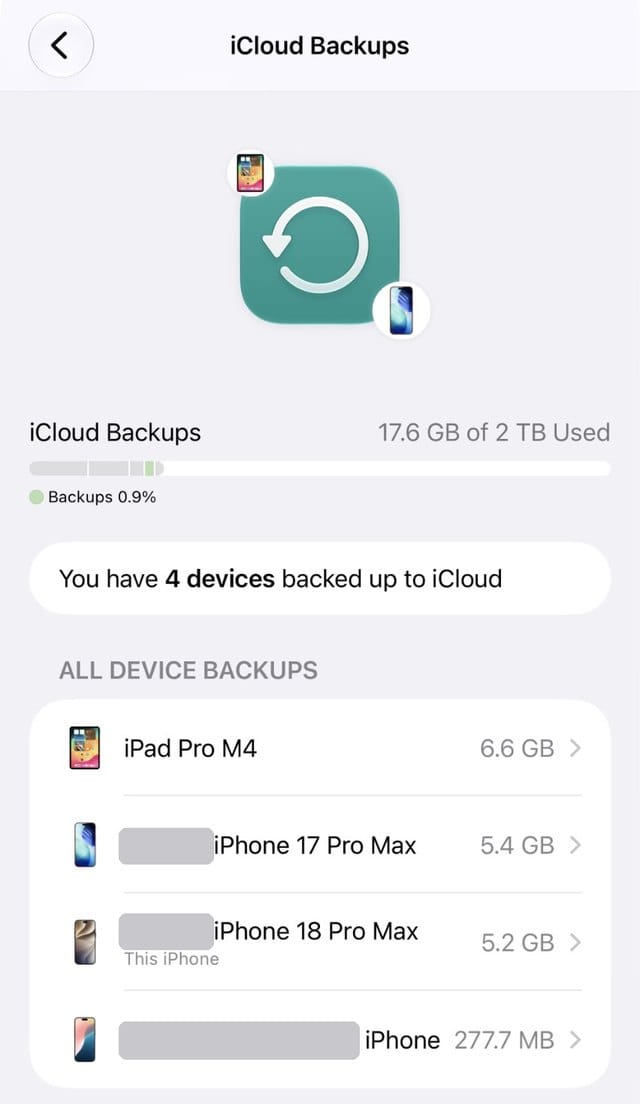
"iCloud Storage Is Full" is a different message with a different fix. Your iPhone may have plenty of room; it is your backups and sync that have stopped. Before paying for a bigger plan, go to Settings > [your name] > iCloud > Storage and look for backups of iPhones and iPads you no longer own. Deleting those is often enough. If you do need more space, Apple says every iCloud+ plan can be shared with up to five family members at no extra cost, which usually beats paying for several plans.
Make it stay fixed
The message comes back because the things that fill a phone never stop arriving. A five minute routine once a month (empty Recently Deleted, clear one busy chat, remove watched downloads) is usually enough to keep it away for good.
Related: if something else stopped working after the update, our iOS 27 problems and fixes page tracks every known issue.
Read us first
See more TBTL when you search Google
Add Tech Between the Lines as a preferred source and our Apple coverage shows up more often in your Top Stories. It takes one tap, and you can change it anytime.
Prefer TBTL on Google