


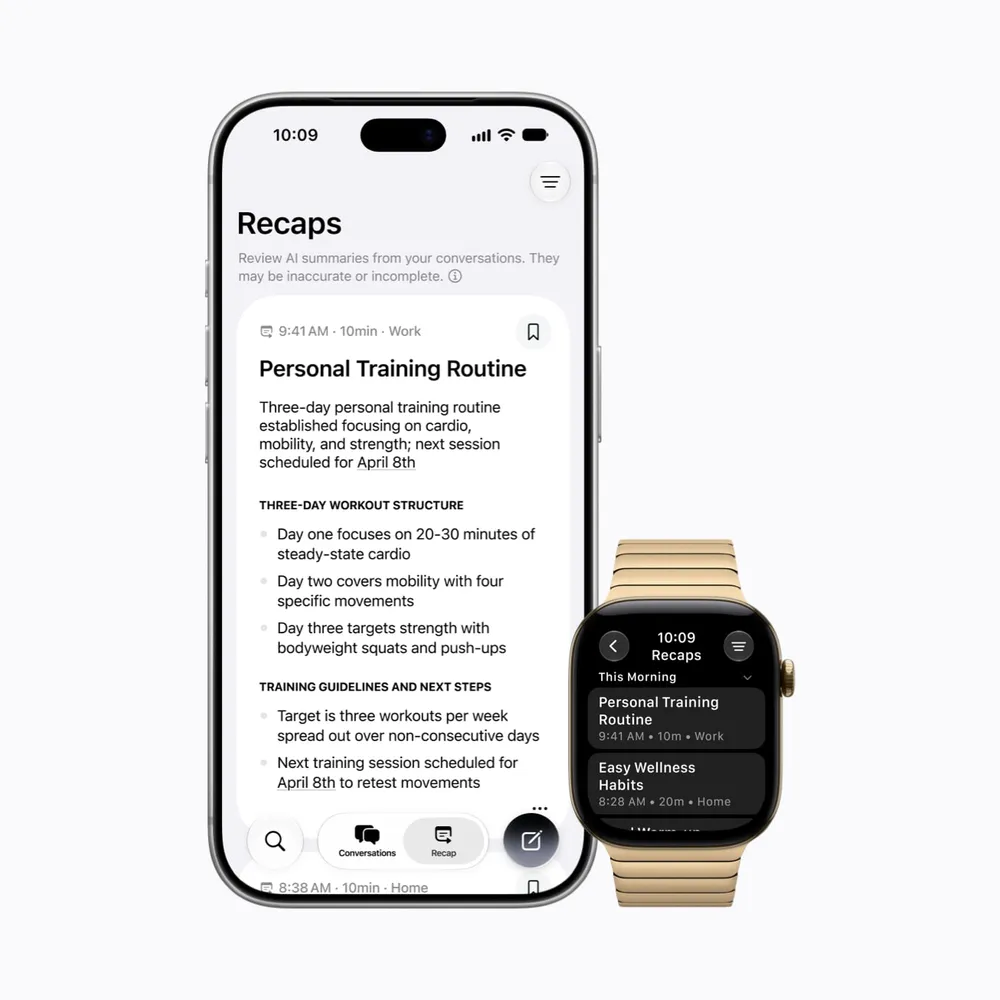


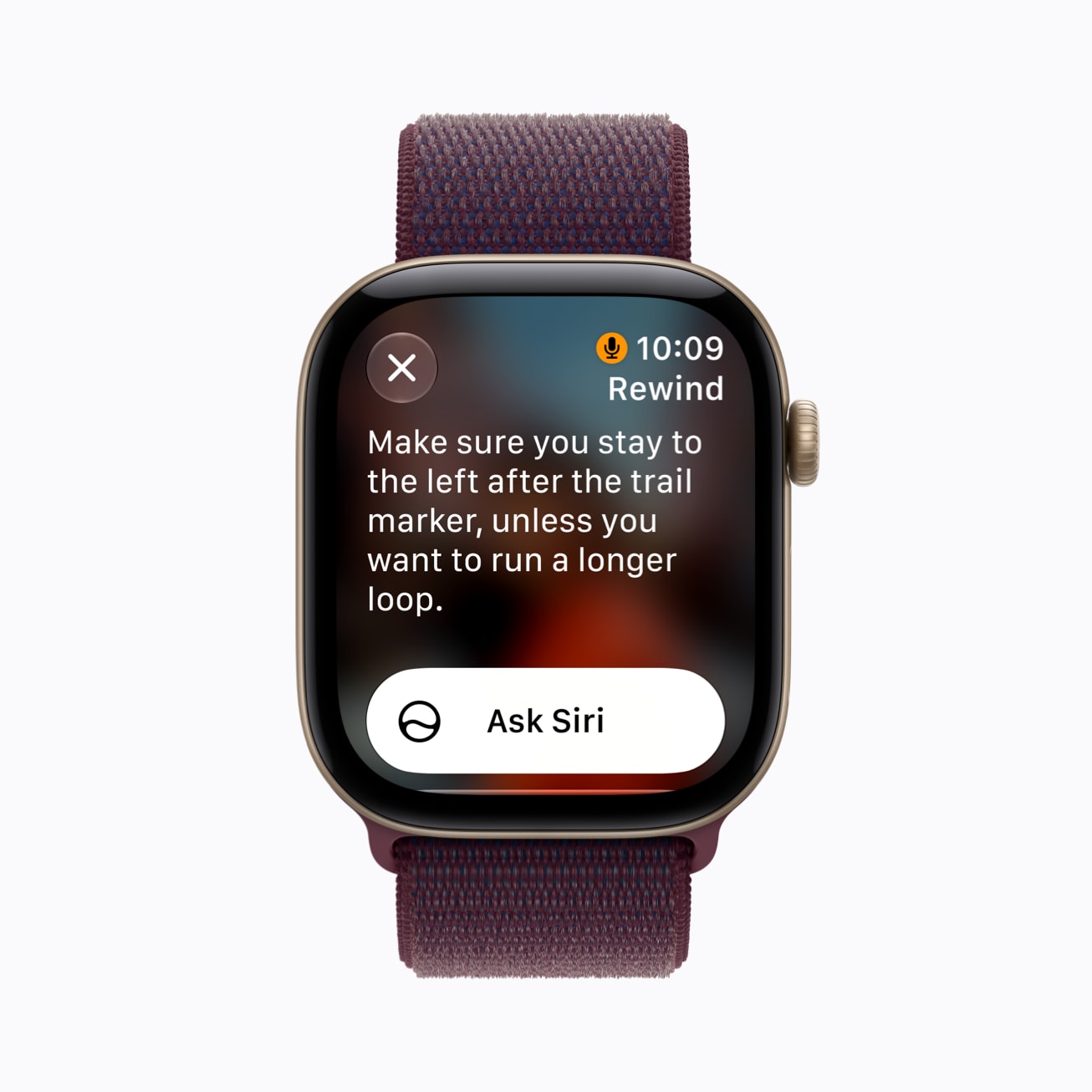
Double-press the Digital Crown on an Apple Watch Series 12 running the watchOS 27.3 beta and two things happen. The last 15 seconds of what someone said to you appears as text on your wrist, and the watch plays a chime that everyone nearby can hear, even with the watch on silent. That chime is Apple's way of telling the room that the watch was listening.
Siri Recap, the second new feature in the beta, listens far longer. Once you turn it on, it runs in the background all day and turns your conversations into short summaries. It makes no sound for the people around you. Apple's support page for the features says only that the watch tells the wearer when Siri Recap starts or stops.
So the feature that catches 15 seconds you asked for announces itself, and the one that listens all day doesn't. Apple's answer is that Siri Recap keeps much less than it hears. Whether that's enough depends on what the watch actually holds on to, and Apple's documentation is specific about that.
What each feature does
Live Rewind is for the moment you missed what someone just said. Double-press the Digital Crown and the watch shows a text snippet of the last 15 seconds of speech around you. The snippet disappears about 30 seconds after the display dims, unless you save it to the Siri app or tap Ask Siri. To turn it on, open the Watch app on your iPhone, tap Siri and turn on Live Rewind.
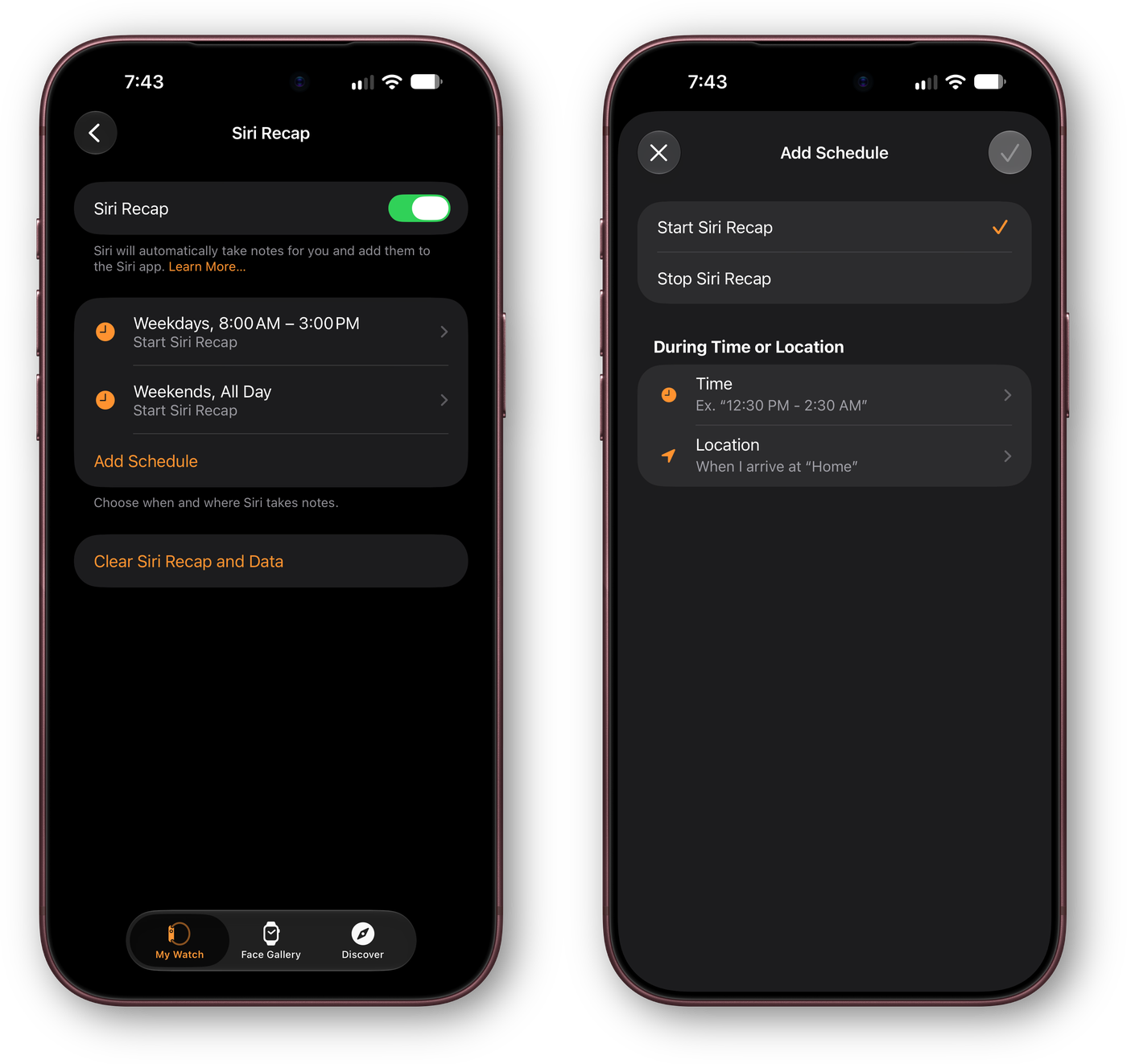
Siri Recap takes what Apple calls ambient notes on your conversations. In Apple's words it produces "a brief, high-level summary, not a detailed record or transcript," with a title and the key points. It pauses on its own during phone calls, while you're listening through paired headphones and when Active Noise Cancellation is on.
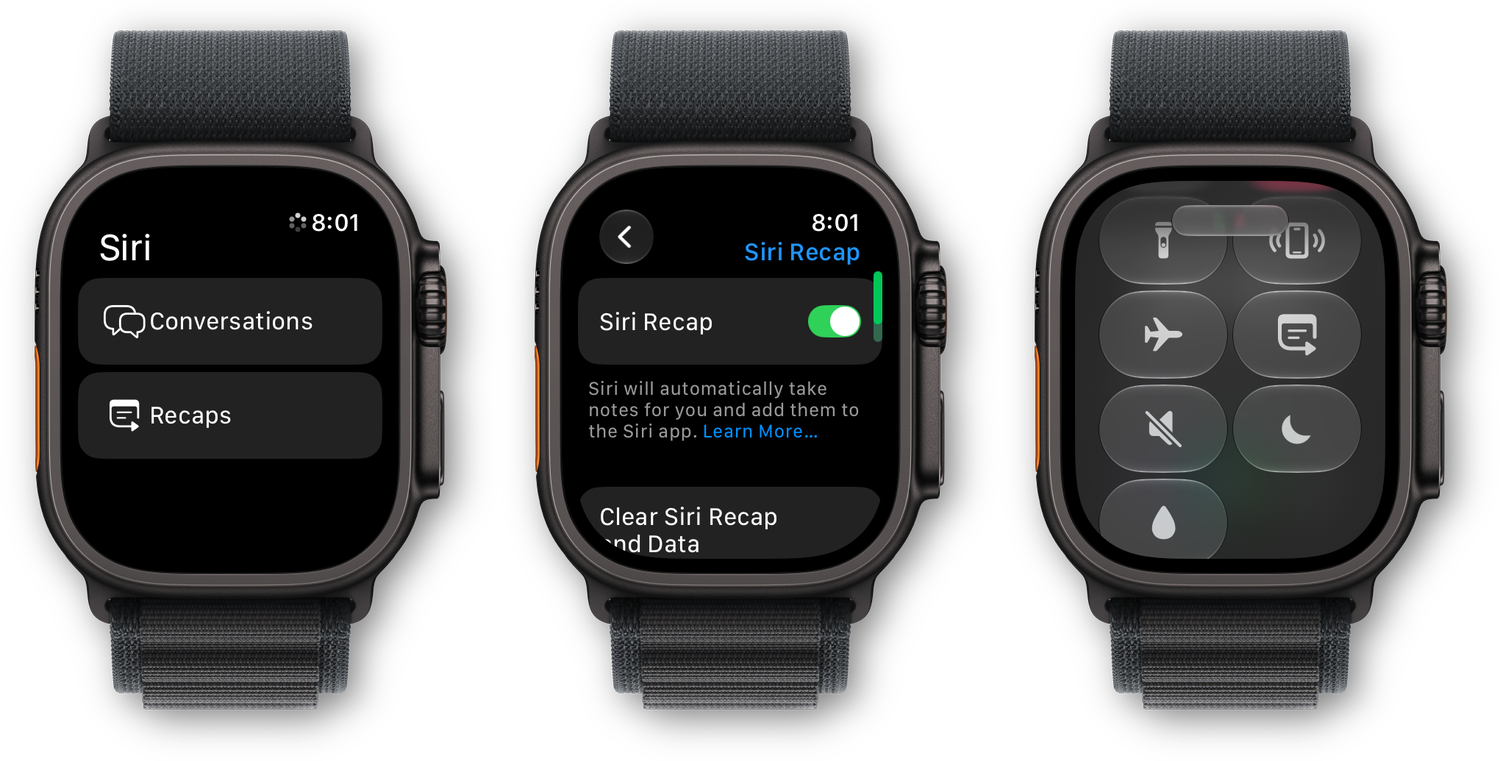
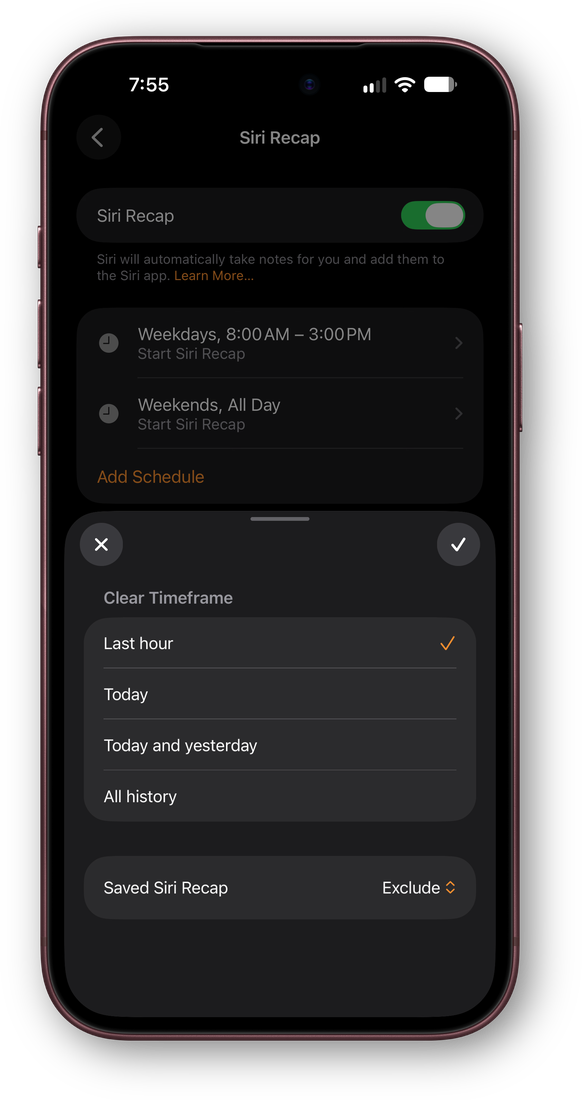
You turn it on in the Watch app on your iPhone, under Siri, where it sits just above the Live Rewind switch. Its settings page is mostly about when it listens. Add Schedule sets Siri Recap to start or stop during a time window, or when you arrive at a place such as Home. Schedules stack, so you can run it on weekdays from 8:00 AM to 3:00 PM and all day on weekends. You can also switch it on and off by hand or from Control Center, and a Clear Siri Recap and Data button sits at the bottom of the page.
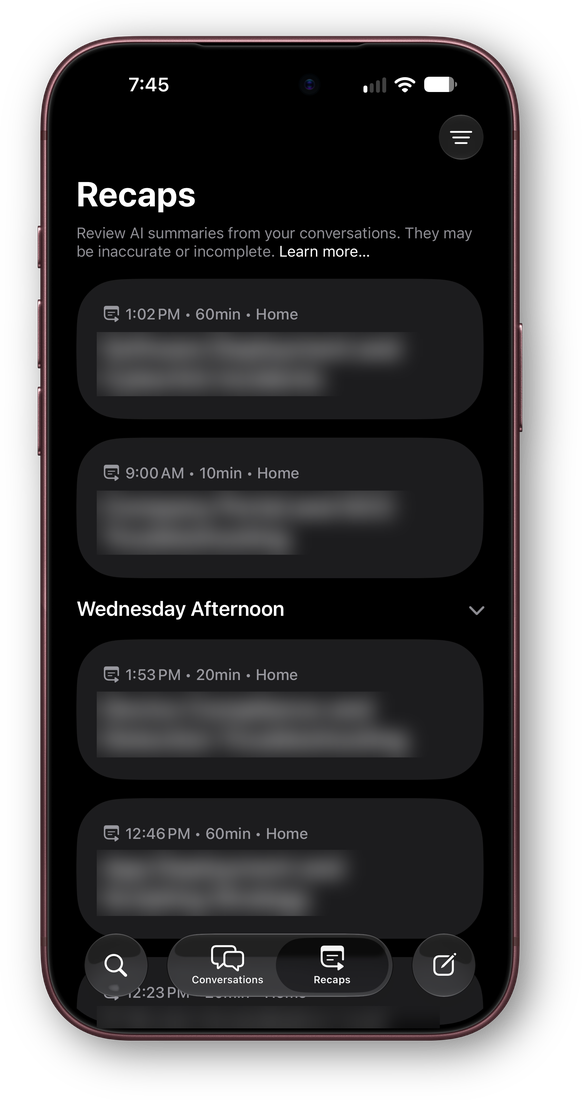
The summaries land in a Recaps tab in the Siri app on iPhone, next to Conversations. Each card shows the title Siri wrote, when the conversation started, how long it ran and where it happened, and older cards group by part of the day, like Wednesday Afternoon. The top of the tab carries Apple's own caveat: the summaries "may be inaccurate or incomplete."
The watch carries its own copy of the controls. Its Siri app has the same Conversations and Recaps sections, its Siri Recap setting has the on and off switch and the Clear Siri Recap and Data button, and Control Center gets a Recap button. That last one is the fastest way to stop it before a conversation you would rather keep out of a summary.
Two notification switches decide what Siri Recap tells you about: Siri Recap Scheduled Capture and Daily Recap Summary, a once a day roundup of your recaps. To find them, open Settings on your iPhone and go to Notifications, then Siri, then Customize Notifications.
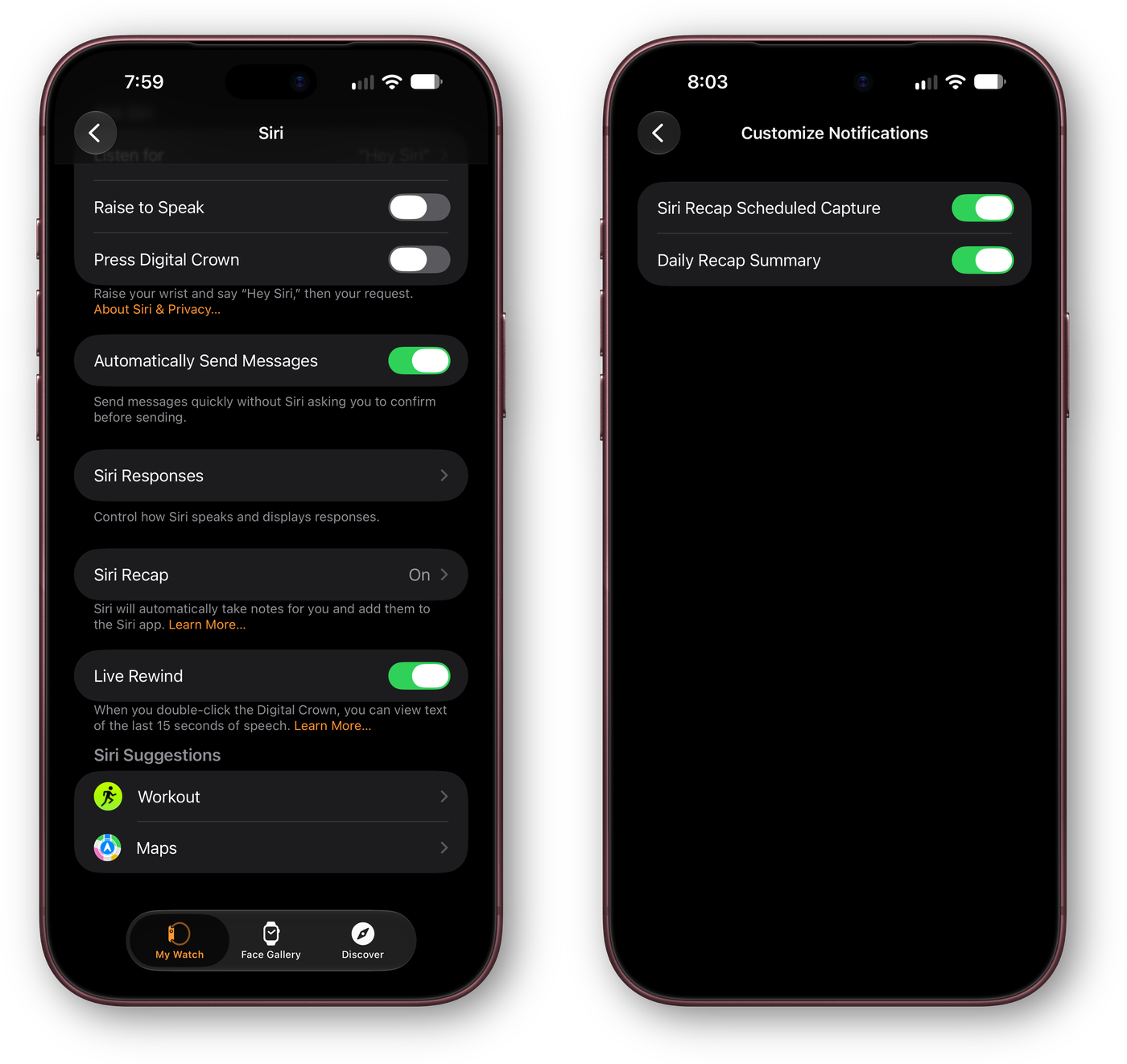
Both are opt-in. Neither is on until you turn it on.
What the watch keeps
The most important line on Apple's support page is this one: "Audio Intelligence features don't create audio recordings." Raw audio is processed in the watch's Secure Exclave, and "once processed, this data is immediately deleted." No audio file sits on your watch, your iPhone or Apple's servers.
Text is a different story, and it's where the details matter.
- Live Rewind snippets vanish on their own unless you save them.
- Siri Recap summaries can be set to delete automatically after up to 7 days. Saved ones stay.
- Anything you save lands in the Recaps tab of the Siri app and syncs through iCloud with end-to-end encryption. Apple says it doesn't hold the keys.
- To build a summary, Siri Recap sends a condensed, encrypted transcript to Apple's Private Cloud Compute servers, where, Apple says, data is "never stored or accessible by Apple or anyone else."
You can also wipe it yourself. Tapping Clear Siri Recap and Data in the Watch app asks how far back to go: the last hour, today, today and yesterday, or all history. A separate Saved Siri Recap setting decides whether summaries you saved get cleared too. On our iPhone it was set to Exclude, so saved recaps survive a clear unless you change it.
Siri Recap also tries to leave things out. It skips some sensitive content, such as financial data and government ID numbers, but Apple warns that "automated filtering may not remove all sensitive information." Summaries don't say who said what, though Apple notes a summary may still contain names if people used them in the conversation.
Why the chime matters
Apple's design draws a line between two kinds of listening. Live Rewind is a deliberate act: you press the crown, the watch surfaces exact words, and the people you're talking to get a chime, a full-screen animation and a microphone indicator. Siri Recap is passive and gives back a paraphrase. Apple appears to have decided that a short summary deleted within a week needs less notice than 15 seconds of exact words.
There's a fair case for that. A summary of a meeting is closer to the notes a person might jot down than to a recording, and Apple has built the pipeline so that no audio survives it. The weaker part of the argument is that the people being summarized have no way to know. The watch tells its wearer that Siri Recap is running. Nobody else gets a signal.
Apple seems aware of the gap. Its support page asks wearers to "consider those around you where conversations might be private or sensitive." That puts the decision on the person wearing the watch, which is where the scheduling controls come in. Limiting Siri Recap to a place, like work, or switching it off from Control Center before a private conversation is the practical version of that advice.
Don't treat a recap as a record
Apple is blunt that both features can be "incomplete or inaccurate," and it tells people to confirm important information "with the people involved or another reliable source." That's worth taking literally. A summary that gets a deadline or a dollar figure wrong is worse than no summary, because it feels like proof.
There's also a practical ceiling. Live Rewind and Siri Recap are server-side Siri AI features, and Apple's support page says those are subject to daily usage limits. Apple has confirmed usage limits on Siri AI's server features, with paid expanded access planned later. It hasn't said where the limits sit or what happens when a Recap runs into one partway through a day.
Who can use them
The requirements are narrow for now:
- An Apple Watch Series 12 or Apple Watch Ultra 4. Older watches don't get Live Rewind or Siri Recap.
- An iPhone 16 or later, with Apple Intelligence and Siri AI turned on.
- English. Apple says more languages will follow.
- Not available at first in the EU, and not available in China.
- Not available to anyone under 18, according to Apple's support page.
Both features arrived in the first watchOS 27.3 beta on November 3. We covered setup alongside the rest of the update in our iOS 27.3 Beta 1 roundup, and if you're still deciding between the two watches that support them, our Series 12 vs Ultra 4 comparison walks through the differences.
What to watch for
The beta is where Apple finds out how people use these features, and how the people around them react. Three things will show whether the balance holds. The first is whether Siri Recap gets some signal for bystanders before release, even a subtle one. The second is how often summaries get the facts wrong once more people use them in real meetings. The third is where the usage limits land, because a feature meant to run all day is only useful if it can.
For now, the honest description of Siri Recap is a note-taker that hears everything, keeps a paraphrase and tells only you that it's running. If you turn it on, the people you talk to are counting on you to remember that.






Comments