




Part of Hidden in Plain Sight, our series on Apple features that already shipped and already work, sitting one tap away in apps you already use.
How much of your life have you spent listening to hold music with the phone pressed to your ear, afraid to put it down in case someone finally picks up? Your iPhone can do that waiting for you. Hold Assist arrived in iOS 26, works in iOS 27, and lets you set the phone down, walk away and get an alert the moment a live person comes on the line. It hides in the in call More menu, a place most people never open during a call.
What Hold Assist does
Once Hold Assist is running, your iPhone listens to the hold line for you. You can put the phone on the counter, start dinner or move to another room. When it detects that a live agent has picked up, it alerts you to rejoin the call. Tap to jump back in, and you are talking to a person instead of a recording.
There is also a transcript of what you missed, so if the agent started speaking before you got back to the phone, you can see what they said. Apple says that transcription happens entirely on the device, is discarded when the call connects, and is not stored by Apple. The call itself is not recorded.
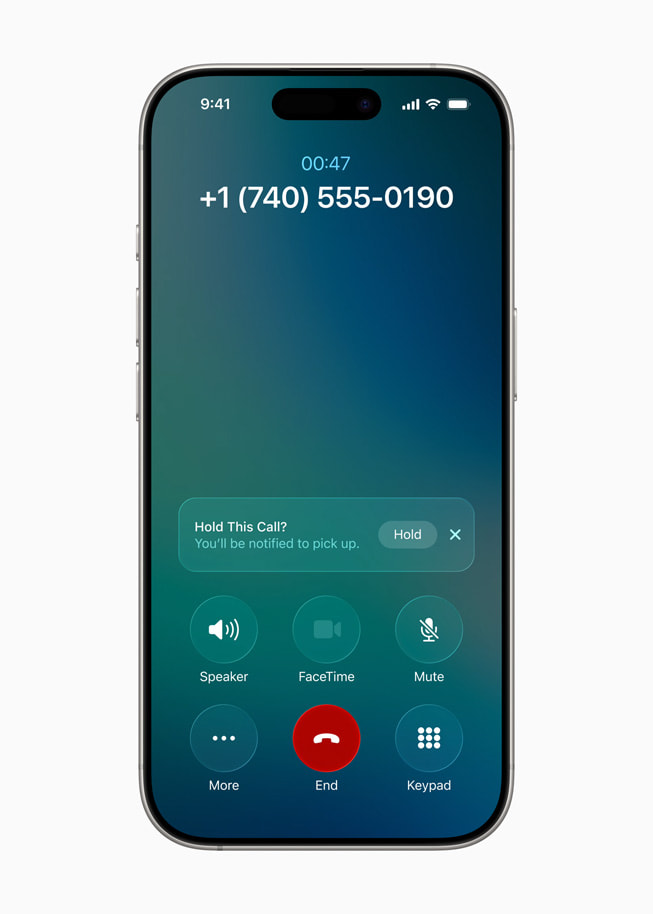
How to use it
- Call the company and get yourself put on hold.
- Tap More (the button with three dots) on the call screen.
- Tap Hold Assist.
- Keep your ringer on and step away from the phone.
- When your iPhone alerts you that an agent is available, tap to return to the call.
Often you will not even need step 2. When your iPhone detects that you have been placed on hold, it can offer to start Hold Assist for you with a prompt on screen. That detection is turned on by default, so if you have ever seen the prompt and dismissed it, now you know what it was.
Tips that make it work better
Keep the ringer on. This is the one step people skip. The alert that an agent is available is how Hold Assist gets your attention, so a phone in silent mode in another room defeats the purpose.
Start it as soon as the hold begins. Hold Assist can only tell you when a person comes back if it is already listening. Turning it on the moment you hear "please hold" means you never have to guess.
Use it from your Mac or Apple Watch, too. Hold Assist is also available on macOS and watchOS. If your calls already ring on your Mac, you can wait out a hold there and keep working until the alert comes.
Read the transcript before you speak. If the agent has already started talking when you rejoin, a quick glance at the transcript saves the awkward "sorry, can you repeat that?" and gets you to the point faster.
Which iPhones support it
Hold Assist works on iPhone 12, iPhone SE (3rd generation) and later, so you do not need a recent Pro model to use it. It is not available in every country or region, and Apple keeps the current list on its iOS feature availability page. If the More menu does not show it, check that page before assuming something is wrong with your phone.
Waiting on hold is one of the few chores that has not changed in decades. On an iPhone, it already has. The next time a recording tells you that your call is important, tap More, tap Hold Assist, and go do something else.
More from Hidden in Plain Sight: how Call Screening stops unknown callers before your phone rings, setting the Mac battery charge limit, and using polls in Messages.
Hidden in Plain Sight
Members vote in one tap. The winner gets the next guide in the series.
Which hidden feature should we explain next?
Screening spam texts in Messages




Comments