

How to Make Your iPhone Screen Unknown Callers Before It Rings
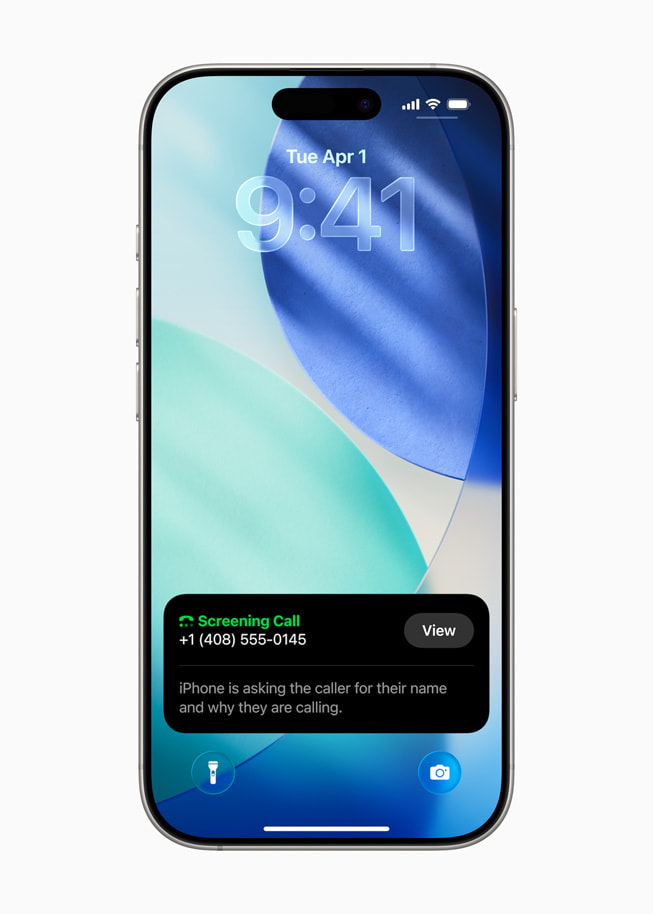
Your iPhone can ask an unknown caller for their name and reason before it ever rings, then let you decide. Call Screening has been there since iOS 26. Here is how to turn it on.

Part of Hidden in Plain Sight, our series on Apple features that already shipped and already work, sitting one tap away in apps you already use.
What do you do when an unknown number calls? Most people do one of two things: answer and regret it, or ignore it and then wonder whether it was the pharmacy, the school or the contractor finally calling back. Your iPhone has had a third option since iOS 26, and it is still there in iOS 27. It can ask the caller who they are and why they are calling before your phone ever rings, then show you the answer so you can decide whether to pick up.
Apple calls it Call Screening. The setting that turns it on is called Ask Reason for Calling, and it is buried a few levels deep in Phone settings, which is why a feature this useful still gets so little use.
What Call Screening actually does
Call Screening builds on Live Voicemail, the feature that shows you a transcript of a voicemail as it is being left. With Ask Reason for Calling turned on, a call from a number that is not in your contacts does not ring through right away. Your iPhone answers on your behalf, asks the caller for their name and the reason for the call, and then rings you with that information on screen. You decide whether to answer, let it go to voicemail, or ignore it entirely.
The effect is subtle but real. An automated sales call has no name or reason worth giving, and you can see that before you pick up. A real person, like a delivery driver or a doctor's office, says who they are, and you get to answer knowing exactly who is on the line.
How to turn it on
- Open Settings.
- Tap Apps, then Phone.
- Find the setting for unknown callers, Screen Unknown Callers.
- Choose Ask Reason for Calling.
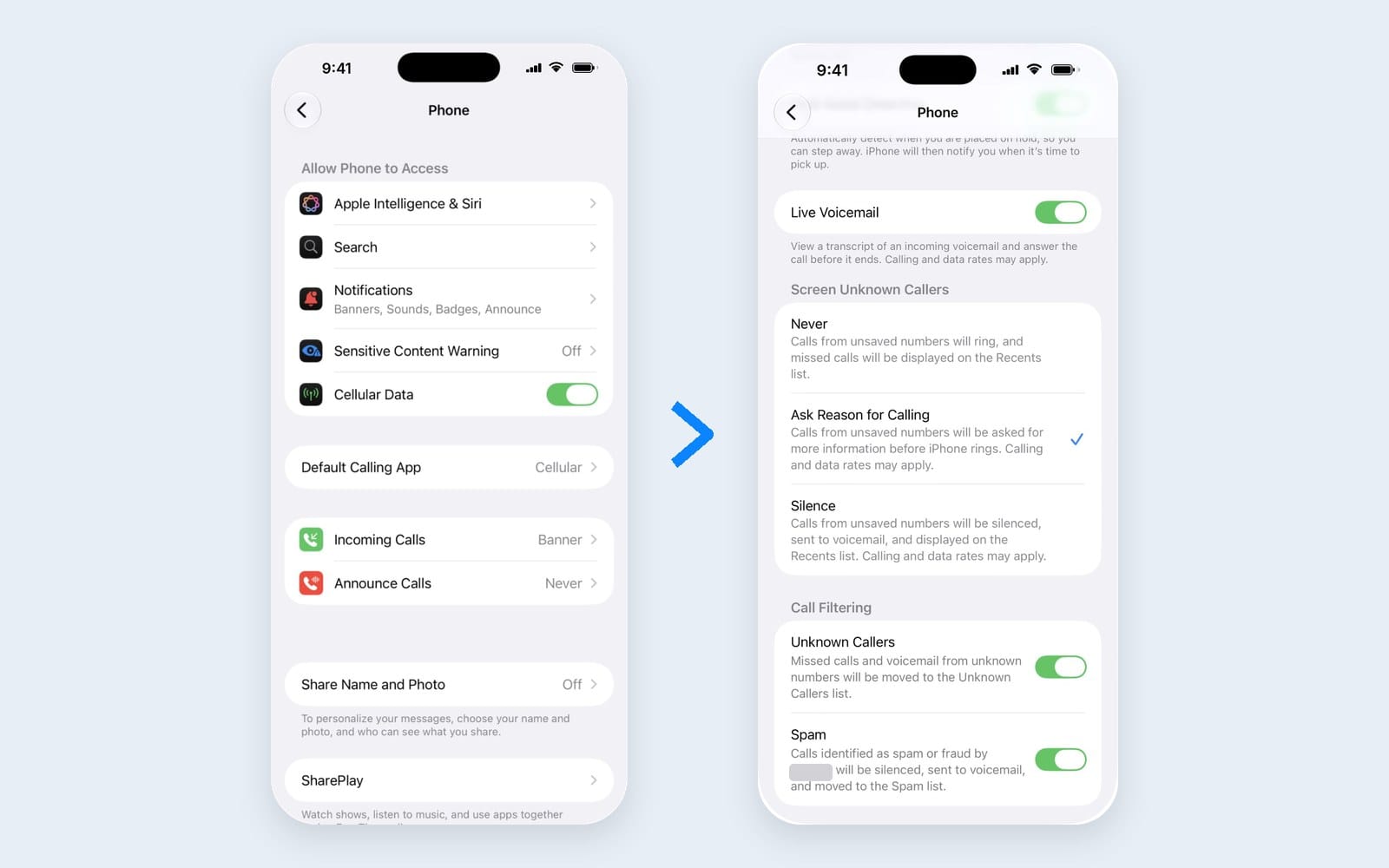
You will see three choices there, and they are worth understanding before you pick one. Never lets unknown numbers ring like any other call. Ask Reason for Calling screens them first, as described above. Silence sends every unknown caller straight to voicemail without ringing at all, which is the old Silence Unknown Callers behavior and the most aggressive option.
Why Ask Reason beats Silence for most people
Silence is tempting because it makes the spam stop instantly. The trouble is that it also silences every legitimate call from a number you have not saved: the urgent care clinic returning your call, the airline rebooking your flight, the new babysitter. Those calls land in voicemail, and you find out later.
Ask Reason for Calling keeps the filter without the blind spot. Every unknown caller still has to identify themselves before your phone rings, but a real caller who answers the question reaches you in real time instead of hours later in voicemail. For anyone with kids, aging parents or a job that involves calls from unfamiliar numbers, that difference matters.
What to know before you rely on it
Save the numbers that matter. Screening only applies to numbers that are not in your contacts. Apple's own advice is to save important numbers, like family, your child's school and your doctor's office, so their calls always come straight through. Ten minutes adding those numbers makes the whole feature work better.
It switches off while you are roaming. Calls are not screened when your iPhone is roaming, whatever your setting says. If you travel internationally, expect unknown numbers to ring through normally on that trip.
It pauses after an emergency call. If you call emergency services, Call Screening turns off for 24 hours so that callbacks from responders are never held up. That is deliberate, and it turns itself back on.
Standard rates can apply. Because your iPhone actually answers the call to screen it, Apple notes that call screening may use standard calling and data rates under your plan. For most unlimited plans this is a non issue, but it is worth knowing.
FaceTime is simpler. FaceTime does not screen. It only has a Silence Unknown Callers switch that sends unknown FaceTime calls to voicemail.
Spam calls are one of those daily annoyances people have simply learned to live with. Your iPhone has a better answer built in, and it takes a few taps to turn on.
More from Hidden in Plain Sight: setting the Mac battery charge limit, and getting a group chat to actually answer with polls in Messages.
Hidden in Plain Sight
Members vote in one tap. The winner gets the next guide in the series.
Which hidden feature should we explain next?
Screening spam texts in Messages
Read us first
See more TBTL when you search Google
Add Tech Between the Lines as a preferred source and our Apple coverage shows up more often in your Top Stories. It takes one tap, and you can change it anytime.
Prefer TBTL on Google