

iPhone 18 Pro Setup: 13 Settings to Change First in iOS 27
Setup Assistant gets your iPhone 18 Pro working, not working well. These 13 settings protect your battery, your privacy and your photos, with the exact path for each and what we recommend.

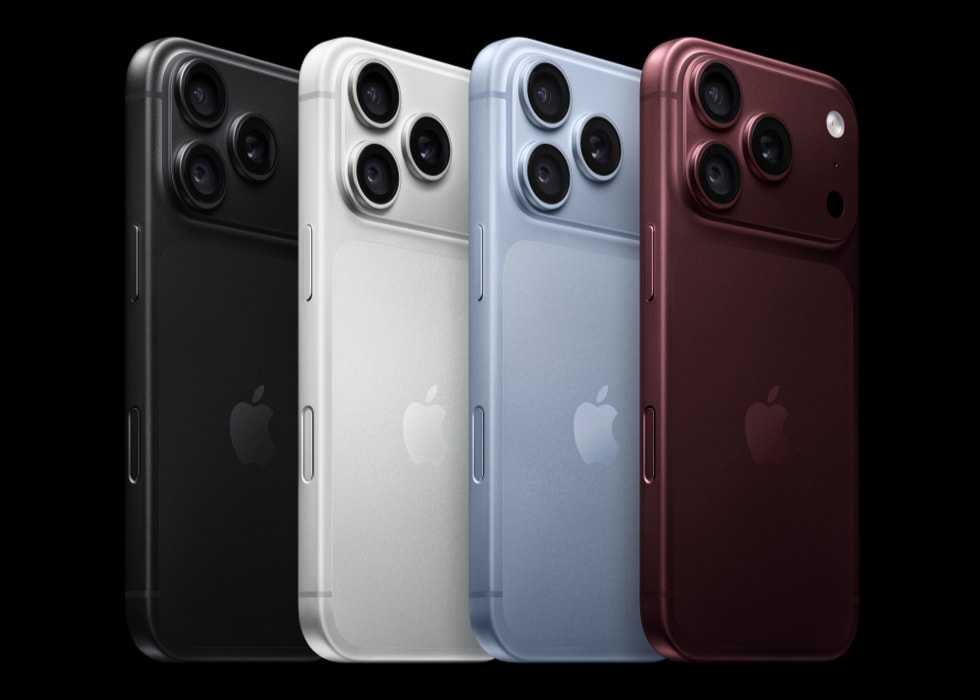
Setup Assistant gets your new iPhone 18 Pro working. It does not get it working well. The defaults Apple ships are built to suit everyone, which means a handful of settings that protect your battery, your privacy and your photos are either switched off or set to the least interesting option. Ten minutes in Settings fixes most of that, and some of these are far easier to change on day one than six months from now.
These are the settings worth changing first on an iPhone 18 Pro or 18 Pro Max running iOS 27, in roughly the order we would do them, with what each one does and the setting we recommend.
Before you wipe your old iPhone
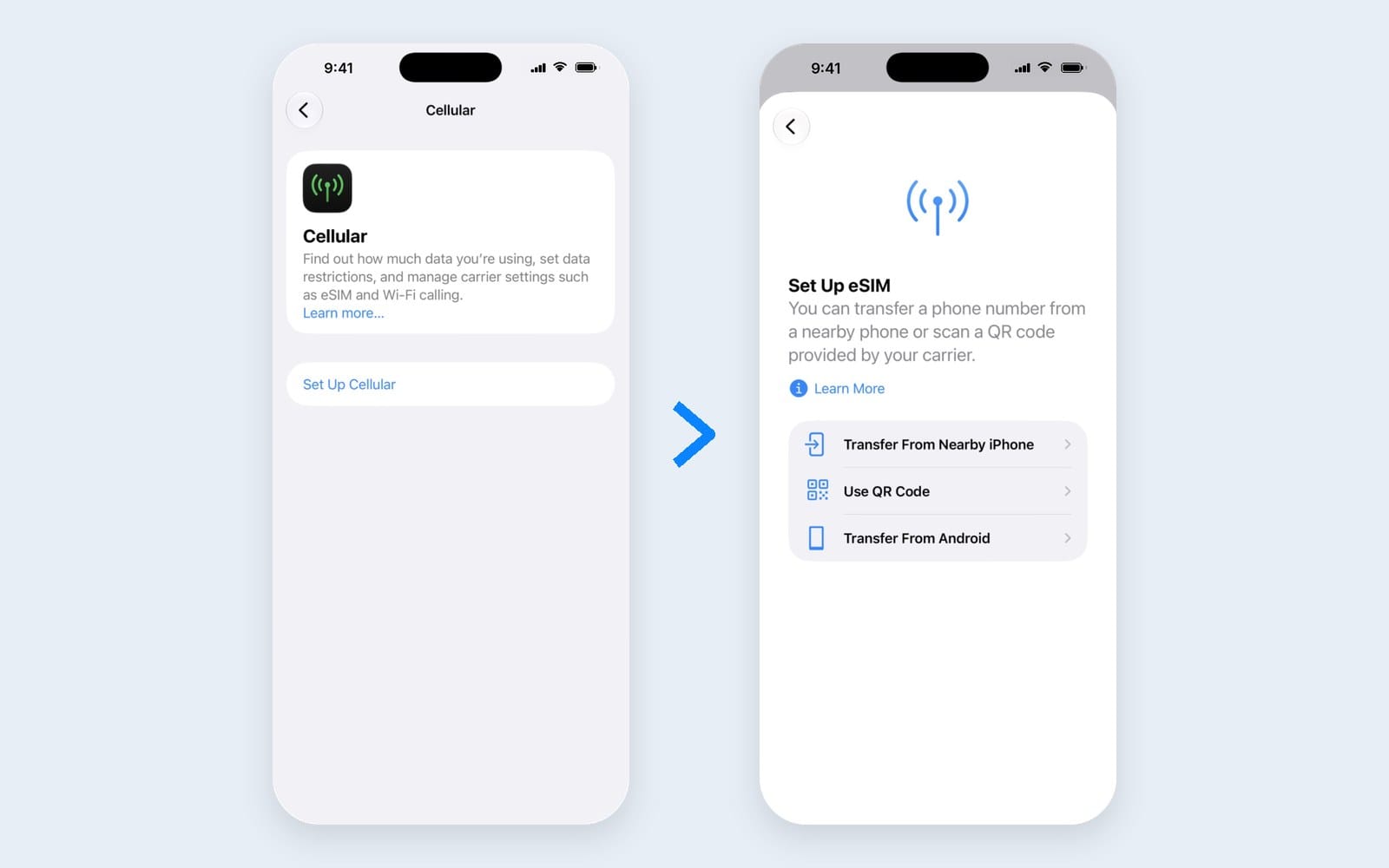
1. Move your eSIM the easy way
In the US and several other countries, the iPhone 18 Pro is eSIM only, so there is no SIM tray to swap. If your carrier supports it, go to Settings > Cellular, tap Set Up Cellular or Add eSIM, then choose Transfer From Nearby iPhone. Both phones need iOS 18.4 or later, the same Apple Account and Bluetooth turned on. Do this before you erase your old phone.
Battery
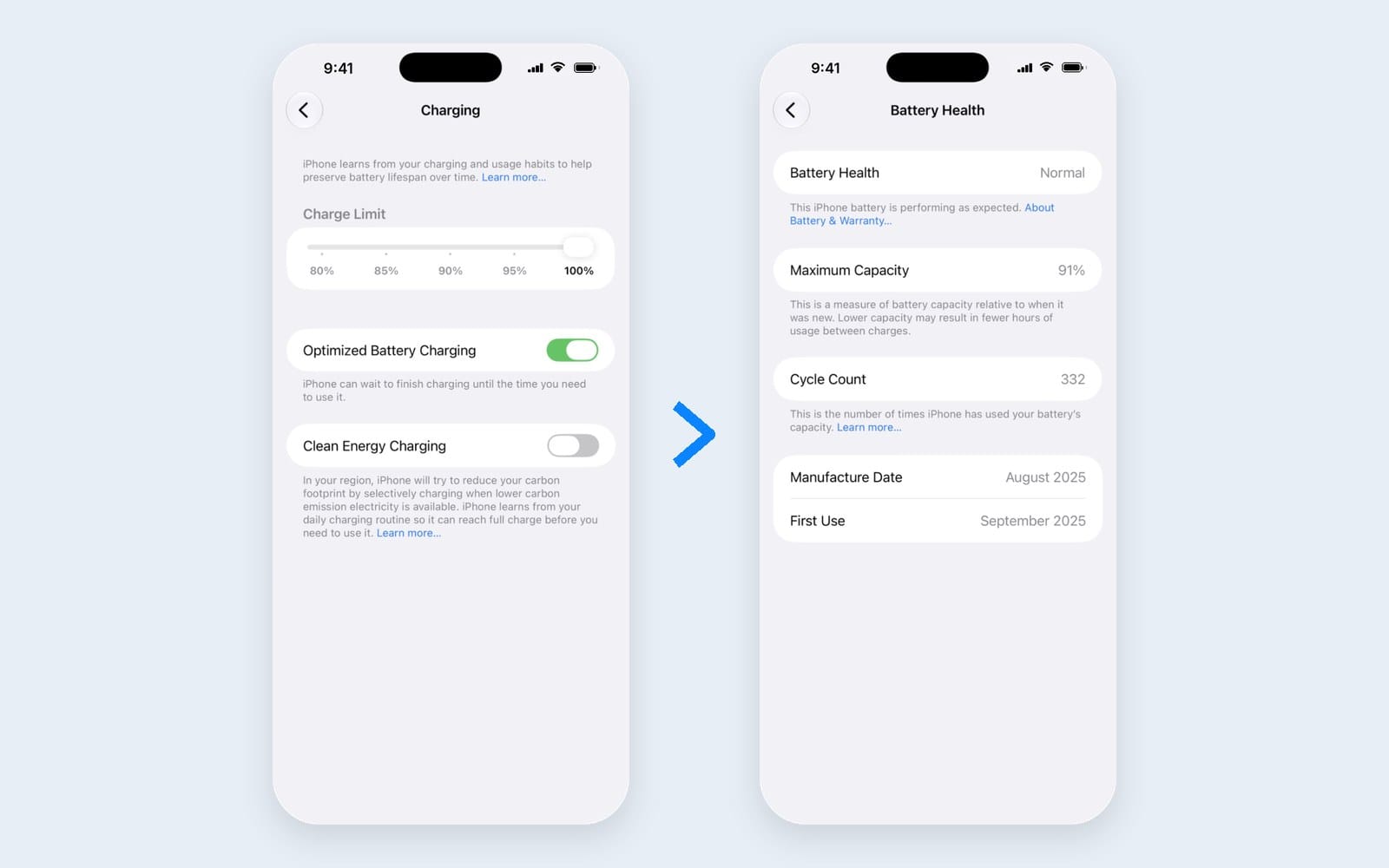
2. Set a charge limit
Go to Settings > Battery > Charging and choose a limit between 80 and 100 percent, in 5 percent steps. Lower limits reduce the time your battery spends full, which helps it age more slowly. There is a trade off worth knowing: Optimized Battery Charging is only available when the limit is set to 100 percent. With a lower limit, your iPhone still charges to 100 occasionally to keep its battery estimate accurate.
Our pick: 85 percent if you usually end the day with charge to spare, which is likely on an 18 Pro Max. Stay at 100 percent with Optimized Battery Charging if you are a heavy user who needs every bit of runtime.
3. Note your battery health on day one
Open Settings > Battery > Battery Health and take a quick look at Maximum Capacity. Apple rates iPhone 15 models to keep 80 percent of their original capacity at 1,000 complete charge cycles under ideal conditions. Knowing your starting point makes it easier to spot a problem early and to judge your trade in value later.
Security and privacy
4. Turn on Stolen Device Protection, and set it to Always
Go to Settings > Face ID & Passcode > Stolen Device Protection. When your iPhone is away from familiar places, this requires Face ID, with no passcode fallback, for things like saved passwords, passkeys and erasing the phone, and it adds a one hour security delay before anyone can change your Apple Account password, passcode or Face ID. That stops a thief who has watched you type your passcode from locking you out of your own account.
Our pick: On, with Require Security Delay set to Always, so the protection applies even at home or work. It needs two factor authentication, Significant Locations and Find My turned on.
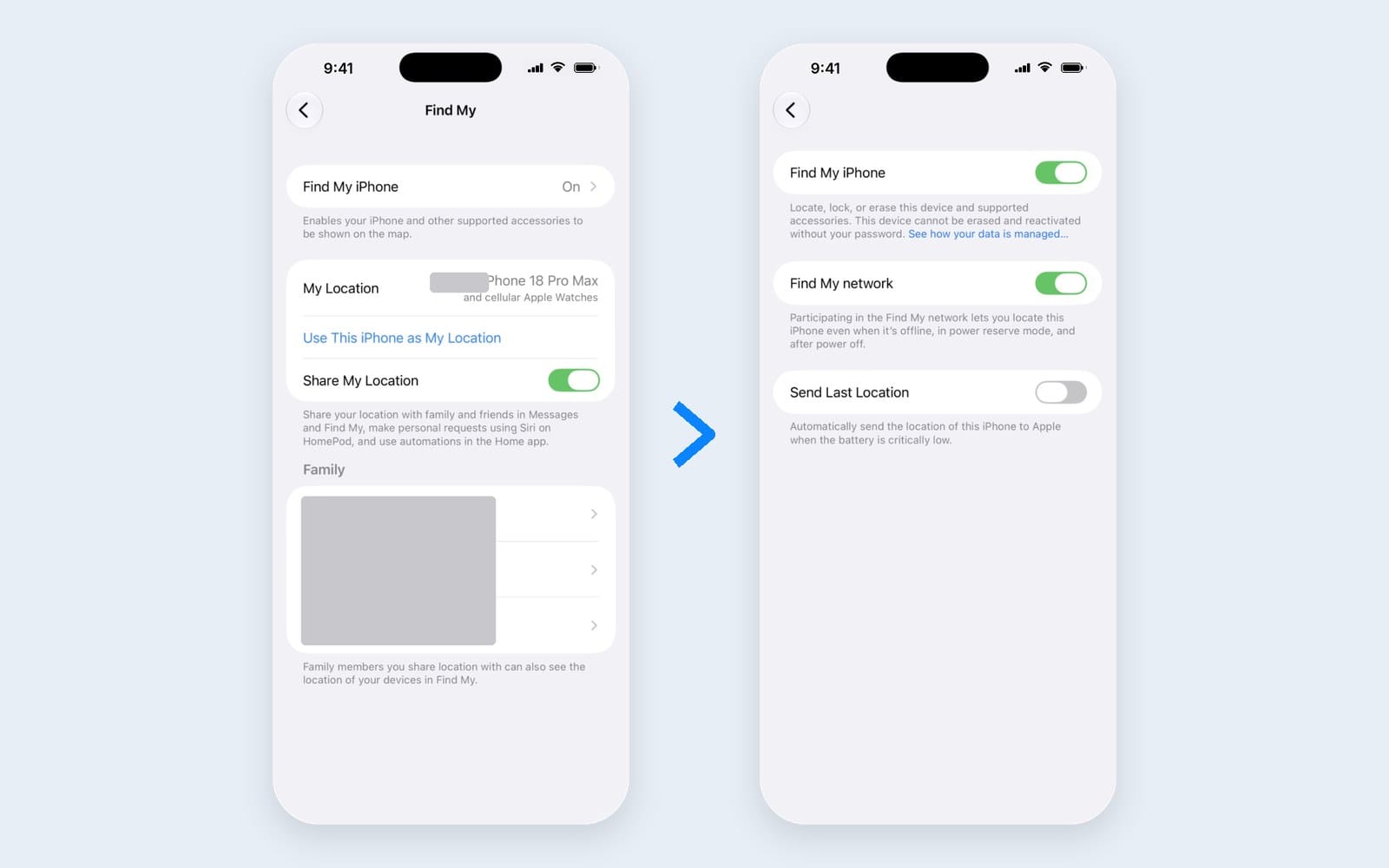
5. Make sure Find My is fully on
Go to Settings > [your name] > Find My > Find My iPhone and make sure Find My network and Send Last Location are both on. The first lets you locate the phone even when it is offline. The second sends its location to Apple when the battery is critically low. Find My is also required for Stolen Device Protection, so this one does double duty.
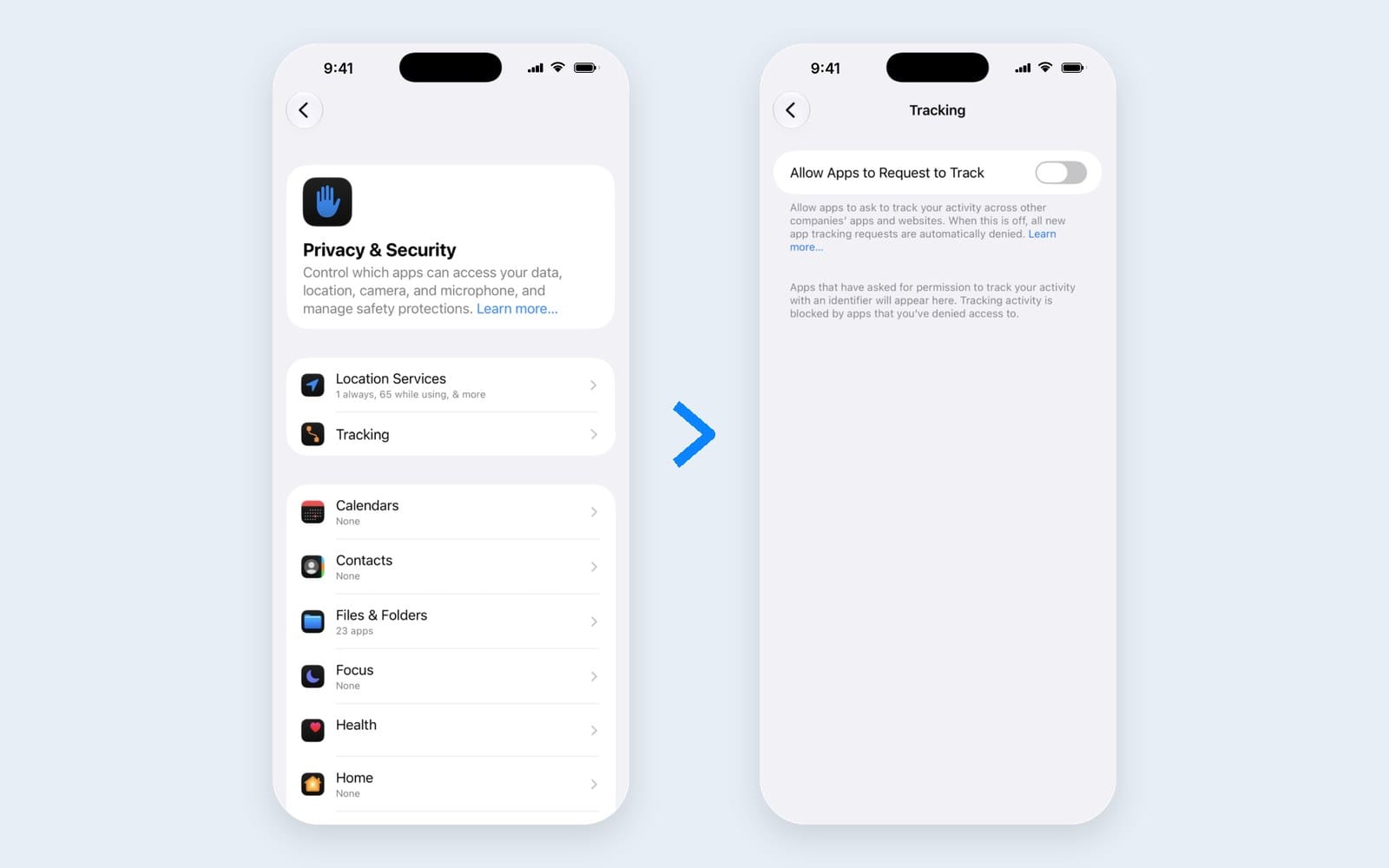
6. Stop apps from asking to track you
Go to Settings > Privacy & Security > Tracking and turn off Allow Apps to Request to Track. Every app that would have asked is automatically told no, and those apps lose access to your device's advertising identifier. Fewer pop ups, less cross app tracking, no downside for most people.
While you are in a privacy frame of mind, it is also worth turning on Call Screening, which makes unknown callers say who they are before your new phone rings.
7. Confirm iCloud Backup is on
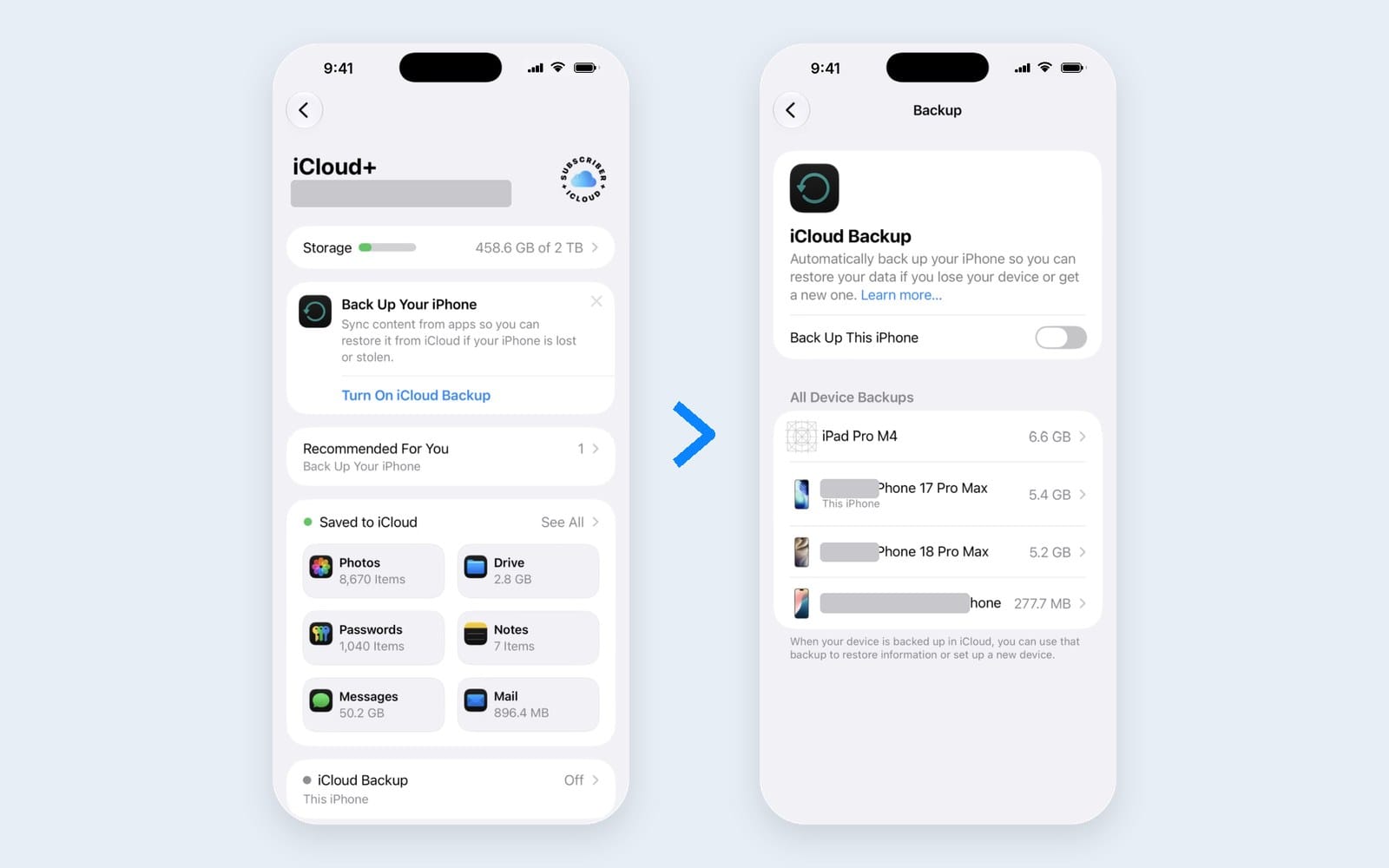
Go to Settings > [your name] > iCloud > iCloud Backup, make sure Back Up This iPhone is on, and tap Back Up Now once your setup is done. After that, backups run automatically when the phone is charging, locked and on Wi-Fi.

Camera
8. Arrange Pro controls the way you shoot
The iPhone 18 Pro is the first iPhone with a variable aperture, and Apple added a customizable Pro controls section to the Camera app for aperture, shutter speed, white balance and a histogram. You can customize the layout so the controls you use most are easiest to reach. If you shoot in low light or like natural background blur, put aperture first. Auto still chooses an aperture for you, so this is about having control a tap away, not about doing more work. Our variable aperture guide explains which f stop to use and when.
9. Tune Camera Control
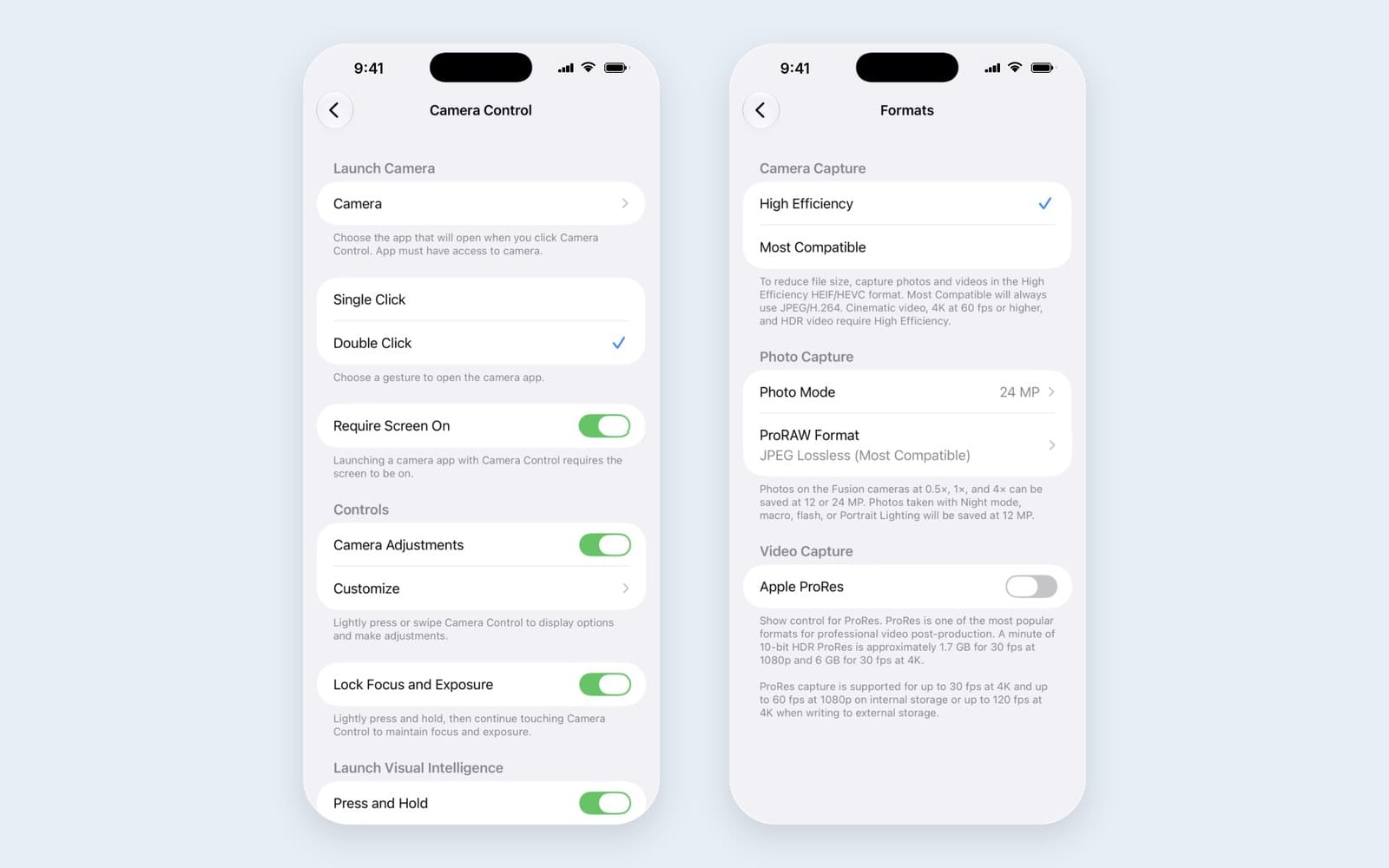
Camera Control on the 18 Pro can adjust Exposure, Depth, Zoom, Cameras, Styles and Tone. Open the Camera Control options in the Camera section of Settings and turn off the adjustments you never use, so the menu you open with a light double press shows only the ones you want. Fewer choices makes the button faster and far less likely to change something by accident.
10. Leave photo formats on High Efficiency
In Settings > Camera > Formats, High Efficiency saves photos and video in HEIF and HEVC, which take less space at the same quality. Most Compatible saves JPEG and H.264. Unless a work tool demands JPEG, keep High Efficiency, especially if you plan to shoot a lot of 48MP photos or 4K video.
Buttons, Siri and notifications
11. Give the Action button a real job
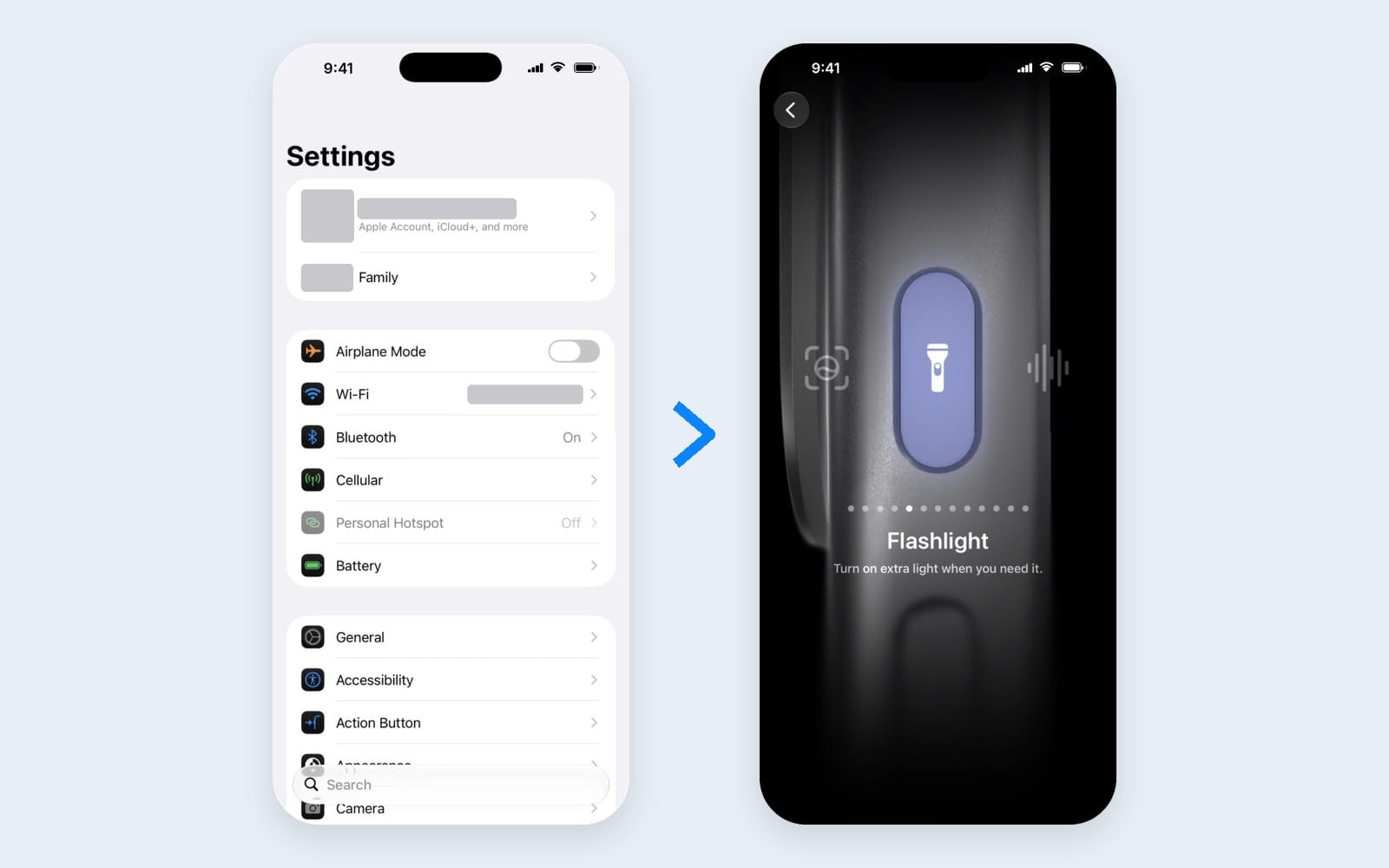
Out of the box, the Action button toggles Silent mode. You can assign it to Focus, Camera, Visual Intelligence, Flashlight, Voice Memo, Recognize Music, Translate, Magnifier, Controls, a Shortcut or an accessibility feature in the Action Button section of Settings. Since Camera Control already opens the camera, most people get more out of mapping the Action button to Flashlight, Voice Memo or a favorite Shortcut.
12. Join the Siri AI waitlist now
Siri AI is still labeled beta in iOS 27, and access comes through a waitlist. Go to Settings > Siri, tap Try Siri AI (Beta), choose a voice, enroll your voice and review the privacy settings. You only join the line once you sign up, and Siri AI downloads automatically when it comes up, so there is no reason to wait. For now your device and Siri language both need to be set to English, and Siri AI is not available on iPhone in the EU.
13. Let your iPhone summarize the noise
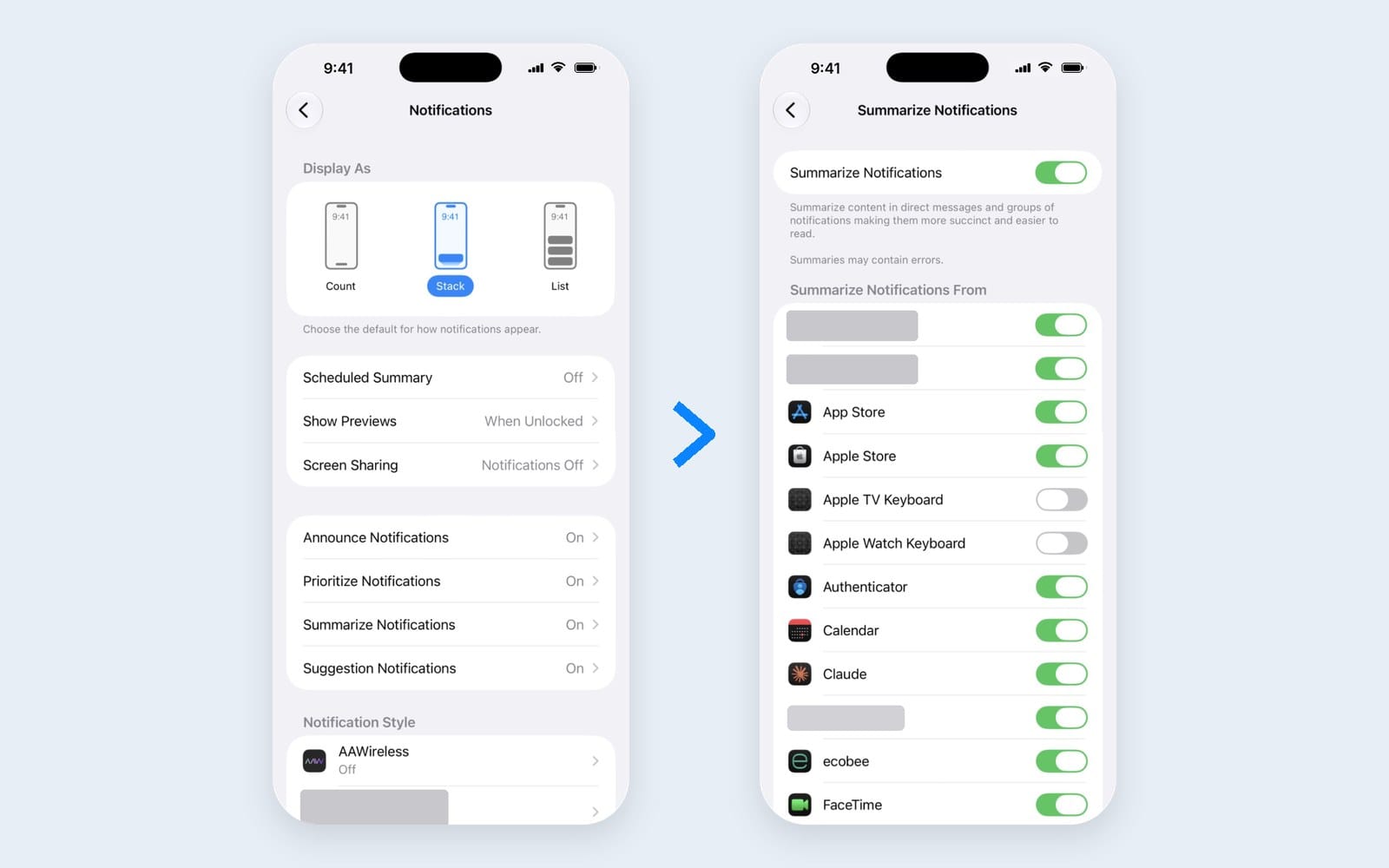
A new phone is the perfect moment to reset notifications. In Settings > Notifications, look at Summarize Notifications, which you can turn on for the busy apps that tend to bury you, and Prioritize Notifications, which surfaces the ones that matter. If iOS 27's new gestures still trip you up, our notification gesture map walks through them.
Free printable
Want all 13 on one printable page?
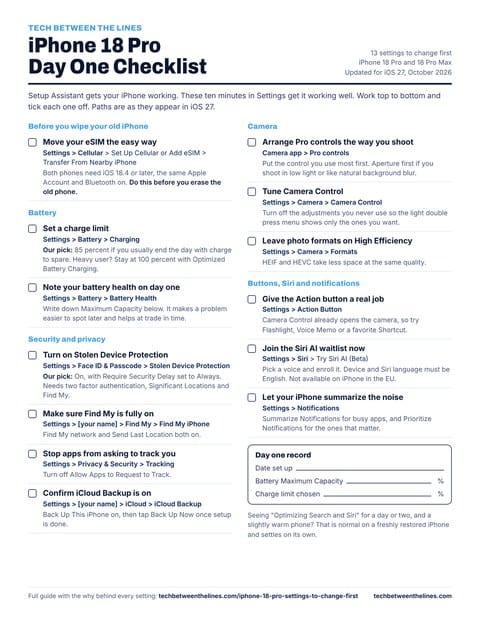
The iPhone 18 Pro Day One Checklist puts every setting above on a single page, with the path and our pick for each, plus a day one record for your battery health. Print it, tick them off as you go.
Free. You will also get The Cupertino Chronicles, our weekly Apple newsletter. Already a member? Sign in to download.
One thing not to worry about
For the first day or two, you may see an "Optimizing Search and Siri" message and notice the phone feeling a little warmer while it indexes your photos, messages and files. That is normal on a newly restored iPhone and settles down on its own. Our explainer on the indexing banner covers what is happening and how long it takes. If something else seems off, our iPhone 18 Pro problems tracker lists the known issues and fixes so far.
And while you are in setup mode, protect the thing. Cases made for the iPhone 16 Pro and earlier will not fit, so check that a case lists the iPhone 18 Pro before you buy it. The iPhone 18 Pro section of our Gear Guide has the cases and chargers we trust. For the new 15 minute fast charge, you will need a 60W capable USB-C cable and a USB PD 3.1 adapter with Adjustable Voltage Supply.
None of these changes take long, and most of them you will never have to touch again. That is the point. A new iPhone should spend its first week getting out of your way, and these settings are how you make that happen.
Read us first
See more TBTL when you search Google
Add Tech Between the Lines as a preferred source and our Apple coverage shows up more often in your Top Stories. It takes one tap, and you can change it anytime.
Prefer TBTL on Google