

How to Use the iPhone 18 Pro's Variable Aperture, and When It Beats Auto
The iPhone 18 Pro is the first iPhone with a real aperture you can move. Here is how to set it in the Camera app, which f-stop to use, and how Final Cut Camera 2.4 adds priority modes.

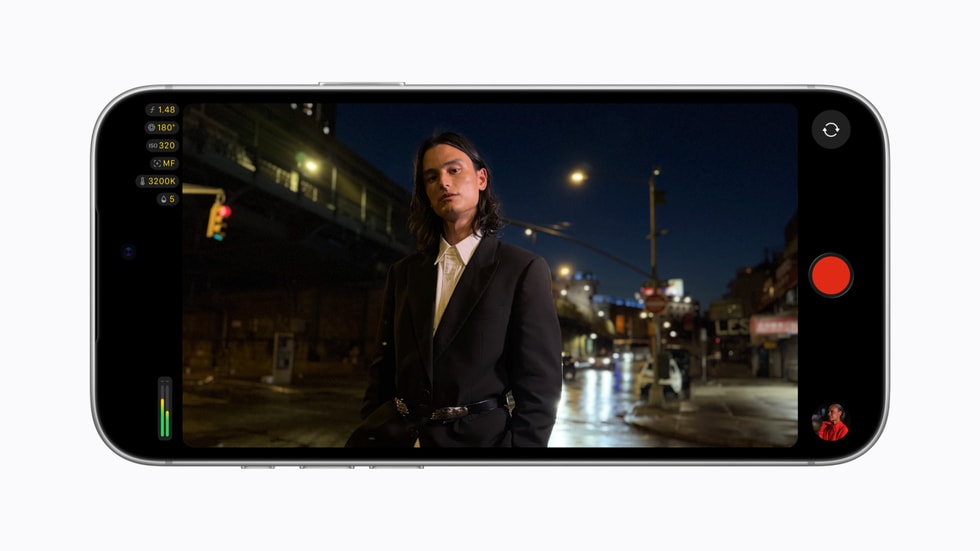
Apple spent years teaching iPhone owners that they never needed to think about camera settings. With the iPhone 18 Pro, it shipped the first iPhone where one of those settings is a real, physical part you can move. The Fusion Main camera now has six laser cut blades that open and close like a dedicated camera's iris, and most owners will never touch them, because Auto picks an aperture for every shot.
That raises the practical question: when is it worth taking over? The answer is less often than camera nerds would like and more often than Apple's defaults suggest. Here is what the aperture actually changes, how to set it in the Camera app, which f-stop to reach for, and how Final Cut Camera 2.4 and Final Cut Pro turn it into a real video tool.
What the Variable Aperture Actually Does
Every iPhone before this one shipped with a fixed aperture on the main camera. The 18 Pro and 18 Pro Max both move to a variable aperture that runs from f/1.48 to f/4, and Apple calls it the first time aperture control has come to iPhone. It only applies to the 48MP Fusion Main camera, the default 1x lens. The Ultra Wide and Telephoto keep their fixed apertures.
The f-number describes how wide the opening is. A lower number like f/1.48 means a wider opening, which lets in more light and gives you a shallower depth of field, so your subject stays sharp while the background softens. A higher number like f/4 narrows the opening, lets in less light, and keeps more of the scene in focus from front to back.
In Auto, the camera makes that trade for you. Apple says it opens up in darker scenes, adjusts on its own for Night mode, and narrows the aperture to keep more people sharp in a group shot. Manual control matters when Auto guesses wrong about what you care about.

How to Change the Aperture in the Camera App
The control lives in the Camera app's Pro controls, alongside shutter speed, white balance and a histogram. Make sure you are on the Main camera at 1x first, since the other lenses can't change their aperture.
- Open Camera and stay on the 1x lens.
- Tap the button with six dots in the lower right corner to open the camera controls.
- Choose Lens Aperture.
- Tap one of the four settings: f/1.48, f/1.8, f/2.8 or f/4.
- To hand control back to the iPhone, tap Auto.
Pro controls can be customized, so if you change aperture often, keep Lens Aperture where you can reach it in one tap. If the Camera app keeps returning to Auto after you close it, check Settings > Camera > Preserve Settings for a Lens Aperture option and turn it on.
Which F-Stop to Use
Four stops sounds limited next to a full camera lens, but they cover the situations that matter on a phone.
f/1.48: Low Light and Maximum Separation
The widest setting gathers the most light, which means faster shutter speeds and less noise indoors or at night. It also gives the shallowest depth of field the iPhone can produce optically. That is great for a single subject and unforgiving for anything else. At close range, the tip of a nose can be sharp while the eyes are not.
f/1.8: Portraits With Some Room
Apple pitches f/1.8 for portraits, and it is the most useful everyday manual setting. You still get a soft background, but a little more of the face stays in focus, which matters when your subject is moving or you are shooting quickly.
f/2.8: Food, Pets and Small Groups
This is the middle ground. Two or three people at slightly different distances can all stay sharp, and a plate of food keeps detail from the front edge to the back without the background turning to mush.
f/4: Landscapes, Architecture and Big Groups
Stop all the way down when everything in the frame matters. Landscapes, buildings, and the family photo where someone always stands a step behind everyone else benefit most. The cost is light, so f/4 works best outdoors or with a steady hand. Indoors, Auto will usually make a better call.
Aperture or Portrait Mode?
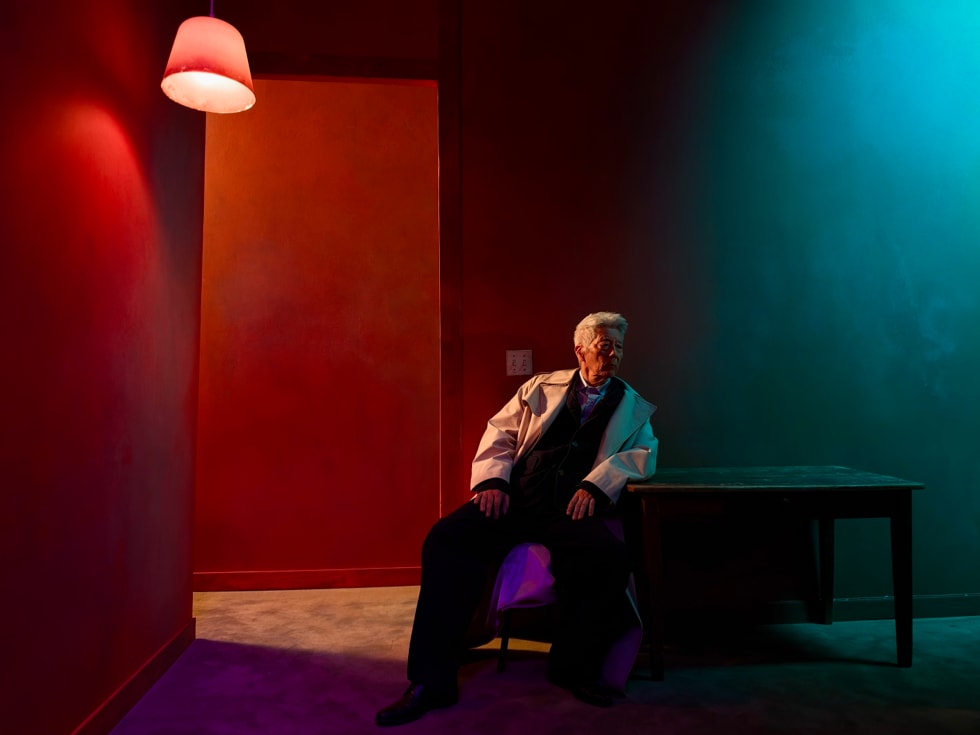
Both soften the background, but they get there differently. The aperture blurs optically, through the lens, so it works in Photo and Video on the Main camera with no processing artifacts around hair or glasses. Portrait mode creates its blur in software after the fact. It can push the effect much further than f/1.48 ever will, and it adds Portrait Lighting, but it can stumble on fine edges.
A simple rule works well. For a single subject where you want dramatic blur or plan to adjust it later, use Portrait mode. For everything else, including video, use the aperture, because it produces a natural falloff that Portrait mode can only imitate.
Final Cut Camera 2.4: Real Exposure Modes
The built in Camera app gives you four stops and leaves the rest to the iPhone. Apple's free Final Cut Camera app goes further. Version 2.4, released September 29, adds full aperture control on the iPhone 18 Pro, and it is where the variable aperture starts to behave like a dedicated camera.
You can set an exact aperture yourself, or choose an exposure mode that splits the work:
- Aperture priority locks the f-stop you choose and lets the app handle shutter speed. Use it when depth of field is the point, like an interview with a soft background.
- Shutter priority locks the shutter speed and lets the app pick the aperture. Use it when motion matters, like keeping a natural 180 degree shutter look for video.
- Manual leaves every setting to you, for shoots where exposure has to stay identical from clip to clip.
The rest of the update is aimed at people who shoot seriously on iPhone. The app was redesigned with shutter angle, ISO and white balance easier to reach. It adds customizable false color and clipping overlays for checking exposure, focus peaking with adjustable sensitivity, a tally light so subjects know you are recording, and a two finger tap that clears the viewfinder. On iOS 27 it also adds an RGB Parade and histogram, a clean SDI output through an HDMI to SDI converter for live production, and genlock offset for multicamera shoots.
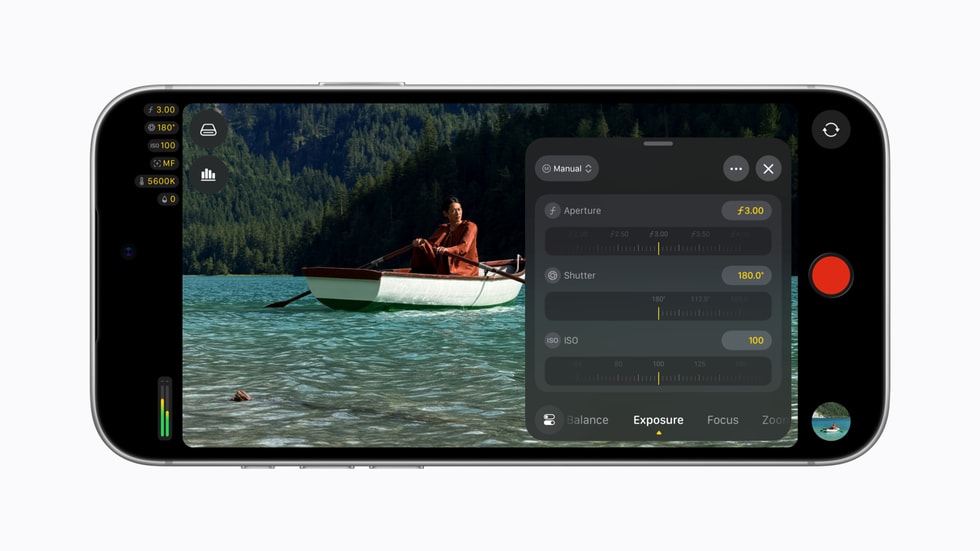
Final Cut Camera is free in the App Store. The aperture controls require an iPhone 18 Pro or 18 Pro Max running iOS 27.
Change Focus and Depth of Field After You Shoot
The most interesting part of this update is not on the iPhone at all. On iPhone 18 Pro, Final Cut Camera can now record regular video, including ProRes and Apple Log, with Cinematic mode effects applied. That footage carries the depth information Cinematic mode needs, so you can change it later.
On the Mac, Final Cut Pro 12.4 lets you adjust focus points and depth of field right in the timeline. If you racked focus to the wrong person, you can fix it in the edit. Motion supports the same Cinematic effects, and Compressor can convert Cinematic video back to the earlier Cinematic format and adds HEVC and MPEG 4 export presets for social sharing. Final Cut Pro 12.4 requires macOS 27 and comes with an Apple Creator Studio subscription, which costs $12.99 a month or $129 a year.
That combination is the real story of the 18 Pro's camera. The aperture handles depth of field optically when you shoot, and Cinematic data lets you rethink it afterward. Dedicated cameras still win on sensor size, but very few of them let you move the focus after the fact.
The Short Version
- The variable aperture works only on the 1x Main camera and runs from f/1.48 to f/4.
- In the Camera app, tap the six dot button, choose Lens Aperture, and pick a stop. Tap Auto to go back.
- Use f/1.48 for low light, f/1.8 for portraits, f/2.8 for small groups and food, and f/4 for landscapes and big groups.
- Use Portrait mode for dramatic single subject blur, and the aperture for everything else, including video.
- Final Cut Camera 2.4 is free and adds aperture priority, shutter priority and manual modes, plus pro monitoring tools.
- Final Cut Pro 12.4 on Mac lets you change focus and depth of field after recording on iPhone 18 Pro.