




Your iPhone was at 100 percent at breakfast and 40 by lunch, and the only thing that changed was iOS 27. Before you go hunting for a setting to blame, open Settings and tap Battery. In a lot of cases, your iPhone will tell you directly that it is not done updating yet.
Battery drain after a major update is one of the most common complaints every fall, and most of it is temporary. The trick is telling the temporary kind apart from a real problem, and recent versions of iOS, including iOS 27, give you good tools for that. Here is how to read them.
Why battery life drops after a big update
Installing an update is only the visible part of the job. Apple's battery support guide says that even though you can use your iPhone right away, tasks related to the update keep running in the background and can affect battery life and how warm the phone gets. Apple's advice is simple: if battery life has dropped after updating, wait a few days and check again.
One of the most visible of those tasks is the search rebuild. The "Optimizing Search and Siri" banner in Settings is your iPhone re-indexing photos, mail, messages and files, and Apple's Spotlight support page says that can take hours or even days depending on how much is on the device. It finishes fastest when the phone is idle, plugged in and on Wi-Fi. Our Optimizing Search and Siri explainer covers what the progress percentage means and why it can sit near 90 for a while.
Prefer to watch? Our video walks through what your iPhone is doing in its first week on iOS 27, how long that work takes, what is normal and when it is time to call Apple.
Check whether the update is still working
Open Settings, then Battery. Just above the usage chart, iOS shows Insights when something is affecting your battery. Two of them point to temporary background work:
- Ongoing iOS Update: a recent software update is still finishing in the background.
- Ongoing Device Setup: your iPhone is still completing setup steps, which is common if you just moved to a new phone.
If you see either one, or the Optimizing Search and Siri banner is still in Settings, the drain is expected. Plug in overnight on Wi-Fi and look again in a day or two. Changing settings now mostly fights a process that is about to end on its own.
Find what is actually using the battery
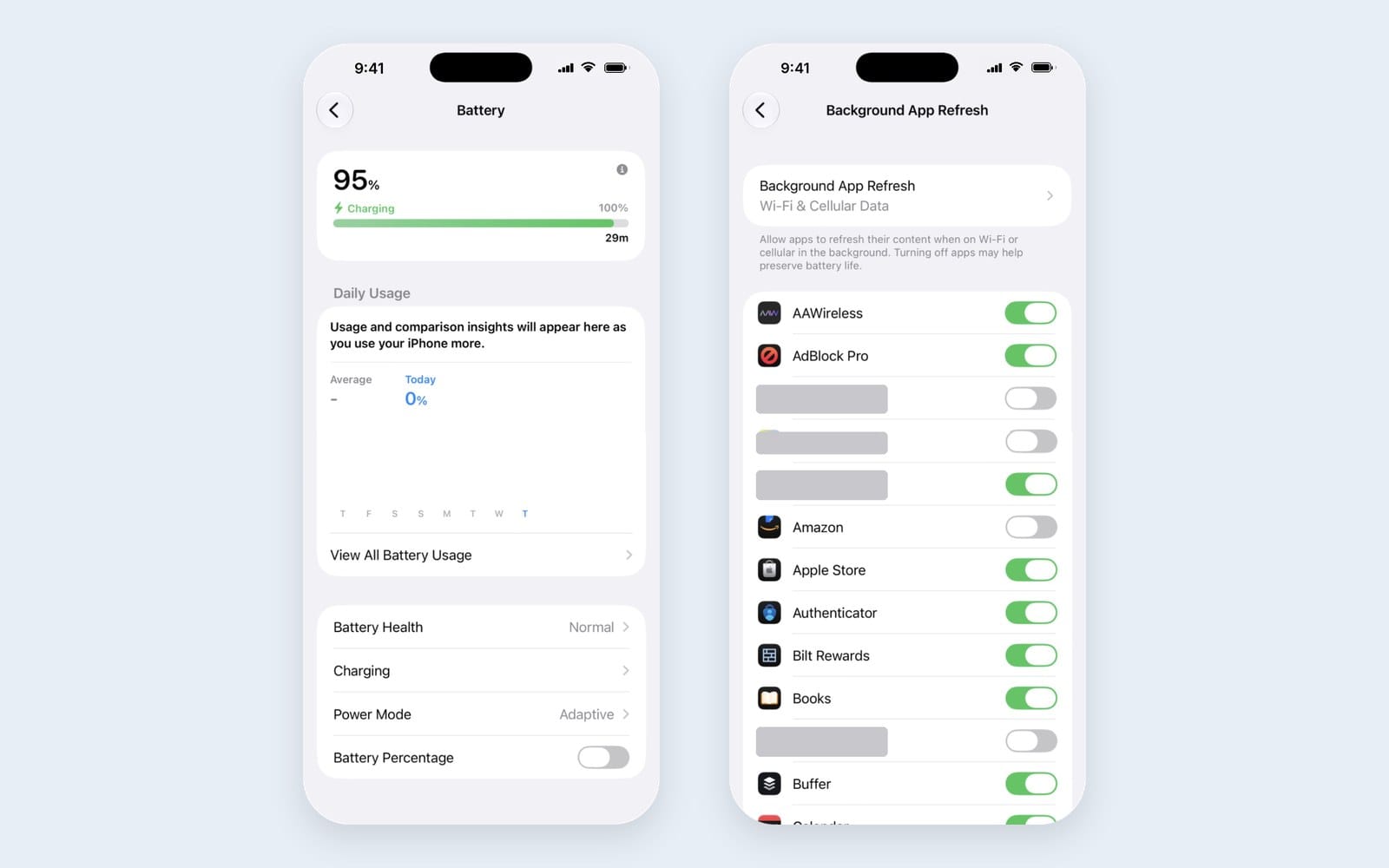
If the Insights are gone and the battery still drops fast, find the cause before you change anything. In Settings, then Battery, the Daily Usage chart compares today with the past seven days, and App and System Activity Usage lists the three apps that used the most battery today. Tap an app to compare it with its own last week, or tap View All Battery Usage and then a day's bar for the full breakdown. Apple notes Daily Usage requires iOS 26 or later.
The labels under each app tell you what to do about it:
- Background Activity: the app ran in the background, for example playing audio or tracking location. Apple suggests using it less; you can also check its Background App Refresh and Location Services settings.
- No Mobile Coverage and Low Signal: your iPhone spent energy searching for a signal. If you will be somewhere without coverage for a while, Apple suggests Airplane Mode.
- Notifications: notifications kept waking the screen. Turn off the ones you do not need for that app.
- Connected to Charger: the app ran only while plugged in, so it did not cost you any battery.
The fixes that make the biggest difference
Once you know the update has finished and no single app is misbehaving, these are the settings Apple points to:
- Bring screen brightness down. Apple says high brightness "consumes a lot of energy." Settings may suggest turning on auto-brightness or Auto-Lock; take the suggestion.
- Prefer Wi-Fi. Wi-Fi generally uses less power than cellular, so join trusted networks at home and work.
- Let 5G step aside. In Settings, then Cellular, then Cellular Data Options, then Voice & Data, choose 5G Auto. Your iPhone falls back to LTE when 5G would not noticeably help.
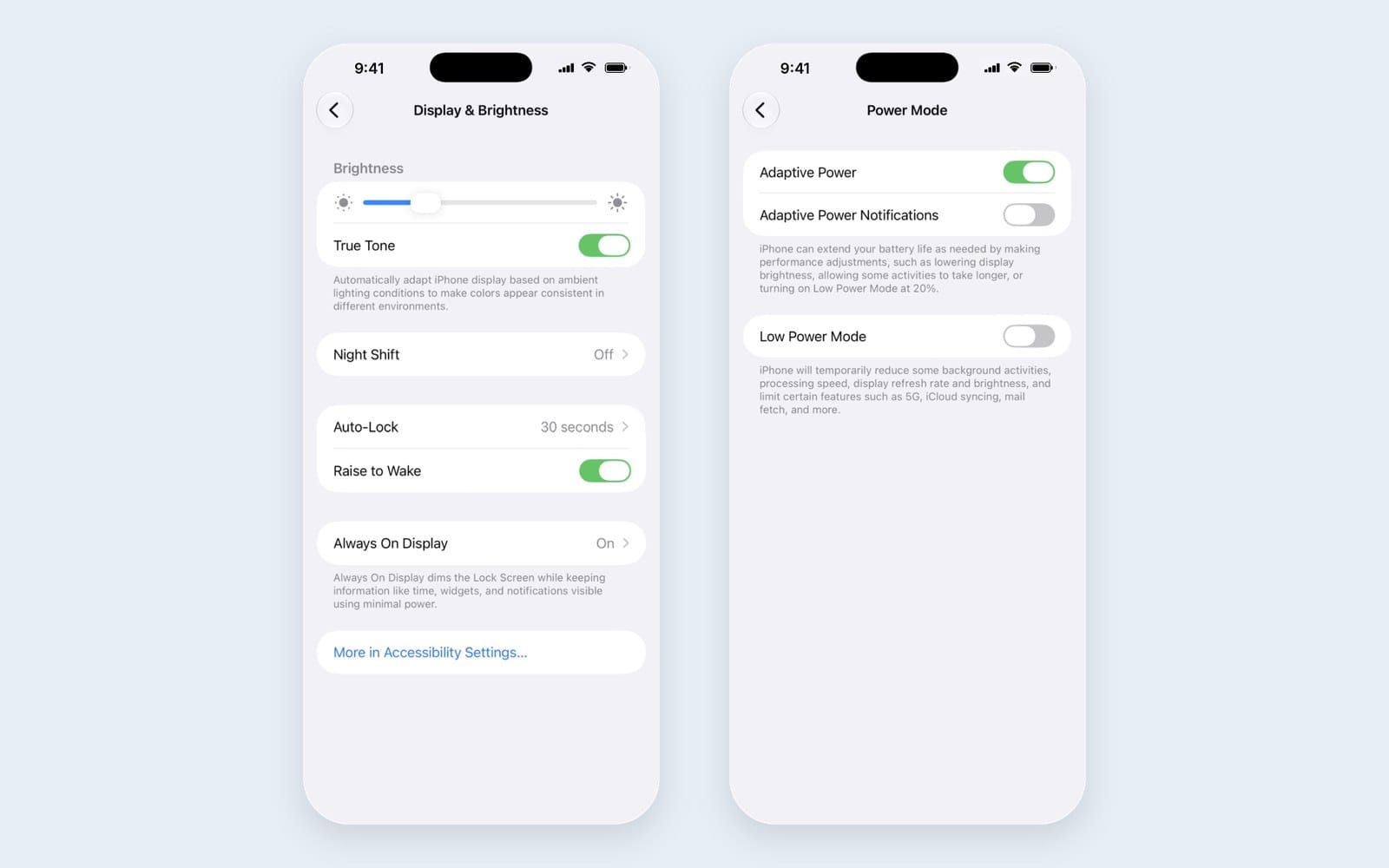
- Turn on Adaptive Power. In Settings, then Battery, then Power Mode. It predicts when you will need extra battery and adjusts performance, and it can switch on Low Power Mode at 20 percent. Apple lists it for iPhone 15 Pro and 15 Pro Max, the iPhone 16 and iPhone 17 lineups, iPhone Air and iPhone 18 Pro, and it is already on by default on iPhone 17 models and iPhone Air. Apple says it needs at least seven days to learn your charging habits before it engages.
- Use Low Power Mode on long days. It is in the same Power Mode menu and in Control Center. It cuts things like Mail fetch, Background App Refresh and some visual effects, and it turns itself off once you charge above 80 percent.
When it is the battery, not the update
An older battery makes every update feel worse. Check it in Settings, then Battery, then Battery Health on iPhone 15 and later, or Battery Health & Charging on iPhone 14 and earlier. If you see "Service" next to Battery Health, Apple recommends replacing the battery. Apple's repair page estimates the cost for your model, and AppleCare+ covers a replacement once capacity drops below 80 percent.
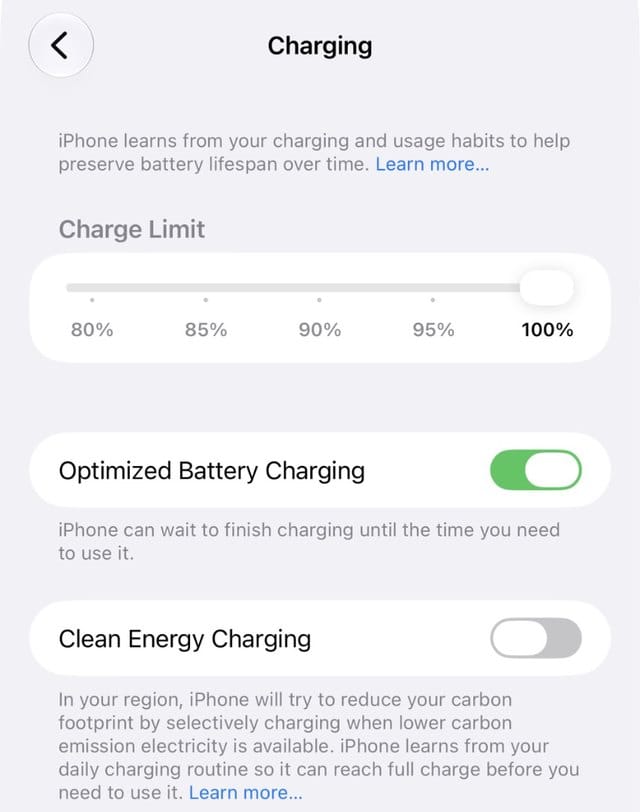
While you are there, open Charging. Apple's charging guide says Optimized Battery Charging reduces wear by limiting the time your iPhone spends fully charged, and it works when the Charge Limit is set to 100 percent. On iPhone 15 and later you can also set a Charge Limit from 80 to 100 percent in 5 percent steps, and iOS will recommend one if it thinks a lower limit will help preserve the battery. Leave Optimized Battery Charging on; Apple warns that turning it off can increase wear.
When to worry
Give a fresh update a few days, as Apple suggests. If the Insights and the Optimizing Search and Siri banner are gone, Daily Usage shows no app or signal problem, and Battery Health looks normal, the drain is worth chasing further. Start with our iOS 27 problems and fixes page, which tracks every known issue and what Apple has fixed, then contact Apple Support if nothing there matches.
Most of the time the answer is already on your screen. iOS 27 tells you when the update is still working, which apps are to blame and when the battery itself is the problem, so the most useful thing you can do in the first week is usually the least exciting: plug in at night, stay on Wi-Fi, and let it finish.






Comments