


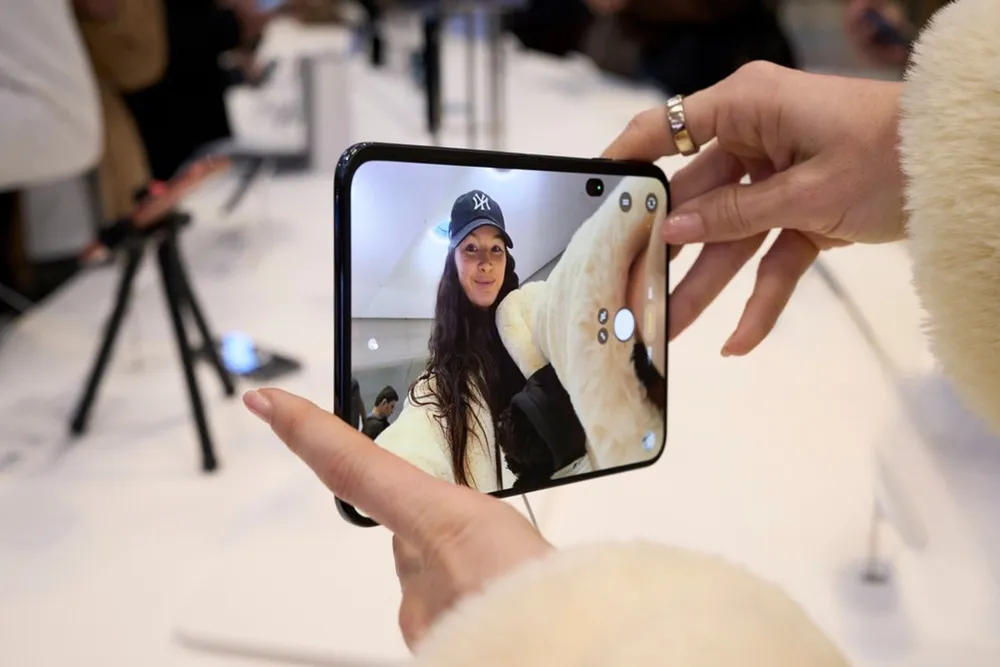


The iPhone Duo works fine straight out of Setup Assistant, but a few things about it are new to iPhone: there's no Face ID, no Action button and no mute switch, and there's a second screen that changes how you use apps. Most of what's worth changing on day one comes from those differences. These are the ten we'd do first, with the exact path for each.
If you're coming from an older iPhone, the usual basics still apply too: Stolen Device Protection, Find My, a charge limit, moving your eSIM. We covered those step by step in our iPhone 18 Pro setup guide, and every one of them works the same way on the Duo. This list sticks to what's different.
During setup
1. Install the update setup asks for
The Duo ships with iOS 27.1, but Apple has already posted a newer build of 27.1 that only the Duo gets. Setup will ask you to install it. Do it before you restore a backup or start moving apps. The release notes only mention "bug fixes for your iPhone" and there are no security fixes listed, so it isn't urgent in the security sense, but it's the build Apple wants every Duo on. iOS 27.2 is expected next week.
If you skipped it, go to Settings > General > Software Update.
2. Add a second fingerprint
Touch ID lives in the side button and works whether the phone is folded or open. The catch is that your grip changes between the two. Folded, it's a regular phone and your thumb lands on the button. Open, you're holding something closer to a small tablet, and a different finger usually ends up there.
Setup only asks for one finger. Add the other one now: Settings > Touch ID & Passcode > Add a Fingerprint. We'd add the thumb and index finger on your main hand, plus one finger on the other hand for holding it open in landscape.
Unlocking
3. Decide how you want Touch ID to open the phone
By default, Touch ID unlocks the phone and you still swipe up on the Lock Screen to get in. A setting called Rest Finger to Open removes the swipe, so resting a registered finger on the side button takes you straight to the Home Screen. Anyone who used a Touch ID iPhone before Face ID will remember it.
You'll find it in two places that control the same switch: Settings > Touch ID & Passcode (it asks for your passcode) or Settings > Accessibility > Side Button. Some owners are finding it already on, so check which way yours is set before deciding. We'd turn it on. The only downside is the occasional accidental unlock when you grab the phone, and Touch ID on the side button is fast enough that the swipe feels like a wasted step.
4. Let your Apple Watch unlock it
If you wear an Apple Watch, this is the fastest way into the Duo. With the watch on your wrist and unlocked, the phone opens without Touch ID, which helps most when the phone is open on a table and the button is awkward to reach. Turn it on at Settings > Touch ID & Passcode > Unlock with Apple Watch.
Buttons
5. Put Silent Mode in Control Center
The Duo is the first iPhone with neither a Ring/Silent switch nor an Action button. It has volume buttons, the side button with Touch ID and Camera Control, and that's it. Silent Mode now lives in Control Center, and this is the setting people miss the first time their phone rings in a meeting.
- Swipe down from the top right corner to open Control Center.
- Tap the plus button at the top left.
- Tap Add a Control, then choose Silent Mode.
- Drag it somewhere you can reach with one thumb.
It may already be there on some setups, so look for the bell icon first. If you used the Action button for something else, like a flashlight or a shortcut, you can add those controls here too, or swap one of the two Lock Screen controls for it (touch and hold the Lock Screen, tap Customize, then Lock Screen).
The big screen
6. Set up an App Pair for the two apps you use together
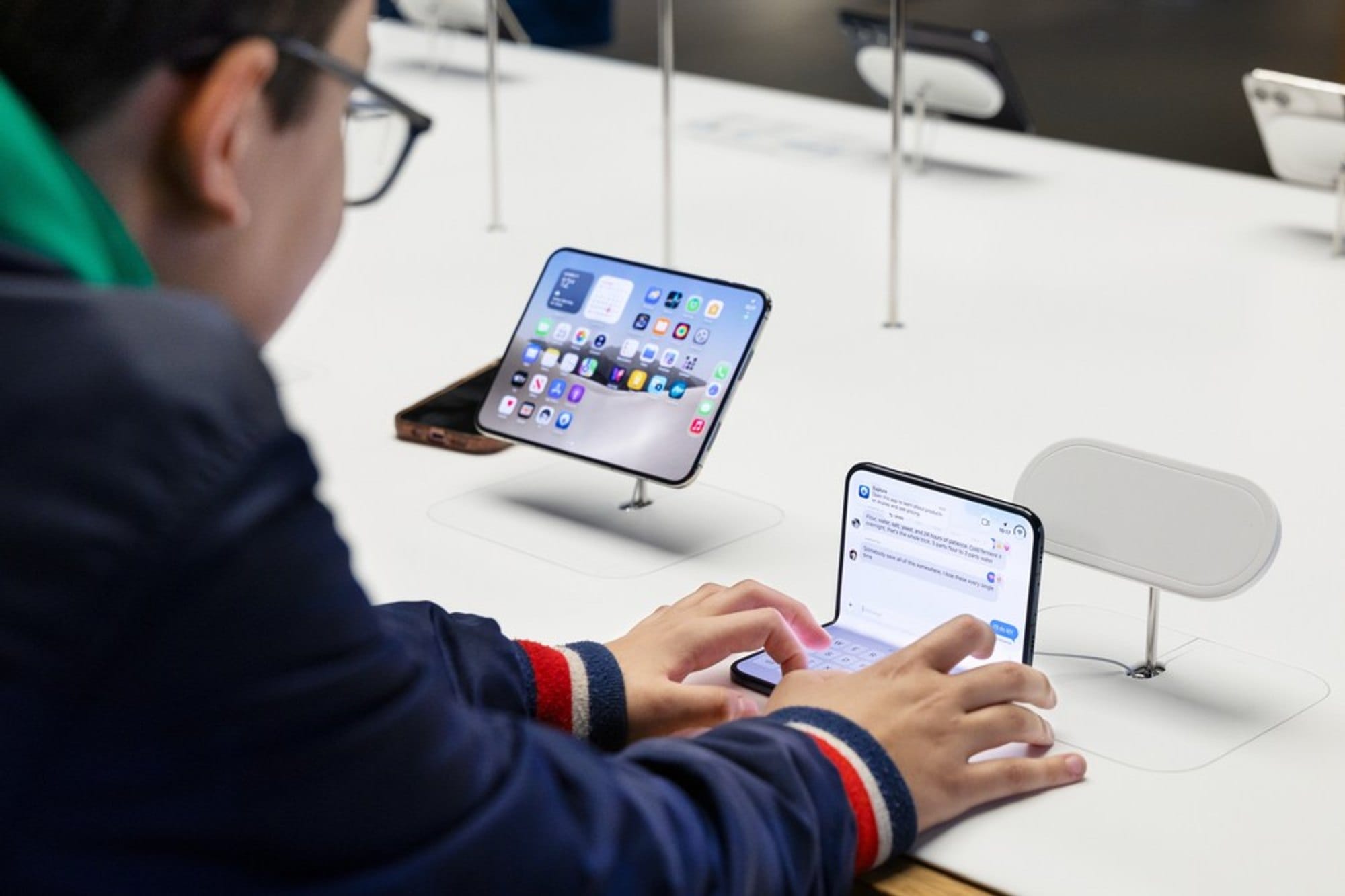
Split View on the 7.6 inch inner display runs two apps side by side, and an App Pair locks two of them together so opening either one brings back both. This is the feature that makes the Duo feel different from a big iPhone, and it's worth setting up one pair on day one.
- Unfold the phone and open the first app.
- Swipe up from the bottom, pause, and drag the app toward the left or right edge. Or, from the Home Screen or App Library, touch and hold an app and tap Open in Split View.
- Pick the second app.
- Tap the divider between them to lock them as a pair.
To break a pair, drag the divider all the way to one edge; the app you push off closes. Two limits to know: the split is always half and half (you can't resize it the way you can on an iPad), and only one of the two apps can play audio at a time. Good first pairs are Mail and Calendar, Messages and Photos, or Safari and Notes.
7. Check which of your apps are ready for it
Not every app knows what to do with the inner screen yet. Apps built for the Duo fill the whole display; older ones run in the middle with empty space on both sides. They still work, they just look boxed in. The App Store marks optimized apps with a Made for iPhone Duo badge, and Apple named more than 50 that are ready now or coming soon. We went through that list, and how to sort your own apps, in These Apps Are Ready for iPhone Duo on Launch Day.
Before you judge an app, update everything: App Store > your profile picture > Update All. Duo support arrives as a normal app update, and plenty of apps shipped theirs this week.
Camera
8. Try the camera features that use the outer screen
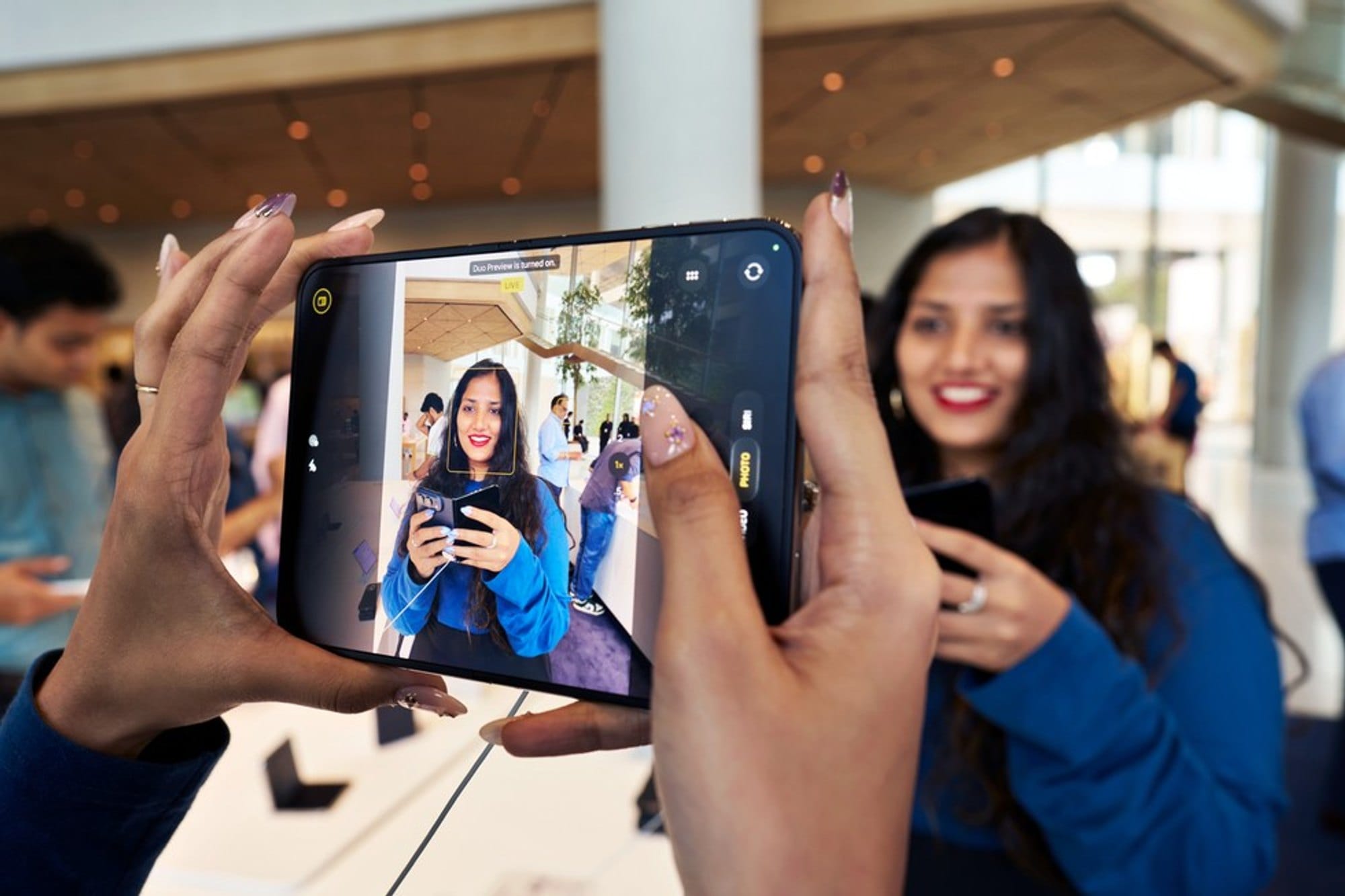
When the Duo is open, the outer display faces whoever you're photographing. Apple built three camera features around that, and they're easy to miss if you shoot the way you did on your old iPhone:
- Duo Preview shows a live preview on the outer display, so the person you're photographing can see their framing and pose before you take the shot.
- Kid Cue plays animations on the outer display to get a child to look toward the lens. Parents will use this one constantly.
- Smart Take waits until everyone in a group shot is ready and takes the picture itself, with no timer.
The same trick works for selfies: open the phone, turn it around, and use the 48MP main camera with the outer display as your viewfinder. That's a real step up from the 12MP front camera. Camera Control, the separate button on the side, works the same way it does on the iPhone 18 Pro, so if you already tuned it on another iPhone, the same settings apply at Settings > Camera > Camera Control.
StandBy
9. Set up StandBy, and use it while charging
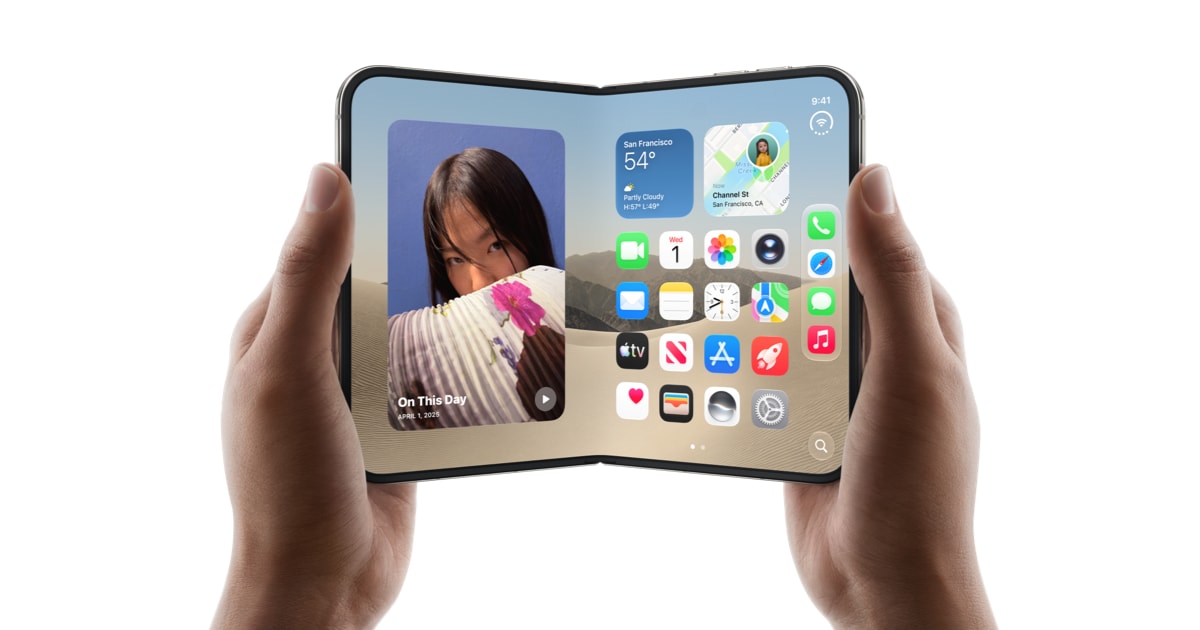
Half fold the Duo and it stands on its own, which makes it a small desk or nightstand display. StandBy shows a clock, photos (including Shared Albums), weather, calendar or widgets, and unlike other iPhones it works on the Duo even when it isn't charging. Set it up at Settings > StandBy.
We'd still keep it to charging time for now. One early owner found that 30 to 40 minutes of StandBy unplugged made a noticeable dent in the battery. That's one person's test, not ours, but an always lit screen costs power on any phone. On a charger at your desk, it's free.
Protect it

10. Leave the inner screen layer alone, and decide on AppleCare+ in the next 60 days
The inner display has a nano-texture cover layer on top that's meant to stay there. Apple's own hardware team has said it can be replaced, and it's a separate line on the repair price list, but that means replaced by Apple, not peeled off at home. Don't add a glossy aftermarket protector over it either; it sits right over the under-display camera and the fold. Before you close the phone, give the screen a glance for grit, since anything caught between the halves gets pressed into the display.
Repair prices are the real reason to think about AppleCare+ on this phone. Without it, an inner display repair is $999, and "other damage" is $1,499. With AppleCare+, the inner display is $99, the outer display is $29, and a worn cover layer is $19. AppleCare+ for the Duo is $19.99 a month or $199.99 a year, and you can add it within 60 days of buying the phone. We broke down the full price list and when the plan pays for itself in our iPhone Duo repair costs guide.
One more thing to know this week. A small number of owners have posted photos of inner screens cracked along the fold, often showing a line of bright pixels, and Apple replaced at least one of those phones at the store on the spot. A failure from normal use falls under the one year warranty, and Apple's standard return window gives you 14 days from when you received the phone. If you see a line of pixels or a crack along the hinge that you didn't cause, take it in during that window rather than waiting to see if it gets worse. If something does go wrong, our iOS 27 problems tracker is where we're logging what owners report.
What comes next
iOS 27.2 is the next update to watch. It's expected next week, and it's the first big release since the Duo shipped, so it's the one most likely to move a setting or add options for the inner screen. We'll update this guide when it lands.
Still deciding whether the Duo is for you? Our iPhone Duo vs iPhone 18 Pro Max comparison and roundup of the first reviews cover the hardware side.











Comments