

How to Get Your Apple Home Ready Before October 13: Home Hubs, Updates and a Quick Cleanup
Eight quick checks to make sure your Apple Home is updated, running on a real home hub, and free of dead accessories before Apple's October 13 launch.

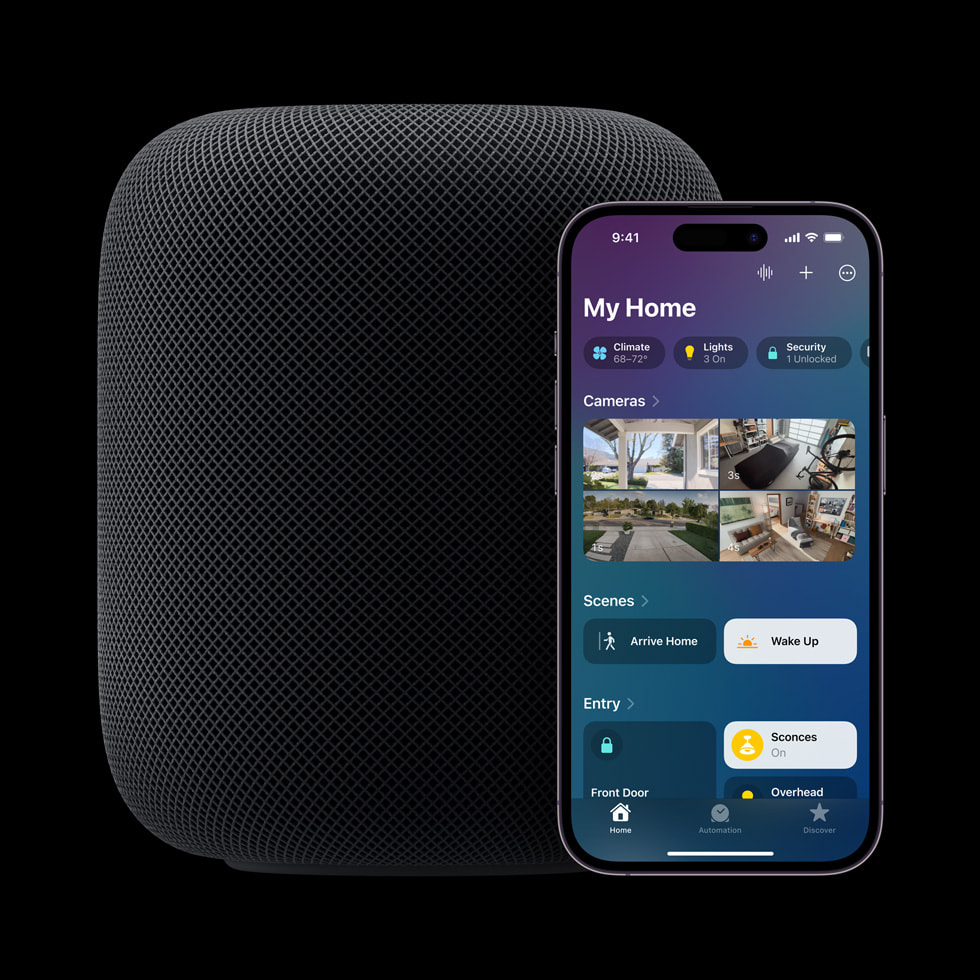
Is your Apple Home actually set up the way Apple expects it to be? For a lot of people the honest answer is probably, which is fine right up until you add something new and it refuses to cooperate. With Apple's "Welcome home" launch on Tuesday, October 13, this weekend is a good time to find out.
None of this depends on what Apple announces. These are the checks that let any new speaker, streaming box or accessory drop straight into your home instead of sending you into settings for an afternoon. Most take a minute or two, and you can do nearly all of them from your iPhone.
1. Update every device that touches your home
Start with software, because everything else depends on it. Update your iPhone and iPad in Settings, then General, then Software Update, and update any Mac you use with Home to the latest version of macOS.
Your HomePods and Apple TVs can be updated without touching them. Open the Home app, tap the More button (the three dots), choose Home Settings, then Software Update. Any HomePod or Apple TV with an update waiting shows up there, and you can install it on the spot. Turn on automatic updates on the same screen so they stay current.
2. Confirm your home is on the current Home architecture
Apple rebuilt the foundation of the Home app a few years ago, and support for the previous version ended on February 10, 2026. Most homes upgraded long ago, but some never did, and Apple is now prompting or moving those homes over.
To check, open the Home app, tap More, then Home Settings, then Software Update. If you see an option to update your home, tap Update Now and follow the prompts. Every home you own updates at the same time. Before you do, make sure each device in the house runs at least iOS 16.2, iPadOS 16.2, macOS 13.1, tvOS 16.2 or watchOS 9.2. Anything older loses access to the home until it's updated, which matters most for an old iPad on the counter or a parent's older iPhone.
The current architecture is what enables guest access, robot vacuum support and Activity History in the Home app. If any of those have never shown up for you, this is likely why.
3. Make sure you have a real home hub
A home hub is the device that stays home and keeps everything running when you're away. It runs your automations, lets you control accessories remotely, sends Home notifications, and lets you share control with family. Under the current architecture, only an Apple TV or a HomePod can do the job. An iPad can no longer be a home hub.
To see what's running your home, open Home, tap More, choose Home Settings, then Home Hubs & Bridges. Your active hub appears at the top.
If nothing is listed, the fix depends on the device. A HomePod or HomePod mini becomes a home hub automatically once it's set up. An Apple TV needs one extra step: on the Apple TV, open Settings, choose AirPlay and Apple Home, then pick a room. Once it's assigned to a room, it becomes a hub. Only the home's owner can add a HomePod or Apple TV, so if it won't cooperate, check who owns the home in Home Settings. Apple's home hub setup guide covers the rest.
4. Pick a preferred hub if you have more than one
If you own several HomePods and Apple TVs, the Home app picks one as the active hub and keeps the others on standby. Usually that works. If you have an Apple TV connected by Ethernet in a central spot, it is often the most dependable choice, and you can tell the Home app to prefer it.
In Home Hubs & Bridges, turn off Automatic Selection and choose the device you want. If your hub keeps switching or accessories go unresponsive at random, this is one of the first things worth trying.
5. Know which devices handle Thread
Many newer Matter accessories, especially locks, sensors and blinds, talk over Thread, a low power network that needs a Thread capable hub. Apple lists the HomePod mini and the Wi-Fi + Ethernet model of the Apple TV 4K (3rd generation) as Thread hubs, along with supported third party border routers. The Wi-Fi only Apple TV 4K doesn't include Thread.
If you plan to add Thread accessories and your only hub is a Wi-Fi only Apple TV, that is worth knowing before you buy anything.
6. Clear out accessories that stopped responding
Most homes collect clutter: a smart plug that died, a bulb from an old apartment, a bridge you replaced. Dead accessories can slow down scenes and make automations fail in confusing ways.
Scroll through each room in the Home app and look for anything marked No Response. Try power cycling it first. If it's gone for good, press and hold the accessory, open its settings, scroll to the bottom and tap Remove Accessory. While you're in each room, make sure accessories are in the right room and named the way you'd actually say them out loud, since that's how Siri finds them.
7. Check sharing and account settings
Many "I can't add it" problems trace back to accounts rather than hardware. Make sure you and everyone you share your home with have two factor authentication turned on for their Apple Account, along with iCloud Keychain. Apple lists both as requirements for upgrading your home and for home hubs to work properly.
To review who has access, open Home Settings and look under People. Remove anyone who no longer lives with you. If you've been sharing your full home with a regular visitor, like a dog walker or a babysitter, guest access is a better fit. Guests get limited access, such as a specific lock during set hours, without seeing the rest of your home.
8. Hold off on new hub hardware for a few days
If this checklist has you eyeing a new HomePod mini or Apple TV, wait until after Tuesday. Apple hasn't said what it's announcing, but a launch called "Welcome home" is a strong reason not to pay full price for a 2020 speaker or a 2022 streaming box this weekend. We break down what Apple has confirmed and what the launch needs to answer in our October 13 preview.
Once your home is updated, running on a real hub and free of dead accessories, anything new should take minutes to set up rather than an afternoon. If you're building out your setup, the Apple Home section of our Gear Guide lists the accessories we actually use, including the Skylight Calendar 2 and Skylight Buddy we've reviewed.
Read us first
See more TBTL when you search Google
Add Tech Between the Lines as a preferred source and our Apple coverage shows up more often in your Top Stories. It takes one tap, and you can change it anytime.
Prefer TBTL on Google