

How to Set Up Your Kid's iPhone in iOS 27, Step by Step With Apple's New Family Guide
Apple and the American Academy of Pediatrics published a six step guide to iOS 27's parental controls. Here is what each step does, where the settings live, and the requirement that trips up most families.


Every parent eventually asks how much screen time is too much, and hopes for a number. The American Academy of Pediatrics doesn't really give one. In the family guide it built with Apple, the AAP's position is that managing screen time consistently, especially as kids get older, matters more than any single figure.
That turns out to be a useful way to read Apple's new guide, Building Healthy Digital Habits. It is less a rulebook than a setup order: six steps that walk through iOS 27's redesigned parental controls in the sequence that makes sense for a family. Here is what each step does, where to find the settings, and the one requirement that trips up more families than any other.
Before You Start: Every Device Needs Version 27
Apple's new parental controls arrived with the Screen Time update in iOS 27, iPadOS 27 and macOS 27. To use them for a child in your Family Sharing group, every device in the family has to be on version 27 or later of iOS, iPadOS, macOS, watchOS or visionOS. That includes your own iPhone, the old iPad your kid inherited, and any Apple Watch in the group.
If one device is still on iOS 26, the new controls won't fully work. Update everything first, then set things up. If you're updating your own iPhone to iOS 27 for the first time, give it a day to settle while it rebuilds its search index, which we explain here.
What the AAP Recommends by Age
The guide opens with the AAP's guidance, which Apple presents as a starting point families can adjust rather than a set of hard limits.
- Under 2: Avoid screens apart from video calls with family and friends. Babies and toddlers learn best through hands on play and interaction.
- Ages 2 to 5: Set clear boundaries that protect time for play, reading and family. Choose age appropriate programs and watch together when you can.
- Ages 6 to 12: Leave plenty of room for sleep, movement, play and family time. Favor quality content, and turn off autoplay and infinite scrolling where you can. Many experts suggest waiting until 13 before social media.
- Ages 13 to 17: Give teens more independence as they show responsible use. Keep watching for disrupted sleep, compulsive use, slipping grades or self image concerns.
Step 1: Talk Before You Touch Settings
The guide's first step involves no settings at all. Talk with your child about why you're setting limits and let them help shape the plan. The logic is practical: kids push back less on rules they had a hand in, and a plan they understand is one they're more likely to follow when you aren't watching.
Step 2: Create a Child Account
Everything else depends on this step. A Child Account is an Apple Account for your child inside your Family Sharing group. It turns on age based protections and keeps your personal information off their device. Apple requires one for children under 13 and offers it up to age 18, though the minimum age varies by country.
- Setting up a new device: The iPhone, iPad, Mac or Apple Watch walks you through creating your child's account and Screen Time controls during setup.
- Handing down your old device: Sign out of your Apple Account on it first, then set it up with your child's Child Account. Skip this and your child ends up on your account, with your messages and photos and none of the controls.
- Creating one from your device: Open Settings (System Settings on a Mac), tap Add Child, then choose Create Child Account.
If your child already has an account with the wrong birthday, age based settings won't behave correctly. Apple lets you correct the birthday and convert it to a Child Account.
Step 3: Approve Apps and Websites
Two features handle this, and both send requests to you in Messages, or let you approve them right on your child's device.
Ask to Buy
Your child has to ask before downloading or buying anything from the App Store, including in app purchases and Apple apps like Books. It is on by default for children under 13 with a Child Account. To check it, open your Family Sharing settings, choose your child's name, and tap Ask to Buy. Every App Store listing shows an age rating and whether the app has its own parental controls, which helps when you review a request.
Ask to Browse
New in iOS 27, Ask to Browse does the same thing for websites in Safari. When your child tries to visit a new site, you get a request. Turn it on from the same place: your Family Sharing settings, your child's name, then Ask to Browse. The AAP suggests reviewing new apps and sites together, and checking back after a couple of weeks to see whether they're still working for your family.
Step 4: Build a Schedule
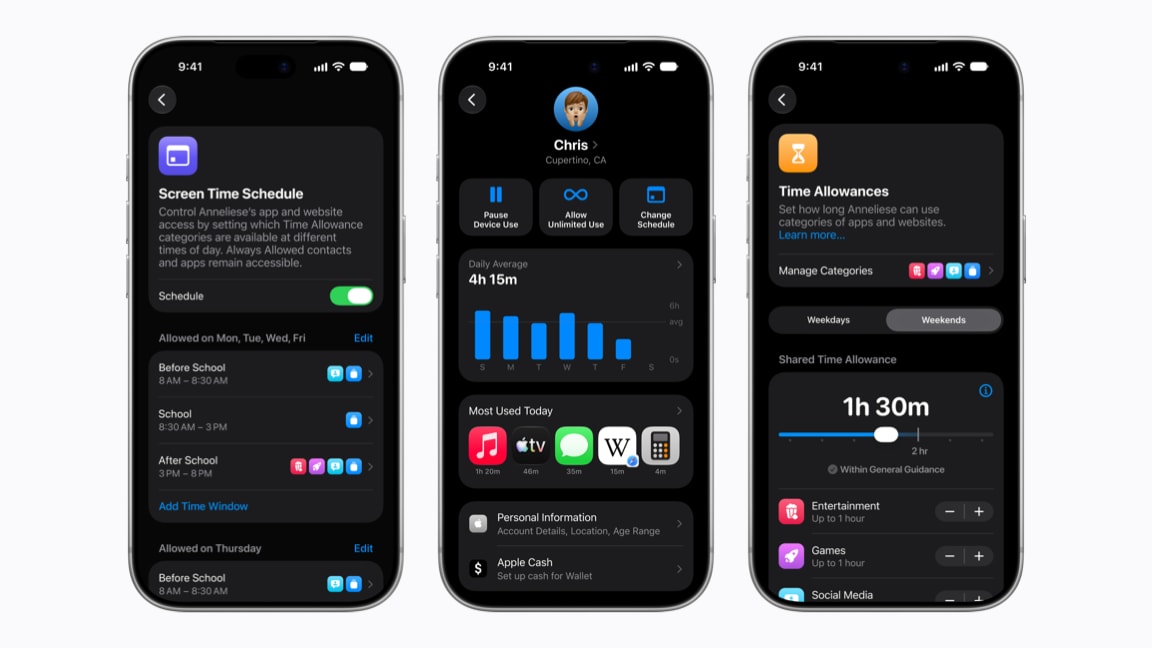
This is where iOS 27's biggest change lives.
Time Allowances
Time Allowances set a shared amount of time across app categories like Entertainment, Games and Social Media. The best part is the starting point: iOS 27 suggests an age based allowance informed by research from the AAP and others, and shows whether your adjustments still fall within general guidance. Open your Family Sharing settings, choose your child, and tap Time Allowances.
Screen Time Schedules
Schedules control which apps work at different times of day. Apple includes built in windows like Before School, School and After School, with separate routines for weekdays and weekends, and you can create your own for early dismissal days or practice nights. Find it under your Family Sharing settings, your child's name, then Screen Time Schedule.
The guide also recommends screen free times and places, like meals and bedrooms. No setting enforces a phone charging in the kitchen overnight, but it often does more for sleep than any schedule.
Step 5: Manage Who They Talk To
Allowed Contacts
You decide who your child can reach through Phone, Messages and FaceTime, and the same list applies to third party apps that ask for their contacts. You can require approval before they connect with anyone new. For older kids, there's a useful middle setting that allows group chats as long as at least one approved contact is in the group, so a teen isn't left out of the class chat. Contact management is on by default for children under 13 with a Child Account and can be turned on for older kids. Set it up under your Family Sharing settings, your child's name, then Allowed Contacts.
Communication Safety
Communication Safety is on by default for anyone under 18. If it detects nudity in a photo or video your child receives or tries to send, it blurs the image and offers guidance and resources, including the option to reach out to someone they trust. In iOS 27 it also blurs gore and violent content, and the protection now extends to live FaceTime calls. It works in Messages, FaceTime, AirDrop and Contacts, depending on the device.
Step 6: Revisit the Plan
The last step is the easiest one to forget. As kids grow, their needs change, and the recommended allowances change with age. The AAP suggests a check in about a month after you set things up, with simple questions like what's working and what isn't. As your child gets older, review their Screen Time settings together and raise their allowances. Talking through what's set and why is how kids learn to manage screen time on their own.
Where to Find the Full Guide
Apple's complete guide, including the AAP's guidance and step by step instructions, is free at support.apple.com/guide/aap-apple. For a full rundown of every new parental control in iOS 27, see our guide to the child safety features Apple previewed in June.
If your child's device is a hand me down or their first iPhone, it's also worth knowing how AppleCare One Family covers every device in the house. Kids and cracked screens tend to find each other.
The Short Version
- Update every device in your Family Sharing group to version 27 first.
- Set up a Child Account. Never hand down a device that's still signed in to yours.
- Use Ask to Buy for apps and the new Ask to Browse for websites.
- Start with Apple's suggested Time Allowances and add Screen Time Schedules for school days and bedtime.
- Limit contacts with Allowed Contacts. Communication Safety is already on for anyone under 18.
- Check in after a month, and loosen the rules as your child shows they can handle it.