




Part of Hidden in Plain Sight, our series on Apple features that already shipped and already work, sitting one tap away in apps you already use.
How many texts from numbers you don't recognize have landed on your Lock Screen this month? A package that can't be delivered, a toll you supposedly owe, a "wrong number" who wants to keep chatting. Each one buzzes your phone exactly like a message from your sister would. Since iOS 26, Messages can send those texts to a folder of their own, and Apple's iPhone User Guide for iOS 27 still covers it. It's called Screen Unknown Senders.
It's easy to miss. The setting is off by default, unless you had the older Filter Unknown Senders option turned on in iOS 18, in which case your iPhone carried that choice over. The switch also sits behind the Filters button in the Messages conversation list, a menu most people only open by accident.
What Screen Unknown Senders does
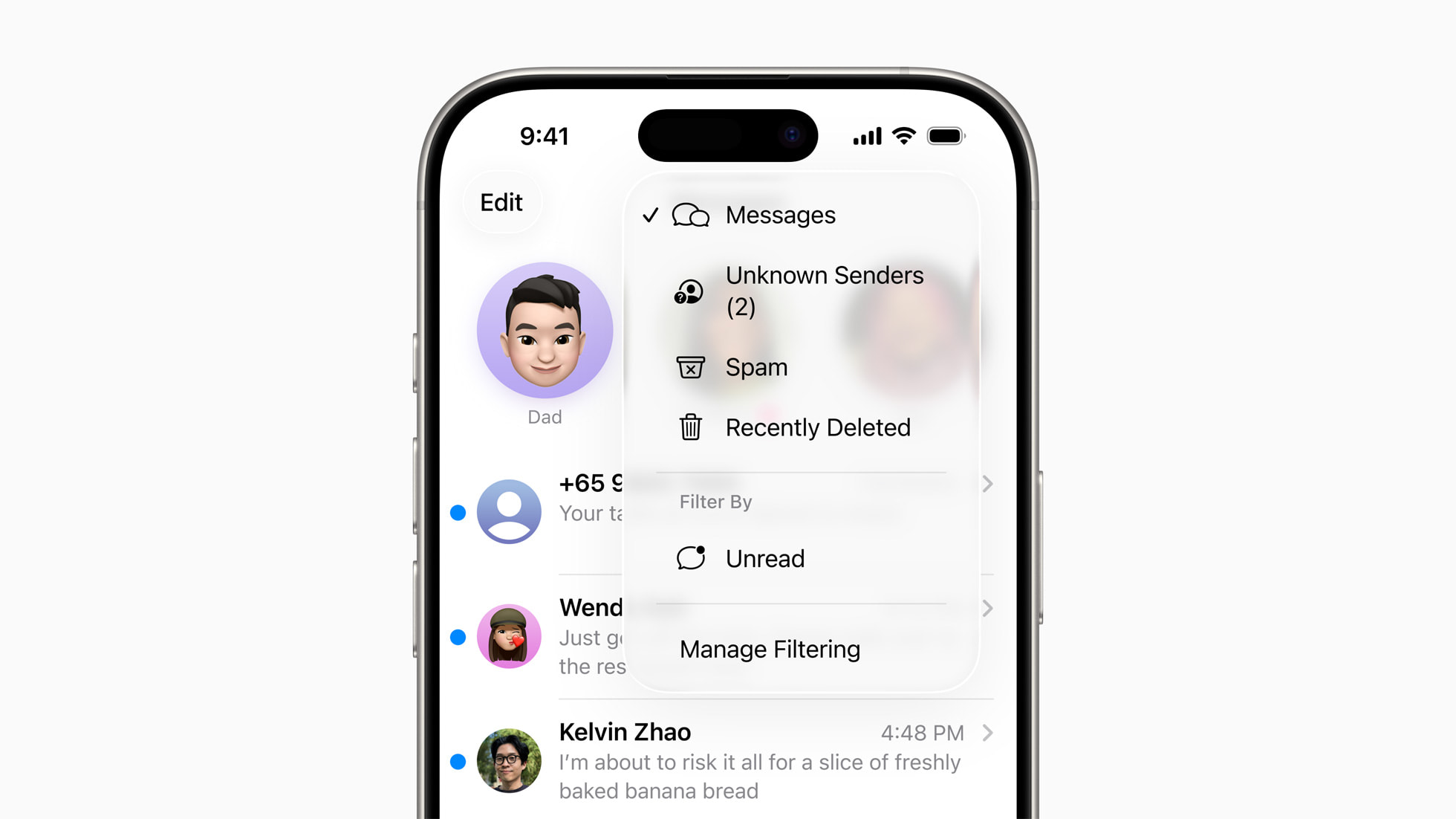
With the setting on, a message from an unknown sender skips your main conversation list and goes to a separate Unknown Senders filter. Apple treats someone as unknown if they aren't in your contacts or if you haven't interacted with them in Messages before. A badge tells you when something new is waiting in that filter, and depending on your region, you can choose which kinds of those messages still notify you.
Nothing gets deleted. You can open Unknown Senders any time and read every message in it. Apple's iPhone User Guide says marking a sender as known, or adding them to Contacts, is what moves their messages into your conversation list and lets you open their links and see any images that arrived blurred. Replying once doesn't mark them as known, so a thread you answered stays in Unknown Senders.
Obvious junk takes a different route. In iOS 26 and later, Filter Spam is on by default and sends messages identified as spam to a Spam folder without a notification.
How to turn it on
- Open Messages.
- In the conversation list, tap the Filters button.
- Tap Manage Filtering.
- Scroll to Unknown Senders and turn on Screen Unknown Senders.
The same switch lives in Settings. Tap Apps, tap Messages, then scroll down to Unknown Senders.
To see what got filtered, tap the Filters button again and choose Unknown Senders. If you recognize someone, open the conversation and tap Mark as Known. You can also tap the sender's phone number or email address at the top of the conversation and choose Create New Contact. Until you do one of those, anything new from that sender keeps going to Unknown Senders.
Tips that make it work better
Leave Time Sensitive on. Verification codes, alerts and urgent requests fall into this category, and Apple turns notifications for it on by default. Switch it off and the sign in code you just requested could end up waiting in a folder while you stare at a login screen.
Choose the other categories on purpose. In Settings, tap Apps, tap Messages, scroll to Unknown Senders and tap Allow Notifications. Besides Time Sensitive, you can turn on Personal, Transactions or Promotions. Messages you allow will notify you and appear in your conversation list for eight hours, then move to Unknown Senders. Turning on Transactions is handy the week you're waiting on a delivery from a courier you've never texted with.
Turn on Text Message Filter as well. It sits on the same Manage Filtering screen and sorts SMS, MMS and RCS messages from unknown senders about Transactions and Promotions, along with any third party message filtering extensions you've installed.
Save new people as contacts right away. If a new dentist's office or your kid's coach texts you, add them to Contacts from the conversation. One reply doesn't mark them as known, so their next message would land in the filter again.
What to know before you rely on it
You need iOS 26 or later. Apple's iPhone User Guide for iOS 27 lists the same Manage Filtering steps.
Notification choices depend on where you live. Apple says messages from unknown senders send notifications by default in most countries and regions, and that people in the United States, Brazil and India can choose which types of unknown sender messages notify them. If your Allow Notifications screen looks different from what's described here, your region is the likely reason.
The filter has a few gaps worth knowing. It doesn't apply to anyone you've replied to three times or more, so a number you've gone back and forth with will keep reaching your main list. It also isn't a block, since messages still arrive and wait for you. For a sender who won't stop, block and report them instead. And once you mark someone as known, Apple notes that the contact can then reach you across communication apps, so only mark people you actually want to hear from.
If you want something stricter, the iPhone User Guide suggests Screen Time, which can allow messages only from your contacts.
Turn it on, then check Unknown Senders every few days for the occasional real message, like an appointment reminder from a clinic you haven't saved yet.
More from Hidden in Plain Sight: how Call Screening stops unknown callers before your phone rings, letting Hold Assist wait on hold for you, and getting answers from a group chat with polls in Messages.
Hidden in Plain Sight
Members vote in one tap. The winner gets the next guide in the series.
Which hidden feature should we explain next?



Comments