


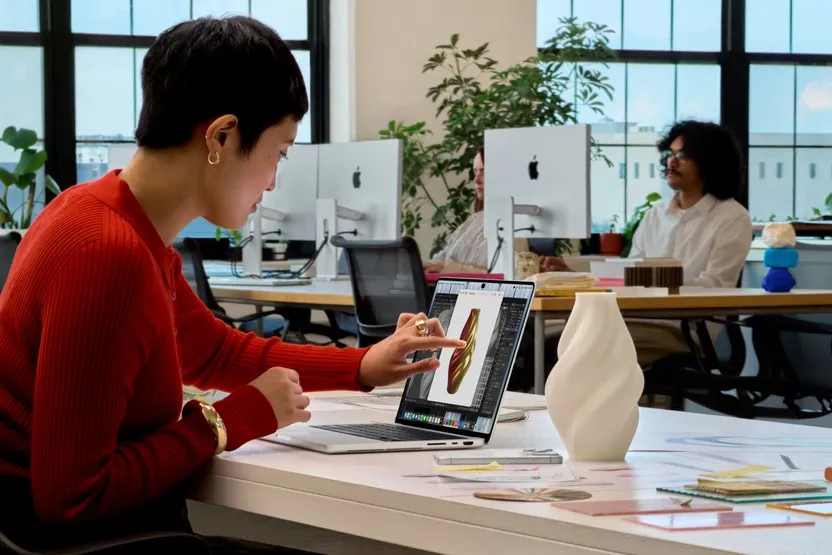


The MacBook Pro with PROLED XDR Display has been in stores since Friday, November 6, and it's the first Mac you can poke. Out of the box it behaves like any MacBook Pro with a screen that also answers to your finger, a glowing Apple logo on the lid and a Dynamic Island at the top. Most of that is good. Some of it you'll want to adjust, and a couple of the switches aren't where you'd look first.
These are the settings worth ten minutes on day one. Everything here is in macOS Golden Gate 27.2, which the new MacBook Pro ships with.
Tune the Touch Gestures
Touch gets its own pane in System Settings. Open System Settings and scroll the sidebar to Touch Display. That's where the Multi-Touch gestures for the screen live, and you can turn off any you don't want.
The screen understands the same gestures as the trackpad: three fingers up for Mission Control, three fingers sideways to switch Spaces, pinch to zoom, swipe to scroll. Double tap a window to fill the screen, or flick it to tile it. If you keep triggering Mission Control while resting a hand on the display, this is the pane that fixes it.
Turn Touch Off Completely
Plenty of people bought this Mac for the OLED panel and never plan to touch it. Apple builds the touch sensor into every PROLED XDR display, so there's no touch free version, but you can switch it off in software:
- Open System Settings and click Accessibility.
- Under Physical and Motor, click Touch.
- Turn on Ignore Touch Gestures.
The screen stops responding to fingers right away, and the keyboard and trackpad work as they always have. The same switch also turns off touch on an iPad you use as a second screen with Sidecar, so keep that in mind if you draw on your iPad with Sidecar. Bonus: no more accidental taps when you adjust the lid, and fewer fingerprints.
Fix Touches That Register Wrong
If the screen picks up brushes you didn't mean, or misses taps, look at Touch Accommodations in the same Accessibility, Touch section, which changes how the screen responds to your touches. AssistiveTouch is there too, for anyone who finds multi finger gestures hard and wants them on a floating menu instead.
Accessibility also has Display Zoom, off by default, which lets you pinch to zoom into any part of the screen to make small text and controls bigger.
Pick the Right Display Preset
The default preset is fine for most people. If you edit photos or video, or you just want colors that match a reference, choose one that fits the work:
- Open System Settings and click Displays.
- Click the Preset pop-up menu and choose an option.
Photographers will want Photography (P3 D65), print work belongs on Design & Print, and anyone building for the web can check pages in Internet & Web (sRGB). Video editors get HDR Video and HDTV Video modes. The PROLED XDR models also list two Medical Imaging presets. Apple says those are for medical professionals and shouldn't drive diagnosis unless the display is calibrated and paired with a compatible DICOM viewer, so leave them alone otherwise.
Refresh rate is handled for you. ProMotion moves between 10Hz and 120Hz depending on what's on screen, which is part of how Apple gets up to 24 hours of battery life out of it.
Switch Off the Glowing Apple Logo
The lit Apple logo is back on the lid for the first time in a decade, and it's on whenever the Mac is awake. Its brightness follows the screen and the room, dimmer in a dark room and brighter in a bright one. There's no switch for it in System Settings. Apple's support document uses Terminal instead, and you'll need an administrator account.
To turn the logo off, open Terminal (it's in Applications, Utilities, or search Spotlight), paste this and press Return:
sudo defaults write com.apple.CoreBrightness LEBacklightMode -int 0Type your Mac password when asked. Terminal doesn't show it as you type, so just press Return when you're done. The logo goes dark immediately and stays off for every account on the Mac.
To bring it back:
sudo defaults delete com.apple.CoreBrightness LEBacklightModeReinstalling macOS also turns the logo back on, so you'll need to run the first command again after a reinstall. If you'd rather adjust the logo than kill it, the third party app Backglow can customize it.
Get the Most Out of the Dynamic Island
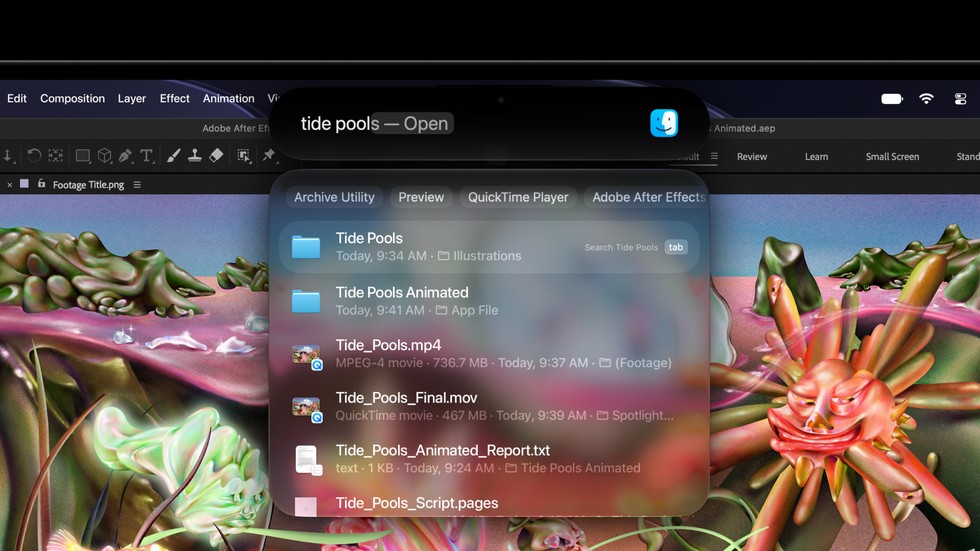
The Dynamic Island shows Live Activities from Mac apps, like a running timer, a song playing or a screen recording, and you can tap one to act on it, such as pausing music or accepting an AirDrop. It's also home to Siri AI.
One catch: Spotlight only moves into the Dynamic Island when Siri AI is available and turned on. If you skipped Siri AI during setup and want search up there, turn it on in System Settings under Apple Intelligence & Siri. With Siri AI off, Spotlight works the way it always has.
One Thing You Can't Change Yet
Touch works with fingers only. There's no Apple Pencil support on the Mac, and third party styluses don't work either, so if you draw for a living, an iPad is still the tool for that. Some games that handle their own input, mostly ones that started life on Windows, also ignore touch.
If you're still deciding which model to get, our MacBook Pro buying guide lays out the PROLED XDR models next to the rest of the lineup, and our launch coverage has the full spec rundown.
Which did you change first, the gestures or the logo? Tell us in the comments.


Comments